Back to IB SL Curriculum

A1. Computer Fundamentals

THEME A: SYSTEM FUNDAMENTALS

Topic Overview

A1.1.1: Describe the functions and interactions of the main components of the Central Processing Unit (CPU).

The Central Processing Unit (CPU) is the "brain" of the computer. It is responsible for retrieving and executing instructions. To do this, it relies on several key sub-components working together in perfect harmony.

1. Main CPU Components

Arithmetic Logic Unit (ALU)

Performs all calculations and logical operations.

  • Arithmetic: Addition, Subtraction, etc.
  • Logic: AND, OR, NOT comparisons (e.g., is A > B?).

Control Unit (CU)

Coordinates the activities of the CPU.

  • Decoding: Decodes instructions.
  • Execution: Directs data flow and operation execution.
  • Clock: Synchronizes operations.

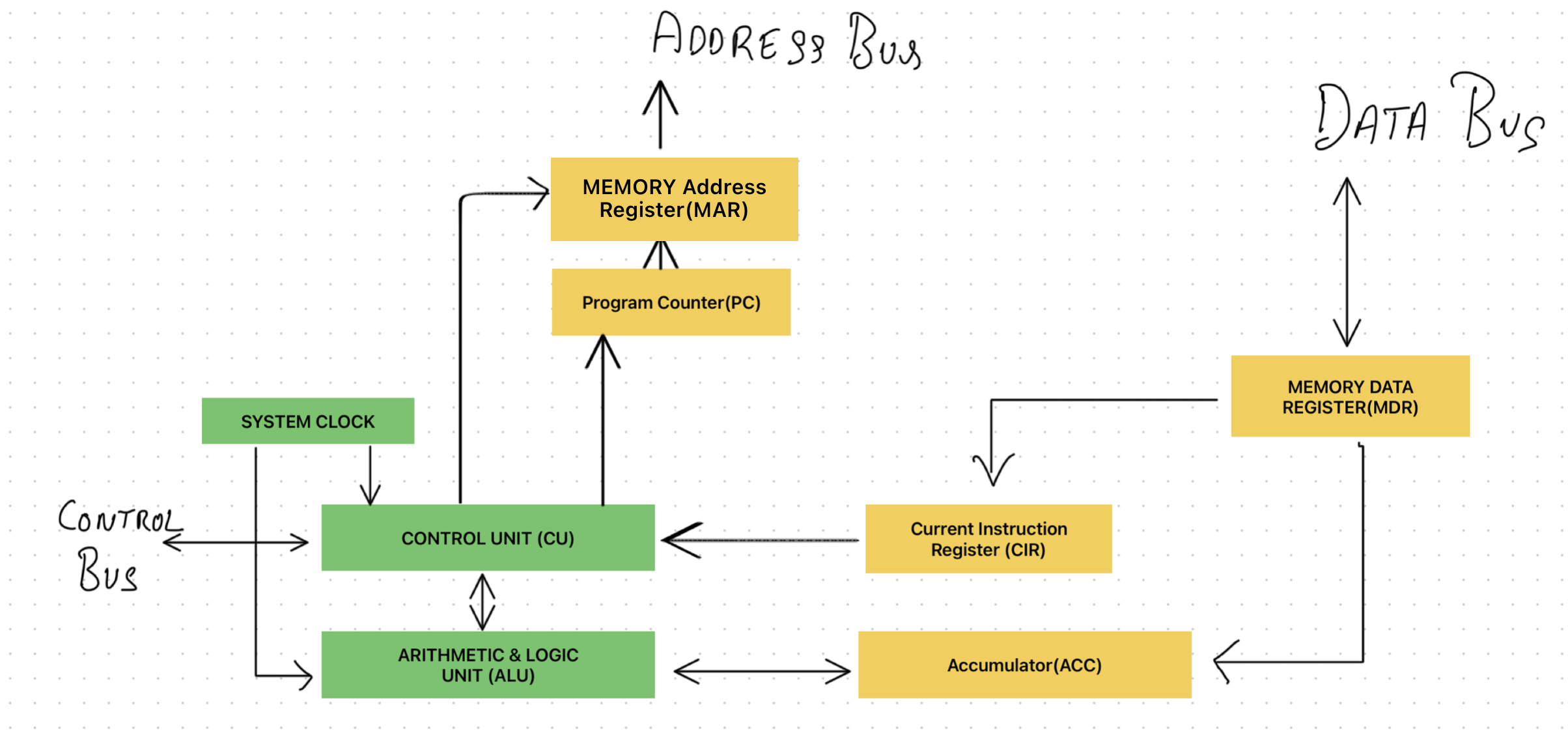
Note: Use this diagram in case the exam asks you to draw components of the Von Neumann architecture.

Detailed diagram of Von Neumann architecture components for exam drawing reference

Instruction Set Architecture (ISA)

The element of the CPU that specifies the commands that a processor can understand and execute, such as arithmetic operations, data handling, and control instructions.

SIMD Instructions

Single Instruction, Multiple Data instructions allow a single operation to be applied simultaneously to a large set of data. This is ideal for the parallel nature of graphics processing and tasks in scientific computing and deep learning.

2. Registers

Registers are small, extremely fast memory locations inside the CPU. They hold data temporarily while instructions are being executed.

Memory Access Registers

MAR (Memory Address Register)

Holds the address of the memory location currently being read from or written to.

MDR (Memory Data Register)

Holds the data fetched from memory or data waiting to be written to memory.

Also known as MBR (Memory Buffer Register).

Instruction Control Registers

PC (Program Counter)

Holds the address of the next instruction to be fetched.

CIR (Current Instruction Register)

Holds the current instruction being decoded and executed.

Arithmetic Results

ACC (Accumulator)

Holds the result of calculations performed by the ALU.

3. System Buses

Buses are the electrical pathways (wires) that connect the CPU to main memory and other components.

Bus NameDirectionFunction
Address BusUnidirectional (CPU → Memory)Carries the address of the memory location to be accessed.
Data BusBidirectional (CPU ↔ Memory)Carries data and instructions between the CPU and memory.
Control BusBidirectionalCarries control signals (e.g., Read, Write, Clock pulses) to coordinate activity.

4. Graphics Processing Unit (GPU)

What is a GPU?

A Graphics Processing Unit (GPU) is a specialized electronic circuit designed to handle graphics rendering and other computationally intensive tasks efficiently. Unlike a CPU, which is optimized for general-purpose, sequential processing, a GPU is optimized for highly parallel processing, allowing it to perform thousands of operations simultaneously.

Primary Role of a GPU

  • Rapidly manipulate and process graphical data.
  • Generate images for output to a display device.
  • Offload graphics-related tasks from the CPU.

This allows the CPU to focus on general program execution while the GPU handles graphics-heavy workloads.

CPU vs GPU

CPU

  • • Few powerful cores.
  • • Optimized for sequential processing.
  • • Handles logic, control, and general-purpose tasks.

GPU

  • • Thousands of smaller cores.
  • • Optimized for parallel processing.
  • • Handles graphics, image processing, and large data sets.

Features and Characteristics

Parallel Processing Capability

GPUs divide tasks into many smaller subtasks which are processed simultaneously by multiple cores.
Example: Applying a filter to an image by processing many pixels at the same time.

High Throughput

Designed to process large volumes of data per second. Essential for real-time rendering in video games and simulations where thousands of pixels are processed concurrently.

High-Speed Dedicated Memory (VRAM)

Uses Video RAM (VRAM) to store textures, models, and frame buffers, enabling smooth rendering of high-resolution images and complex scenes.

Types of GPUs

Integrated GPU

  • Built into the CPU.
  • Shares system memory (RAM).
  • Lower performance; common in laptops.

Discrete GPU

  • Separate hardware component (Graphics Card).
  • Has its own VRAM.
  • Much higher performance; used in gaming and AI.

Real-World Applications

Graphics Rendering

Video games (lighting, shading, textures), animations, and 3D modeling.

AI & Machine Learning

Deep learning training involves large matrix multiplications which are highly parallelizable.

Scientific Computing

Physics simulations, climate modeling, and genome sequencing.

Video Editing

Real-time previews, faster rendering, and complex effects.

5. CPU vs GPU Differences

Design Philosophy

CPU: Flexibility & Low Latency

Designed for general-purpose tasks. Prioritizes completing individual tasks quickly (low latency) using fewer but more powerful cores with large caches and complex logic.

Ideal for: OS, Browser, Office Apps.

GPU: High Throughput

Designed for massive parallelism. Prioritizes processing large volumes of data simultaneously (high throughput) using thousands of simpler cores (SIMD).

Ideal for: Rendering, ML, Simulations.

Core Architecture

FeatureCPUGPU
Core CountFew powerful coresHundreds/Thousands of small cores
Instruction SetComplex, supports branchingSimple, SIMD (repetitive)
Processing PowerHigh clock speed, low latencyLower clock, high total throughput
Memory AccessLow latency (Caches)High bandwidth (VRAM)

Power & Efficiency

CPU Efficiency

Measured in performance per watt. Uses dynamic scaling to handle varied workloads efficiently.

GPU Efficiency

High power consumption overall, but more efficient than CPUs for parallel tasks due to distributed workload.

Working Together

Analogy

CPU = Head Chef (Planning)  |  GPU = Line Cooks (Execution)

  • Task Division: CPU handles OS and control logic; GPU handles pixel processing and matrix math.
  • Data Sharing: Data moves from RAM to VRAM via PCIe bus. Unified memory can reduce this bottleneck.
  • Coordination: APIs like CUDA and OpenCL manage task scheduling and synchronization.

6. Primary Memory

Primary memory is the computer's working area. It stores data and instructions that the CPU needs immediately. Efficient primary memory is crucial for high system performance. It consists of Registers, Cache, RAM, and ROM.

Registers

Small, super-fast memory locations inside the CPU. They hold data temporarily while instructions are being executed.

RAM (Random Access Memory)

RAM is the computer's temporary workspace where data and programs are stored while the computer is running. Think of it as the computer's "desk".

  • Stores active programs: When you open an app, it loads into RAM for quick CPU access.
  • Holds data being processed: The CPU reads/writes data to RAM during calculations.
  • Enables multitasking: Multiple programs run simultaneously by sharing RAM space.
  • Volatile: Data is lost when power is off.
  • Fast access: Much faster than secondary storage (HDD/SSD).

DRAM vs. SRAM

AspectDRAM (Dynamic RAM)SRAM (Static RAM)
How it worksUses capacitors (needs constant refreshing).Uses flip-flops (no refreshing needed).
SpeedSlower (50-100 ns)Faster (1-10 ns)
Cost & DensityCheaper, Higher Density (Main Memory)Expensive, Lower Density (Cache)
UsageMain System RAMCPU Cache (L1, L2, L3)

ROM (Read-Only Memory)

ROM stores permanent, essential instructions needed for startup (Non-volatile).

  • Stores BIOS: Fundamental instructions to initialize hardware.
  • Boot Process: Tells the CPU how to load the OS from the hard drive.
  • Non-volatile: Retains data even when the computer is turned off.
  • Read-Only: Cannot be easily modified by users.

Interaction between CPU and Memory

Cache Memory (L1, L2, L3)

Hierarchical Use

Cache memory serves as a high-speed intermediary between the CPU and the slower main memory (RAM). It is divided into levels (L1, L2, L3) based on proximity to the CPU, with L1 being the smallest and fastest, and L3 being larger and slightly slower but still faster than RAM.

Data and Instruction Prefetching

Modern CPUs use sophisticated algorithms to predict which data and instructions will be needed soon, and pre-emptively load them into the cache. This anticipatory action reduces the time the CPU spends waiting for data, thus optimizing performance.

Spatial and Temporal Locality

Caches exploit the principles of spatial locality (data near recently accessed data is likely to be accessed soon) and temporal locality (recently accessed data is likely to be accessed again soon) to keep relevant data close at hand.

Main Memory (RAM)

Central Data Repository

RAM holds the operating system, applications, and data that are currently in use. It provides a much larger space for data storage compared to caches and registers.

Interaction through Memory Controller

The CPU interacts with RAM via the memory controller, a chipset that manages data transactions between the CPU and RAM. This controller plays a critical role in managing access times and optimizing the flow of data.

Virtual Memory

The system can use a portion of the hard drive (or SSD) as virtual memory (see below).

Virtual Memory

Virtual Memory is a technique that extends RAM capacity by using part of the hard disk or SSD as additional memory. When RAM is full, data is swapped between RAM and virtual memory, allowing the system to run larger applications.

✅ Paging

  • RAM and programs are divided into fixed-size blocks called pages.
  • Only needed pages are loaded into RAM.
  • Unused pages are moved to the HDD/SSD (Swap Space).
  • Benefit: Allows running programs larger than physical RAM.

❌ Disk Thrashing

  • Occurs when the system spends more time swapping pages than executing instructions.
  • Cause: Too many open programs (RAM overload).
  • Result: Major performance slowdown and high disk usage.

Analogy: The Desk & Backpack

"If you only have a small desk (RAM) and too many open books, you keep swapping books in/out of your backpack (HDD). You spend more time swapping than reading — that's thrashing!"

Read-Only Memory (ROM)

Boot-up Process

ROM is non-volatile memory containing the firmware or BIOS necessary for the initial booting of the computer. The CPU accesses this read-only data at startup to load the operating system from secondary storage (HDD/SSD) into RAM.

Cache Miss vs. Cache Hit

The CPU first checks RegistersL1L2L3RAM.

Cache Hit

The CPU finds the data it needs in a cache. This is the fastest case.

Cache Miss

The data is not found in cache. The CPU must fetch from slower main memory.

Minimizing Cache Misses
  • Prefetching: Predicting and checking data before it is needed.
  • Memory Allocation: OS allocates data based on usage patterns to maximize hits.
  • Cache Replacement Policies: Intelligent decisions on what data to evict when cache is full (e.g., LRU).
By optimizing the interaction between the CPU and different types of memory, the system significantly improves performance.

6. The Fetch-Decode-Execute Cycle

The Fetch-Decode-Execute cycle (Instruction Cycle) is the fundamental process by which a CPU executes instructions stored in memory. It repeats continuously billions of times per second.

Conceptual Model of Memory (RAM)

To understand the cycle, imagine memory as a list of addresses containing data or instructions.

AddressContent
0142
0269
03LOAD 01
04ADD 01, 02
05STORE 04, 03

1. Fetch Phase

The CPU retrieves the next instruction from memory.

  1. PC → MAR: Address from Program Counter copied to Memory Address Register.
  2. Fetch: CPU sends Read signal; content at address sent via Data Bus to MDR.
  3. MDR → IR: Instruction copied to Instruction Register.
  4. PC + 1: Program Counter incremented for next cycle.

2. Decode Phase

The Control Unit interprets the instruction in the IR.

  • Opcode: What action to perform (e.g., ADD, LOAD).
  • Operand: What data to use (e.g., value at address 01).

Common Instructions:

  • MOV: Move data from one location to another.
  • ADD: Add two operands.
  • SUB: Subtract one operand from another.
  • MUL: Multiply two operands.

3. Execute Phase

The CPU carries out the instruction.

  • ALU: Performs arithmetic/logic (ADD, SUB, AND).
  • Memory: LOADs data to register or STOREs result to RAM.
  • Control: Jumps to new address (modifies PC) if needed.

Worked Examples

Example 1: ADD R1, R2, R3

(Add R2 + R3, store in R1)

  • Fetch: Get instruction.
  • Decode: Identify ADD, Source(R2, R3), Dest(R1).
  • Execute: ALU adds R2+R3, result saved to R1.

Example 2: CMP R1, R2

(Compare R1 and R2)

  • Fetch: Get instruction.
  • Decode: Identify Compare.
  • Execute: ALU subtracts R2 from R1 to set status flags (Zero, Negative, etc). PC updated.

7. Pipelining in Multi-Core Architectures

Pipelining improves overall system performance by allowing multiple instructions to be processed simultaneously at different stages. Instead of waiting for one instruction to complete the entire cycle before starting the next, the CPU overlaps the stages.

The Pipelined Cycle

1. Fetch

Instruction retrieved from memory.

2. Decode

Instruction interpreted.

3. Execute

Operation performed (ALU).

4. Write-Back

Result written to memory/register.

Cores Working Independently

  • Each core handles a separate task or application (e.g., Core 1 runs the OS, Core 2 plays Music).
  • They have their own Registers and L1 Cache to work without interference.
  • The OS schedules these independent threads.

Cores Working in Parallel

  • Multiple cores work on a single complex task (e.g., rendering a video frame).
  • The task is split into sub-tasks (Core 1 handles top-left pixels, Core 2 handles top-right).
  • Requires coordination via Shared Memory (L2/L3).

Coordination & Cache Coherency

When working in parallel, cores often share data. Cache Coherency ensures that if Core 1 changes a value in memory, Core 2 sees the update immediately, preventing data corruption.

Theory of Knowledge (TOK)

"What happens when several different people try to talk to you at the same time?"

This analogy highlights the complexity of concurrency. Just as you might struggle to listen to everyone, a computer needs strict protocols (like clocks and coherency) to manage simultaneous inputs without chaos.

9. Secondary Memory Storage

Secondary storage is non-volatile memory used for long-term storage of programs and data. It is not directly accessible by the CPU; data must move to RAM first.

Hard Disk Drive (HDD)

Magnetic storage using spinning platters and read/write heads.

  • Mechanism: Data stored in sectors and tracks on magnetic disks.
  • Latency: Delays caused by the mechanical arm moving to the correct sector.
  • Fragmentation: Files split across disk take longer to read.
  • Pros/Cons: Huge capacity, low cost/GB ↔ Slow, noisy, fragile (moving parts).

Solid State Drive (SSD)

Flash storage (NAND) with no moving parts.

  • Mechanism: Uses floating gate transistors to trap electrons (0/1 state).
  • Benefits: Silent, robust, much faster than HDD, low power.
  • Endurance: Dielectric coating degrades over time (limited write cycles).
  • Cost: More expensive per GB than HDD.

eMMC Storage

Embedded Multimedia Card: Storage integrated directly onto the motherboard.

  • Usage: Tablets, budget laptops, phones.
  • Performance: Slower than proper SSDs but faster than HDDs.
  • Pros: Low cost, power efficient, small footprint.

Optical Storage

Uses lasers to read pits and lands on a spiral track.

TypeLaserCapacity
CDRed (780nm)700 MB
DVDRed (650nm)4.7 - 8.5 GB
Blu-rayBlue (405nm)25 - 50 GB

Flash Memory / USB Drives

Portable solid-state storage using floating gate transistors. Data is stored by forcing electrons through a dielectric barrier ("flashing"). Ideal for transferring files securely.

10. Data Storage & Compression

Metadata

Metadata is "data about data". It provides information about a file's properties without being part of the actual content (e.g., the label on a can, not the soup inside).

Examples of Metadata

  • Image: Resolution (1920x1080), Color Depth (24-bit), Date Taken, GPS Location.
  • Audio: Artist, Title (ID3 tags), Bit Rate, Sample Rate.
  • Document: Author, Word Count, Date Created, Last Modified.

Why is it Important?

  • Organization: Helps search and sort files.
  • Identification: Proves origin and copyright.
  • Compatibility: Tells software how to interpret the file.

File Compression

Compression reduces file size to save storage space and increase transmission speed.

Why Compress? (Exam Keywords)

  • Reduce storage costs (Cloud/HDD).
  • Faster file transfer (Upload/Download).
  • Lower bandwidth usage (Streaming).
  • Meet email attachment limits.

Lossless vs. Lossy Compression

FeatureLosslessLossy
Data IntegrityPreserved (Reversible)Lost (Irreversible)
File SizeModerate Reduction (e.g. 50%)Significant Reduction (e.g. 90%)
Use CasesText, Code, Medical Images (PNG, ZIP)Web Images, Streaming (JPEG, MP3)

Deep Dive: Run-Length Encoding (Lossless)

RLE replaces repeating sequences of data with a count and a value. It works best on simple images with large areas of the same color.

Example 1: Black & White (1-bit)

Row Data: BBBBBBBW (8 pixels)

0 = Black, 1 = White

RLE: 7, 0 | 1, 1
"7 Blacks, then 1 White"

Note: For small/complex images, RLE can actually INCREASE file size (overhead).

Example 2: Color (RGB)

Row Data: RRRRGGBB

RLE: 4,R | 2,G | 2,B
Stores (Count, Red, Green, Blue) tuples.

Compression Ratio: Original Size / Compressed Size

MP3 (Audio)

Removes frequencies humans cannot hear (Perceptual Music Shaping). Reduces size by ~90%.

JPEG (Image)

Splits image into 8x8 blocks and removes imperceptible color details. Good for photos, bad for text.

MP4 (Video)

Compresses Audio/Video/Text. Widely used for streaming (Netflix/YouTube).

11. Cloud Computing Services

Cloud computing allows organizations to access computing resources (servers, storage, databases) over the internet. Instead of owning physical hardware, they pay only for what they use.

Service Models: SaaS, PaaS, and IaaS

SaaS

Software as a Service

Delivers fully functional software applications over the internet. Users access the app via a browser with no installation required. Designed for ease of use and everyday productivity.

Provider Manages:
  • The entire application & data.
  • OS, Servers, Storage, Networking.
  • Updates and Security patches.
User Responsible For:
  • Using the software.
  • Managing their own data within the app.
PaaS

Platform as a Service

Provides a development environment (platform) for building, testing, and deploying applications. Developers focus on coding without worrying about the underlying servers.

Provider Manages:
  • Runtime Environment & Middleware.
  • OS, Servers, Storage, Networking.
User Responsible For:
  • Application Code & Logic.
  • Application Configuration & Data.
IaaS

Infrastructure as a Service

Provides virtualized computing resources (VMs, storage) over the internet. Offers the greatest flexibility and control, resembling traditional on-premises hardware.

Provider Manages:
  • Physical Data Centers.
  • Physical Hardware & Networking.
  • Virtualization Layer.
User Responsible For:
  • Operating System (OS).
  • Installed Apps, Data, & Config.

Comparison: Who Manages What?

LayerSaaSPaaSIaaS
Applications & DataProviderUserUser
Runtime / MiddlewareProviderProviderUser
OS & VirtualizationProviderProviderUser / Prov
Physical HardwareProviderProviderProvider

Trend: As you move from SaaS → IaaS, user control increases, but so does responsibility.

Real-World Scenarios

SaaS Usage

Organizations prioritizing reliability and ease of use.

  • Email (Gmail, Outlook)
  • Collaboration (Slack, Zoom)
  • CRM (Salesforce)
PaaS Usage

Developers needing efficiency for building apps.

  • Web App Development
  • API & Backend Services
  • Rapid Prototyping
IaaS Usage

Complex requirements needing full control.

  • Hosting Custom Enterprise Apps
  • Running Legacy Software
  • High-performance Computing

Summary of Services

ModelExample ProvidersTypical Services
SaaSGoogle Workspace, Microsoft 365, SalesforceEmail, Document Editing, CRM
PaaSGoogle App Engine, Heroku, Azure App ServiceApp Hosting, Dev Environments, Managed Databases
IaaSAWS EC2, Google Compute Engine, Azure VMsVirtual Machines, Storage, Networking

Theory of Knowledge (TOK)

"How does the paradigm of cloud computing challenge traditional notions of resource allocation?"

Organizations asked: Why pay for resources we aren't using? Just like water or electricity utilities, the cloud shifted technology from a capital expense (buying servers) to an operating expense (paying for usage).

Cloud Deployment Models

Public Cloud

Resources owned by a provider (e.g., Google, AWS) and shared by multiple organizations.

Pros: Low cost, scalability.

Private Cloud

Infrastructure dedicated to a single organization, often for security or compliance.

Pros: Control, security.

Hybrid Cloud

Combines public and private clouds, allowing data to move between them as needed.

Pros: Flexibility.

🔒 Security Implications

  • Data Breaches: Risk of sensitive data exposure on shared servers.
  • Third-party Access: Provider employees technically have physical access to data.
  • Data Loss: Risk of data loss if the provider fails (without backups).
  • Compliance: Storing data in different countries might violate privacy laws (e.g., GDPR).
  • Dependency: Reliance on internet connection and provider availability.

Exam Corner

(a) Describe the function of the Memory Address Register (MAR). [2]

Mark Scheme / Answer:

  • Holds the address...
  • ...of the memory location currently being accessed (read from or written to).

(b) Explain how the Data Bus and Address Bus differ. [4]

Mark Scheme / Answer:

  • Direction: Address bus is unidirectional (CPU to Memory), whereas Data bus is bidirectional (Two-way).
  • Content: Address bus carries location addresses, whereas Data bus carries the actual data/instructions.

(c) Explain why GPUs are suitable for graphics rendering. [4]

Mark Scheme / Answer:

  • GPUs contain thousands of cores.
  • They are optimized for parallel processing.
  • Many pixels can be processed simultaneously.
  • This allows fast rendering of complex graphics in real time.

(d) Explain why CPUs and GPUs are suited to different types of tasks. [4]

Mark Scheme / Answer:

  • CPUs are optimized for flexibility and low latency (sequential tasks).
  • GPUs are optimized for high-throughput parallel processing.
  • CPUs handle control-intensive logic (like OS).
  • GPUs handle large-scale parallel data processing (like rendering).
Get in Touch
CodeHaven - Master Computer Science