4. Software
SECTION 1: THEORY FUNDAMENTALS
Important Note
These notes cover the main points for revision. They are great for reviewing key concepts, but for in-depth understanding, always keep your textbook nearby for reference.
Software is a collection of programs, data, and instructions that tell a computer how to perform specific tasks. It is the non-physical part of a computer system, enabling hardware to function.
Table of Contents
4.1 Types of Software and Interrupts
4.2 Programming Languages, Translators, and IDEs
4.3 Intellectual Property Rights (IPR)
4.1 Types of Software and Interrupts
4.1.1 System Software vs. Application Software
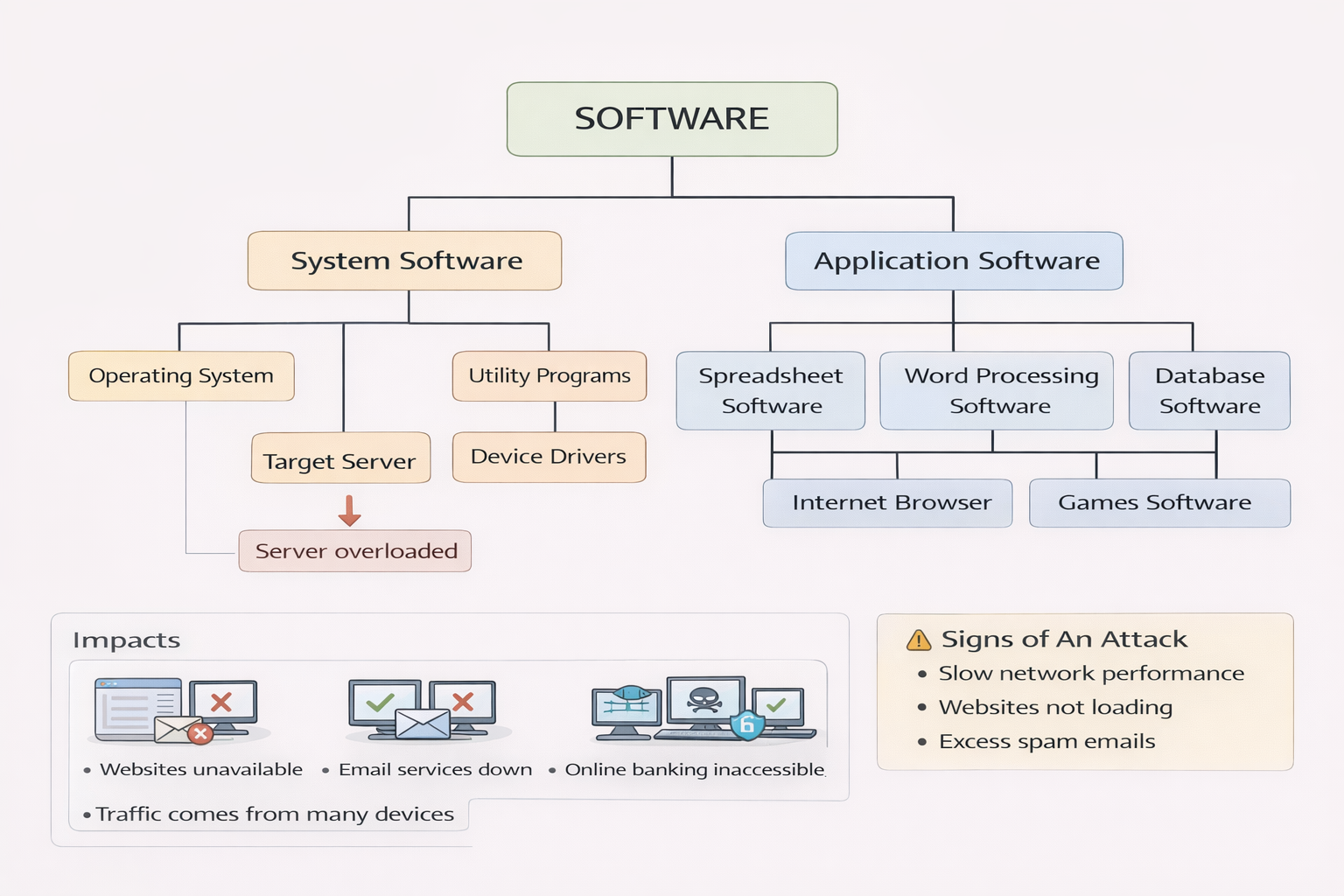
Computers need software to function. Software can be broadly categorized into:
- System Software
- Application Software
Both types are essential for efficient interaction between hardware and end-user tasks.
System Software
System software manages and controls computer hardware, acting as a bridge between hardware and user applications. It ensures resources are allocated properly and that the user can interact with the system seamlessly.
- •Provides a platform for other software to run
Operating System (OS)
An Operating System (OS) is the fundamental system software that manages computer hardware and software resources and provides a user interface to interact with the computer.
• Process Management
- - Allocates CPU time efficiently among processes
- - Handles execution of multiple programs efficiently
• Memory Management
- Allocating Memory to process - Manages RAM allocation to ensure smooth multitasking
- Memory Protection - Prevents processes from accessing memory allocated to other processes
• File System Management
- - Organizes files/directories
- File Operations: CREATE, OPEN, CLOSE, DELETE, RENAME, COPY, and MOVE
- Access Control & Security - Manages user permissions (read, write, execute)
- - Restricts unauthorized access and prevents accidental deletion
• Device Management
- - Communicates with peripherals using device drivers
- Managing Input/Output Queues and Buffers
• Security & Access Control
- - Manages user authentication
- - User Privileges and Access Controls
• User Interface
- - Provides GUI or CLI for user interaction
Utility Programs
Utility programs are system tools designed to optimize and maintain computer performance.
• Anti-Virus Software
- - Detects and removes malware
- - Potentially infected files are quarantined, allowing for safe deletion or cleaning
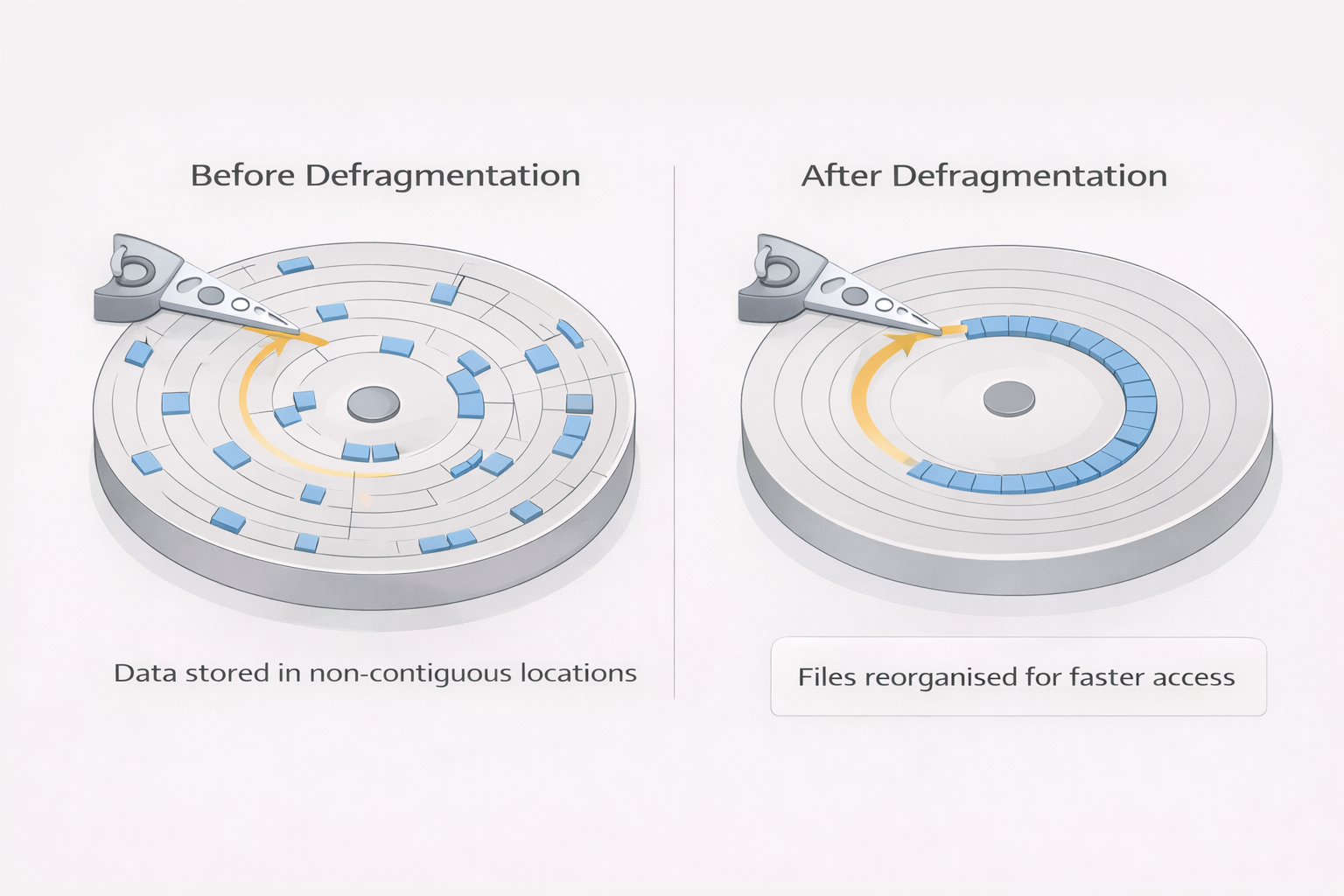
• Disk Defragmentation
- - Reorganizes fragmented files on HDDs into contiguous sectors
- - Improves file access speed and overall system efficiency
• Back-up Software
- - Automates regular back-ups to external or remote media
- - Can create "restore points" to revert system/files to a previous state if needed
- - Examples: Windows File History, MacOS Time Machine
• File Management
- Handles file storage, retrieval, organization, and backup
• Compression Software
- Reduces file size for easier storage and transmission
• System Monitoring Tools
- Tracks system performance and resource usage; detects potential issues
• Security Tools
- Protect data integrity; manage access control and user accounts (e.g., firewalls, encryption)
• Screensavers
- - Originally for preventing CRT "phosphor burn"
- - Now used mainly for security, personalization, or running background tasks (e.g., virus scans) during idle times
Device Drivers
A device driver is software that allows the OS to communicate with hardware devices (e.g., printers, graphics cards, USB drives).
• Hardware Interaction
- Ensures seamless communication between the OS and hardware
• Plug-and-Play Support
- Auto-installs and updates drivers for new devices
• Compatibility Management
- Ensures hardware works correctly with different OS versions
Application Software
Exam Tip: Always mention the category first before giving specific examples.
Application software is designed to help users perform specific tasks or functions.
Examples:
- • Word processors
- • Spreadsheets
- • Databases
- • Graphics software
- • Games
• Word Processing Software
- - For creating/editing text documents (e.g., essays, reports)
- - Examples: MS Word, Google Docs
• Spreadsheet Software
- - For organizing/manipulating numerical data in cells
- - Examples: MS Excel, Google Sheets
• Database Software
- - For storing, organizing, and analyzing large datasets (tables, records, fields)
- - Examples: MySQL, MS Access
• Graphics Software
- - For creating and editing images (raster or vector)
- - Examples: Adobe Photoshop, GIMP
• Control & Measuring Software
- - Interfaces with sensors for automated measurements and control (e.g., industrial systems)
- - Compares sensor data with stored data, and can send signals to alter processes
Apps (Mobile/Tablet Applications)
"Apps" are application software typically designed for mobile devices.
- - Downloaded from an "App Store"
- - Range from casual games to sophisticated tools (e.g., phone banking)
- - Examples: Video/music streaming, GPS navigation, Camera & photo manipulation
Specialized Editing Software
• Photo Editing Software
- - Manipulate digital photos (brightness, contrast, remove "red eye," etc.)
- - Examples: Adobe Lightroom, Corel PaintShop Pro
• Video Editing Software
- - Rearrange, add/remove sections, apply color correction and filters, adjust or add sound
- - Examples: Adobe Premiere Pro, Final Cut Pro
• Graphics Manipulation Software
- - Edits bitmap images (pixel-based) and vector images (lines, curves)
- - Examples: GIMP (bitmap), Inkscape (vector)
4.1.5 Software Licenses
Software licenses define the rules for using and distributing software. Here are the main types you need to know:
Open Source Software
Open source software is software where the source code is available to everyone. People are allowed to see, change, and share the code.
- Source code is available
- Users can modify the software
- Users can share the software
- May be free or paid
- Commercial use is usually allowed
- Examples: Linux, Apache, Firefox, LibreOffice
Freeware
Freeware is software that is free to use, but the source code is not available.
- Free to download and use
- Source code is not available
- Users cannot modify the software
- Redistribution depends on the license
- Examples: Adobe Acrobat Reader, Google Chrome, Zoom
Proprietary Software
Proprietary software is owned by a person or company and is protected by copyright.
- Source code is not available
- Users must follow license rules
- Modification is not allowed
- Usually paid
- Examples: Microsoft Windows, Microsoft Office, Adobe Photoshop
Shareware
Shareware is software that is given free for a short time so users can try it before buying.
- Free trial or limited features
- Source code is not available
- Must be paid for full version
- Can be shared for trial use
- Examples: WinZip (older versions), antivirus trial software
Comparison Table
| Feature | Open Source | Freeware | Proprietary | Shareware |
|---|---|---|---|---|
| Source Code | Available | Not available | Not available | Not available |
| Cost | Free | Free | Usually Paid | Free Trial |
| Modification | Allowed | Not allowed | Not allowed | Not allowed |
| Redistribution | Allowed | Depends on license | Not allowed | Allowed for trial |
| Examples | Linux, Firefox | Chrome, Zoom | Windows, Office | WinZip |
4.1.2 The Role and Functions of an Operating System
The operating system (OS) is vital for running both application software and hardware. It provides an environment where other software can function properly and efficiently.
Key Functions
- Human-Computer Interface (HCI) - Provides a user interface (GUI or CLI) to interact with the system
- Process Management - Allocates CPU resources and manages process priorities
- Memory Management - Allocates and deallocates RAM for running processes
- File & Disk Management - Organizes and controls the creation, deletion, and access of files/folders
- Device Management - Uses device drivers to communicate with peripherals
- Security & Access Control - Protects data with user authentication and permissions
Types of User Interfaces
| Type | Features | Advantages | Disadvantages |
|---|---|---|---|
| Graphical User Interface (GUI) | Uses icons, windows, and a pointing device (WIMP) |
|
|
| Command Line Interface (CLI) | Text-based, requires typed commands |
|
|
Who uses which UI?
- • CLI: Programmers, analysts, technicians who need direct communication with the system (e.g., to develop software, debug, initiate memory dumps)
- • GUI: End-users who do not require in-depth knowledge of how the computer works (e.g., to run apps, play games, manipulate photos)
Memory Management
- • Allocates and tracks memory usage efficiently, preventing conflicts and crashes
- • Manages primary storage (RAM) and allows data to be moved between RAM and HDD/SSD during program execution
File Management
Organizes and controls access to files, allowing users to save, retrieve, and modify documents.
Multitasking
Enables multiple applications to run simultaneously without interference.
Security Management
- • Controls user authentication, access permissions, and system security settings
- • Ensures anti-virus and other security software are kept up to date, preserving data integrity and privacy
- • Communicates with firewalls to monitor and control incoming and outgoing network traffic
Hardware Management
- • Uses drivers to control peripheral devices, ensuring seamless integration between software and hardware
- • Manages input/output devices by controlling queues and buffers
- • A buffer is a temporary storage area used to hold data while it is being transferred between two devices or processes at different speeds
- • A queue is a linear data structure that follows the FIFO (First In, First Out) principle, meaning the first item added is the first one to be removed
4.1.3 The Need for Hardware, Firmware, and OS
Application software requires hardware and firmware to function effectively.
• Hardware
Physical components like CPU, RAM, and storage devices are necessary for computing operations.
• Firmware
- • Permanent instructions/software that are programmed into/stored in the ROM.
- • Instructions/software that allow hardware to be controlled/managed.
- • Instructions/software that provides the operating system with a platform to run on.
• Operating System
Acts as a bridge between hardware, firmware, and applications, enabling smooth operation.
Running Applications
When a computer starts up, part of the operating system must be loaded into RAM. This initial loading process is called booting (or using a bootstrap loader).
BIOS (Basic Input/Output System)
- • Often referred to as firmware
- • Stored on a special type of ROM called EEPROM (Electrically Erasable Programmable ROM)
- • EEPROM is a form of flash memory, so its contents are retained even when the computer is powered off
BIOS Settings
- • Stored on a CMOS chip (Complementary Metal Oxide Semiconductor)
- • The CMOS chip is powered at all times by a small rechargeable battery on the motherboard, ensuring that essential settings (like date, time, and boot configuration) remain intact
4.1.4 Interrupts
An interrupt is a signal sent to the CPU that temporarily halts the current task so that a more urgent process can be addressed. Interrupts are crucial for multitasking and quick responses to events.
Types of Interrupts
- Hardware Interrupts - Generated by external devices, such as a keyboard key press, a printer running out of paper, or mouse movements
- Software Interrupts - Triggered by applications or the operating system, for example when a program encounters a divide-by-zero error, crashes, or triggers a system alert
- Timer Interrupt - Periodic interrupts to allow multitasking
How Interrupts Work
- A Device or a software sends IRQ (Interrupt Request) to the CPU
- The CPU receives the interrupt signal
- The CPU identifies the type of interrupt and its priority
- If the interrupt has a lower priority then processor continues with current task
- If the interrupt has a higher priority than the current task, the CPU:
- - Saves the status of its current task (registers, Program Counter, etc.) in the stack
- - Jumps to the Interrupt Service Routine (ISR) to handle the interrupt
- After handling the interrupt, the CPU restores the saved status from stack and resumes the previous task
This mechanism allows the system to deal with important tasks immediately while continuing other processes in the background.
Buffers
Interrupts commonly work alongside buffers, which are memory areas used to temporarily store data. This is especially important when there is a speed mismatch between devices. Examples:
• Streaming Video
Data is downloaded into a buffer at high speed, while the media player reads from the buffer at a rate it can handle (prevents freezing/stalling).
• Printing
Data is sent from the CPU to a buffer, and the printer (which is slower) takes data from the buffer. If the printer runs out of paper or encounters an error, a hardware interrupt is sent to the CPU, prompting it to pause or notify the user.
Without buffers and interrupts, the CPU would waste time waiting on slower devices, drastically reducing overall system efficiency. Using interrupts plus buffering ensures the CPU can carry on with other tasks while slower operations (like printing) happen in the background.
Why Interrupts are Needed
Interrupts are essential for efficient computer operation. Here are the key reasons why interrupts are needed:
- •To identify that the processor's attention is required // to stop the current process/task
- •To allow multitasking
- •To allow for efficient processing // prioritising actions
- •To allow for efficient use of hardware
- •To allow time-sensitive requests to be dealt with
- •To avoid the need to poll devices
State the purpose of an interrupt
To indicate that something requires the attention of the processor/OS/CPU
4.2 Programming Languages, Translators, and IDEs
4.2.1 High-Level vs Low-Level Languages
High-Level Languages
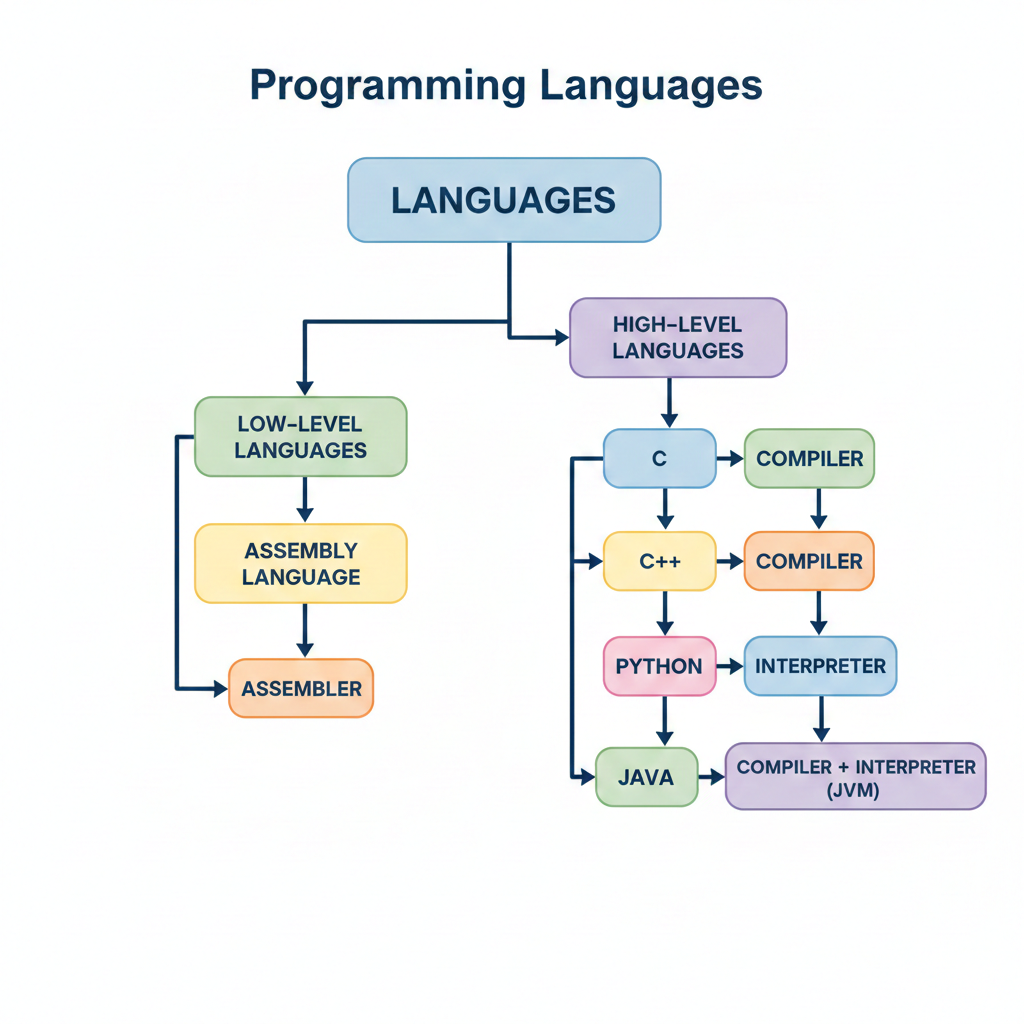
High-level languages are designed with programmers in mind; programming statements are easier to understand than those written in a low-level language.
This means that programs written in a high-level language are easier to:
- • read and understand as the language used is closer to English
- • write in a shorter time
- • debug at the development stage
- • maintain once in use
Examples:
C++, Delphi, Java, Pascal, Python, Visual Basic and many more
Exam Tip: Try to avoid mentioning C++ and C as high-level languages. Go for Java instead if only 1 is asked.
Note: Some textbooks state C and C++ to be middle-level languages, but in reality they are high-level only. To avoid confusion, it's safer to go with Java.
Low-Level Languages
Low-level languages relate to the specific architecture and hardware of a particular type of computer. Low-level languages can refer to machine code, the binary instructions that a computer understands, or assembly language that needs to be translated into machine code.
Comparison Table
| Feature | High-Level Language | Low-Level Language |
|---|---|---|
| Abstraction | Easy to read (closer to human language) | Harder to read (closer to machine code) |
| Portability | Machine independent | Hardware-dependent |
| Speed | Slower due to abstraction | Faster execution |
| Examples | Python, Java, C++ | Assembly, Machine Code |
4.2.2 Assembly Languages
Assembly language is a low-level programming language that provides direct control over the hardware. It uses mnemonic codes (such as LDA, ADD, and STO) instead of the binary or hexadecimal machine code instructions that the processor understands. While fewer programmers write programs in assembly today, there are still reasons to use it:
- • To make use of special hardware features
- • To take advantage of machine-dependent instructions unavailable in higher-level languages
- • To write code that minimizes memory usage
- • To write code that performs tasks very quickly
Assembly Language Example
Below is a short assembly language program that adds two numbers together. It consists of three statements:
• LDA First: Load the value of the variable First into the accumulator
• ADD Second: Add the value of the variable Second to the value currently stored in the accumulator
• STO Sum: Store (replace) the value of the variable Sum with the value stored in the accumulator
Types of Translators
A translator is a program that converts source code written in one programming language into another form (usually machine code or another programming language). There are three main types of translators:
Compiler
A compiler is a translator that converts the entire source code program into machine code (or an intermediate form) before execution. It translates all the code at once, checking for errors throughout the entire program.
- • Translates the entire program before execution
- • Checks all code and then runs it
- • Produces an executable file that can be run independently
- • Provides a list of all errors at once (displayed all in one go)
- • Faster execution since the program is already translated
- • Examples: Java, C++, C
Interpreter
An interpreter is a translator that converts and executes source code line by line during runtime. It translates one statement at a time and immediately executes it before moving to the next line.
- • Translates code line by line during execution
- • Checks one line and then runs it
- • Does not produce an executable file
- • Stops when it meets an error, allowing you to continue running from where you stopped
- • Allows correcting errors in real-time
- • Slower execution since translation happens during runtime
- • Examples: Python, JavaScript, BASIC
Assembler
An assembler is a translator that converts assembly language (low-level code using mnemonics) into machine code (binary instructions that the processor can execute directly).
- • Converts assembly code into machine code
- • Works with low-level languages (one-to-one correspondence with machine instructions)
- • Fastest translation since it's closest to the system
- • Each assembly instruction typically corresponds to one machine code instruction
- • Examples: ARM Assembly, x86 Assembly
| Translator | Function | Examples | Speed | Error | Output |
|---|---|---|---|---|---|
| Compiler | Translates entire program before execution (checks all code and then runs it) | Java, C++ | Faster | Provides list of all errors (displayed all in one go) | Produces executable file |
| Interpreter | Translates code line by line (checks one line and then runs it) | Python | Slower | Stops when meets an error, allows you to continue running from where you stopped (correct errors in real-time) | Does not produce executable file |
| Assembler | Converts assembly code into machine code | ARM Assembly, x86 Assembly | Fastest (Closer to the system) | - | - |
Note: Both Compiler and Interpreter translate high-level/source code to machine code and both generate error diagnostics/messages to identify errors.
Detailed Comparison: Compiler vs Interpreter
Compiler Advantages
- •Creates an executable file
- •...so, would not release source code
- •...so, the source code cannot be stolen/edited
- •...so, would not need to be translated every time // so, translator is not required
- •...making it machine independent
- •Faster execution since the program is already translated to machine code
- •Can be distributed without source code, protecting intellectual property
- •Program can run independently without the translator being present
Interpreter Characteristics
- •Does not create an executable file
- •...so, source code is required every time the program runs
- •...so, the source code can be viewed/edited by users
- •...so, needs to be translated every time the program runs // translator is required
- •...making it platform-dependent (requires interpreter for that platform)
- •Slower execution since translation happens during runtime
- •Source code is visible to users, making it easier to modify but less secure
- •Program requires the interpreter to be installed on the system to run
Practice Question
Past PaperJulius creates a computer application that calculates how many years it will take to pay for a house.
(a) Julius uploads his application to his website for people to download. Before he uploads the application, he translates the code using a compiler.
Explain why Julius uses a compiler, rather than an interpreter, to do this.
Answer (Any four from):
- •Creates an executable file
- •...so, would not release source code
- •...so, the source code cannot be stolen/edited
- •...so, would not need to be translated every time // so, translator is not required
- •...making it machine independent
4.2.4 Integrated Development Environment (IDE)
An Integrated Development Environment (IDE) is a software suite that helps programmers write, edit, and test programs efficiently. Popular examples include PyCharm (for Python) andVisual Studio (for Visual Basic, C#, and more).
Features of an IDE
1. Code Editor
- • Provides syntax highlighting, auto-indentation, and code formatting
- • Allows a program to be written and edited in one place, without switching to a separate text editor
2. Debugger
- • Identifies and fixes errors during code execution
- • Allows you to step through code, inspect variables, and understand program flow
3. Supports Translation with the help of Compiler/Interpreter
Converts source code into machine-executable code (compiler) or interprets code line by line (interpreter).
4. Error Diagnostics
Highlights errors in real time, often suggesting possible fixes or improvements.
5. Auto-completion
Suggests keywords, functions, and variable names to speed up the coding process.
6. Auto-documenter and Pretty-Printing
- • Auto-documenter: Generates documentation, explaining the function and purpose of the code
- • Pretty-Printing: Automatically formats and color-codes the program to make it more readable
4.3 Intellectual Property Rights (IPR)
Intellectual Property Rights (IPR) are legal rights that protect creations of the mind, such as inventions, literary and artistic works, designs, symbols, names, and images used in commerce. In computer science, IPR protects software, algorithms, databases, and other digital creations.
4.3.1 Types of Intellectual Property Rights
Patent
A patent is a legal right granted by the government that gives the inventor exclusive rights to make, use, and sell an invention for a limited period (typically 20 years).
- •Protects inventions and innovative processes
- •Must be novel (new), non-obvious, and have industrial application
- •Prevents others from using, making, or selling the invention without permission
- •Examples: New algorithms, software processes, hardware designs
Copyright
Copyright is a legal right that protects original works of authorship, including software, books, music, and other creative works. It gives the creator exclusive rights to reproduce, distribute, and display their work.
- •Protects original creative works (software code, documentation, designs)
- •Automatically applies when a work is created (no registration required, but registration provides stronger protection)
- •Lasts for the creator's lifetime plus 50-70 years (varies by country)
- •Prevents unauthorized copying, distribution, or modification
- •Examples: Software applications, websites, documentation, graphics
Trademark
A trademark is a symbol, word, phrase, or design that identifies and distinguishes the source of goods or services from those of others.
- •Protects brand names, logos, slogans, and other identifiers
- •Must be registered with the appropriate government authority
- •Can be renewed indefinitely as long as it's being used
- •Prevents others from using similar marks that could cause confusion
- •Examples: Company names (Microsoft®, Apple®), software product names (Windows®, Photoshop®), logos
4.3.2 Plagiarism and Prevention
What is Plagiarism?
Plagiarism is the act of using someone else's work, ideas, or words without giving proper credit or acknowledgment to the original author. It is considered a form of intellectual theft and academic dishonesty.
- •Copying code, text, or ideas without attribution
- •Presenting someone else's work as your own
- •Failing to cite sources properly
- •Can result in academic penalties, legal consequences, and damage to reputation
Ways to Prevent Plagiarism
1. Paraphrasing
Paraphrasing means rewriting someone else's ideas or information in your own words while maintaining the original meaning.
- • Restate the information using different words and sentence structure
- • Still requires citation of the original source
- • Shows understanding of the material
- • Example: Instead of copying code, rewrite it with your own variable names and structure, but acknowledge the original algorithm or approach
2. Citing Sources
Citing means giving credit to the original author by providing a reference to their work.
- • Include in-text citations when using someone else's ideas or code
- • Provide a reference list or bibliography at the end of your work
- • Use proper citation formats (APA, MLA, IEEE, etc.)
- • For code: Add comments indicating the source, author, and license
- • Example:
// Algorithm adapted from: Author Name, Book Title, Page 123
3. Quoting
Quoting means using the exact words from a source, enclosed in quotation marks.
- • Use quotation marks around the exact text
- • Always include a citation
- • Use sparingly - only when the exact wording is important
- • Example: "The algorithm has a time complexity of O(n log n)" (Author, 2023, p. 45)
4. Other Prevention Methods
- • Use plagiarism detection tools before submitting work
- • Keep track of sources while researching
- • Take notes in your own words when reading source material
- • Understand the material before writing about it
- • Ask for permission when using copyrighted material
- • Use open-source licenses properly when using open-source code
- • Give credit in code comments when using code snippets or algorithms from others
Practice Question
Past Paper 2021Adeel copyrights his application. State why Adeel copyrights his application.
Answer:
- •To protect his intellectual property and prevent unauthorized use
- •To have exclusive rights to reproduce, distribute, and sell the application
- •To prevent others from copying or modifying the code without permission
- •To establish legal ownership and protect against infringement
- •To enable legal action if someone uses the application without authorization
- •To maintain control over how the application is used and distributed
- •To protect the investment of time, effort, and resources spent developing the application
Chapter Summary
This chapter covered types of software (system and application), the role and functions of operating systems, interrupts, programming languages (high-level vs low-level), assembly languages, types of translators (compiler, interpreter, assembler), Integrated Development Environments (IDEs), and Intellectual Property Rights (IPR) including patents, copyrights, trademarks, and plagiarism prevention. Understanding these concepts is essential for IGCSE O Level Computer Science.