5. The Internet and Its Uses
SECTION 1: THEORY FUNDAMENTALS
Important Note
These notes cover the main points for revision. They are great for reviewing key concepts, but for in-depth understanding, always keep your textbook nearby for reference.
The Internet and the World Wide Web (WWW) are fundamental technologies that enable global communication and information access. This chapter covers web browsers, URLs, HTTP/HTTPS, DNS, cookies, digital currency, blockchain, and cyber security.
Table of Contents
5.1 Internet & WWW
5.2 Digital Currency
5.3 Cyber Security
5.1 Internet and the World Wide Web (WWW)
5.1.0 Web Browsers
Web browsers are software that allow users to access and display web pages on their device screens.
- • Browsers interpret HTML (Hypertext Markup Language) sent from websites
- • They produce the results on the user's device
5.1.1 Differences between the Internet and the WWW
Internet
- • Word comes from INTERconnected NETwork
- • Global collection of interconnected networks & devices
- • Concept, not tangible (depends on physical infrastructure)
- • Uses TCP/IP protocols
World Wide Web (WWW)
- • Part of the internet accessed via web browsers
- • Huge collection of multimedia web pages
- • Uses HTTP/HTTPS and written in HTML
- • Uses URLs to specify web page locations
- • Accessed through web browsers
Table 5.1: Internet vs WWW
| Internet | World Wide Web (WWW) |
|---|---|
| Send/receive emails | Collection of multimedia web pages & websites |
| Online chatting (text, audio, video) | HTTP/HTTPS, HTML-based |
| Uses TCP/IP protocols | Uses URLs to locate resources |
| Worldwide interconnected networks/devices | Accessed via browsers |
| Enables communication between devices | Accesses info from web servers |
5.1.2 Uniform Resource Locators (URLs)
Uniform Resource Locators (URLs) are text addresses used to access websites. A URL is typed into a browser's address bar in the following format:
Format:
Example: https://www.example.com/page
Parts of a URL
- • Protocol: http or https
- • Website address:
- - Domain host (e.g. www)
- - Domain name (e.g. hoddereducation)
- - Domain type (.com, .org, .net, .gov)
- - Country code (optional, e.g. .uk, .de, .cy)
- • Path: specific web page (can be omitted → root directory)
- • File name: specific item on the page
Example: https://codehaven.in/courses/igcse-o-level-cs
5.1.3 HTTP and HTTPS
HTTP (Hypertext Transfer Protocol)
Rules for transferring files across the internet.
HTTPS (Secure HTTP)
- • Uses SSL/TLS encryption
- • Shows padlock icon in browser
- • Safer for sending/receiving data online
5.1.4 Web Browsers
Software that retrieves & displays web pages.
Functions:
- • Home page
- • Bookmarks (favourites)
- • User history
- • Navigation (forward/backward)
- • Multiple tabs
- • Cookies (see 5.1.6)
- • Hyperlinks:
- - Ctrl + Click → new tab
- - Click → same tab
- • Cache storage (see 5.1.5)
- • JavaScript support
- • Address bar
5.1.5 Retrieval & Location of Web Pages
- • Websites = written in HTML, stored on web servers with IP addresses
- • DNS (Domain Name Server): converts URLs into IP addresses
- • Removes need to memorise IPs
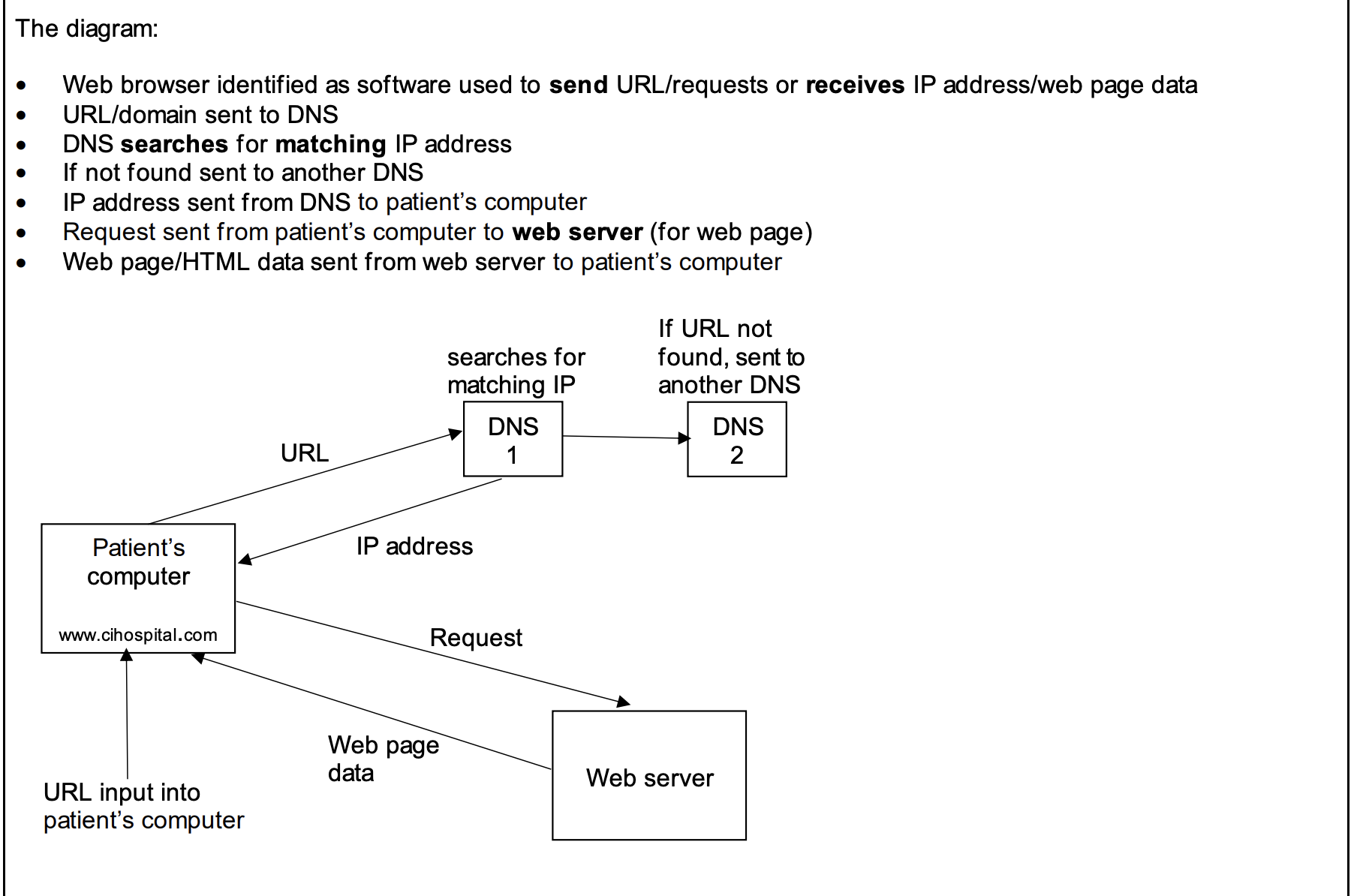
DNS Process:
- 1. User enters URL in browser
- 2. Browser queries DNS server (1)
- 3. If not found, DNS server (1) forwards to another DNS server (2)
- 4. DNS (2) finds IP & returns to DNS (1)
- 5. Browser connects to website server & retrieves HTML pages
Practice Question
Past PaperDescribe how the web pages for the website are requested and displayed on a user's computer.
Answer:
- •Browser sends URL to DNS
- •Using HTTP/HTTPS
- •IP address is found on DNS
- •DNS returns IP address to the browser
- •Browser sends request to web server/IP address
- •Web server sends web pages back to browser
- •Browser interprets/renders the HTML (to display web pages)
- •Security certificates exchanged
5.2 Digital Currency
5.2.1 What is Digital Currency?
Digital currency exists only in digital form, unlike physical fiat currency (₹, $, €, ¥).
Key Points:
- • Fiat = government-backed money (not linked to gold/silver)
- • Used for payments (like cash or cards)
- • Enables online banking (e.g. PayPal) and smartphone payments (e.g. Apple Pay)
- • Stored as data in computer systems but convertible into cash
Relies on Central Banking System
Example: Nick (Bank X) → Irina (Bank Y) → Central Bank mediates
Problem with centralisation: Confidentiality and security issues
Cryptocurrency (Solution via Decentralisation)
- • Uses cryptography for transactions
- • Community-driven rules, not state/government
- • All transactions are publicly available (transparency)
- • Works on blockchain networks (very secure)
5.2.2 Blockchain
Blockchain is a decentralised database (no central server) that stores all transactions of network members.
Key Features:
- • Interconnected computers (nodes): each has a full copy of the blockchain
- • New transaction = copy sent to all nodes → cannot be changed without network consensus
- • Prevents tampering/hacking because every node validates transactions
Analogy
Football fans all over the world watch every match played by Lionel Messi.
After each match, they carefully note down:
- • the match date
- • opponent
- • goals scored
- • assists
- • final score
👉 Each fan maintains their own notebook, and everyone writes the same match information.
What happens next?
If someone tries to change one goal in their notebook
All other fans can instantly say:
❌ "That's wrong, it doesn't match our records."
So:
- • Cheating is caught immediately
- • No single fan controls the information
- • The record is trusted because everyone has a copy
Now connect this to Blockchain 🔗
| Football Example | Blockchain Meaning |
|---|---|
| Each match record | A block |
| Notebook | A copy of the blockchain (ledger) |
| Fans | Computers (nodes) |
| Everyone has same data | Distributed system |
| Can't secretly change goals | Tamper-proof / secure |
Uses of Blockchain:
How Blockchain Works
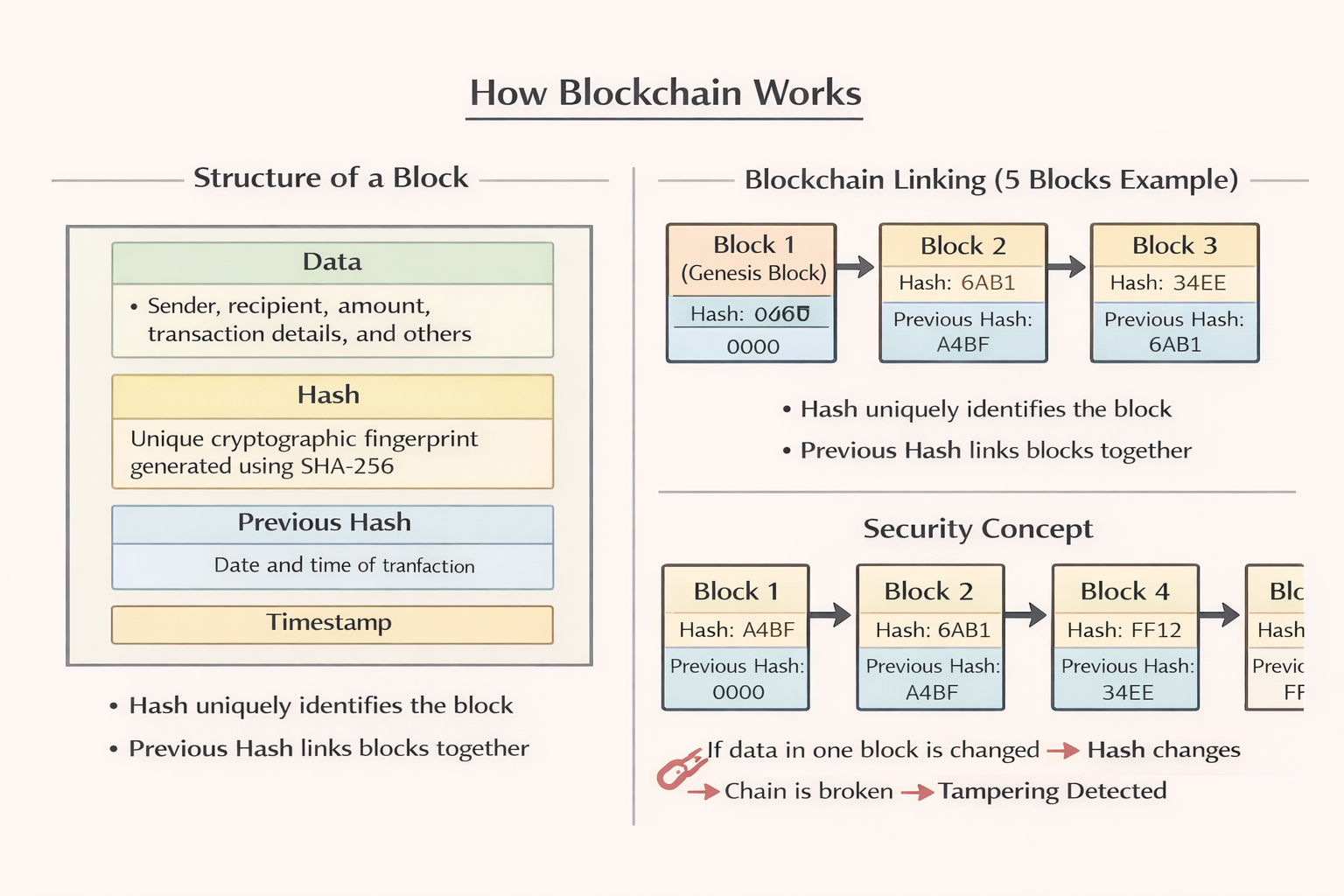
Whenever a new transaction happens, a new block is created.
A Block contains:
- 1. Data → sender, recipient, amount, etc.
- 2. Hash value → unique "fingerprint" generated using cryptographic algorithm (usually SHA-256)
- 3. Previous hash value → pointer to the previous block (maintains the chain)
- 4. Timestamp → identifies when the event took place
Example of Blockchain (5 blocks):
| Block | Hash | Previous Hash |
|---|---|---|
| 1 (Genesis) | A4BF | 0000 |
| 2 | 6AB1 | A4BF |
| 3 | 34EE | 6AB1 |
| 4 | FF12 | 34EE |
| 5 | AA00 | FF12 |
Security Against Tampering
If Block 2's data is changed → its hash changes.
Block 3 (which points to 6AB1) becomes invalid → whole chain breaks.
This prevents tampering and fraudulent changes.
Proof-of-Work & Mining
Computers are fast enough to attempt recreating chains. To stop this → Proof-of-Work is used:
- • Takes ~10 minutes to generate valid proof for each block
- • Slows down block creation, making hacking impractical
Miners:
- • Special network users
- • Verify and add blocks
- • Get commission (reward) for creating new blocks
- • Act as "police" of the system
Verification & Distribution
- • New block is broadcast to all nodes
- • Checked for correctness before being added
- • New users joining the network → receive a full copy of the blockchain
- • Almost impossible to hack → would require simultaneous attack on every block across every node
Key Takeaways:
- • Blockchain = transparent, decentralised, tamper-resistant system
- • Each block depends on the previous one → breaking the chain invalidates future blocks
- • Proof-of-work + miners secure the system
Summary
A digital currency does not exist physically; it can only be accessed electronically.
Some digital currencies have digital ledgers called blockchains. These are decentralised databases where each transaction is stored as a new set of data with a time-stamp and is linked to the previous set of data. This means that transactions cannot be altered, only new transactions added, which allows the location of the data to be traced.
5.3 Cyber Security
5.3.1 Cyber Security Threats
Data can be:
Accidentally Damaged
Deleted, corrupted
Maliciously Attacked
Intercepted, stolen, encrypted for ransom
Key Threats:
Brute Force Attacks
Systematic trial of all possible password combinations.
Steps hackers often follow:
- 1. Try common passwords (e.g. 123456, password, qwerty)
- 2. Use a word list (dictionary attack)
Protection: Longer passwords with mixed characters = harder to crack
Data Interception
Stealing data from wired/wireless communications.
Tools:
- • Packet sniffers
- • Wardriving (Access Point Mapping)
Wi-Fi Risks:
Hackers intercept signals using laptops, antennas, GPS.
Protection:
- • Encrypt data (WEP protocol, firewalls)
- • Strong router passwords
- • Avoid public Wi-Fi (no encryption)
DoS & DDoS Attacks
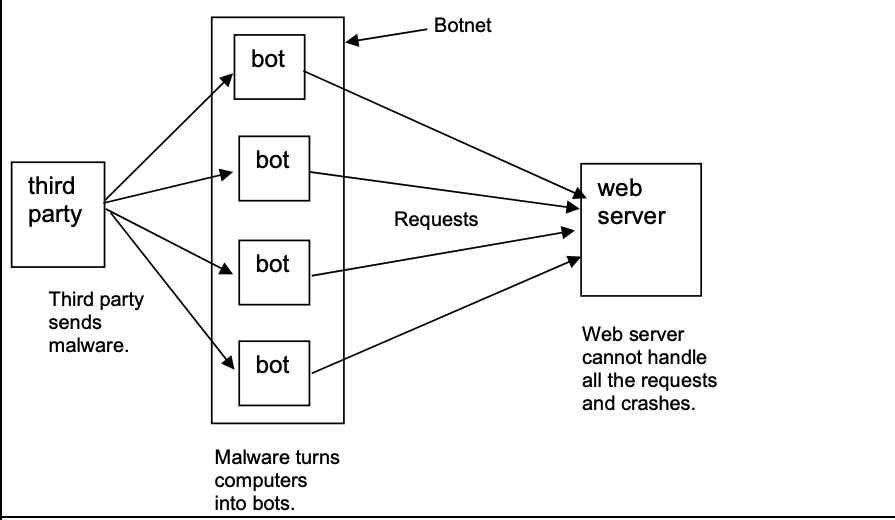
DoS (Denial of Service)
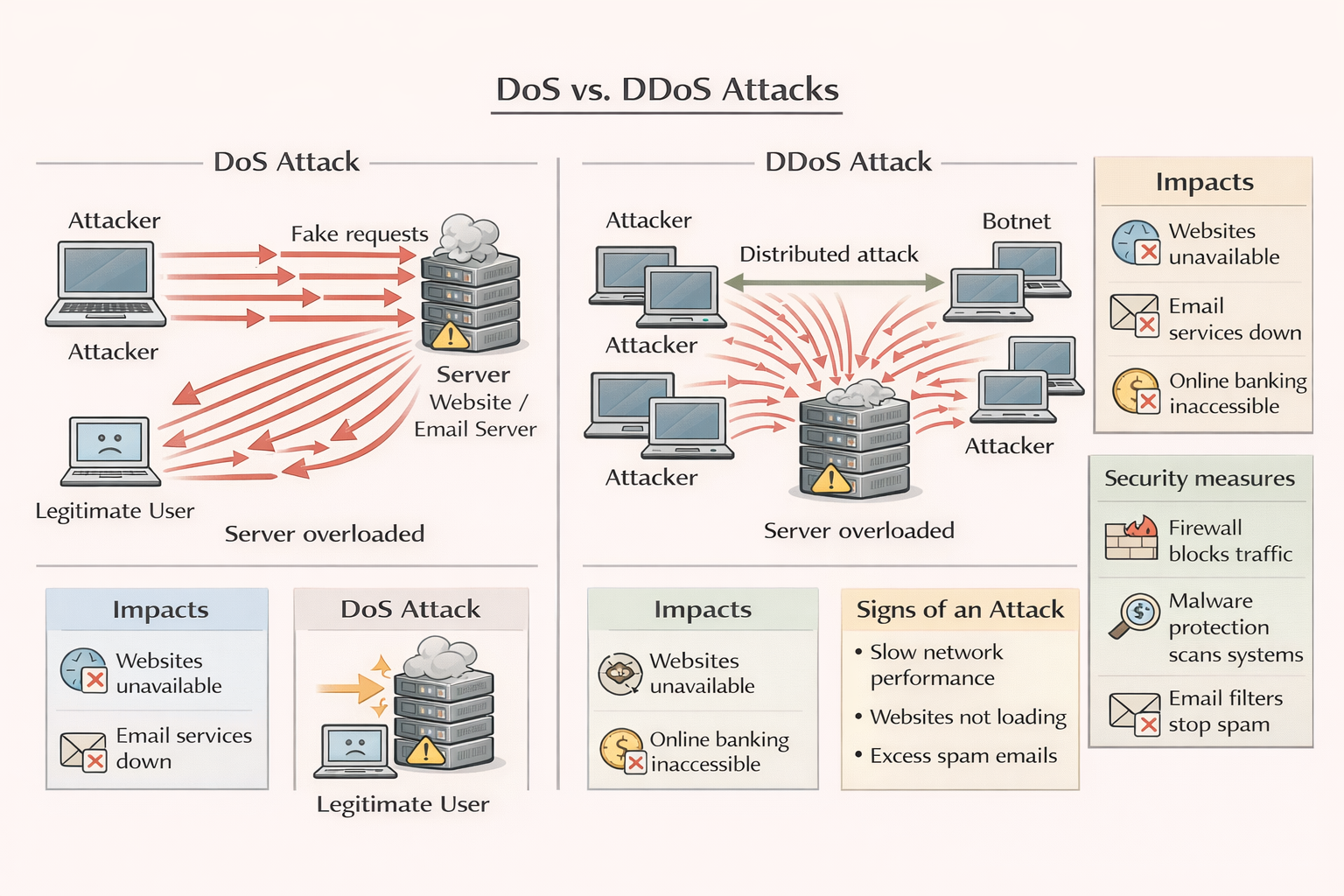
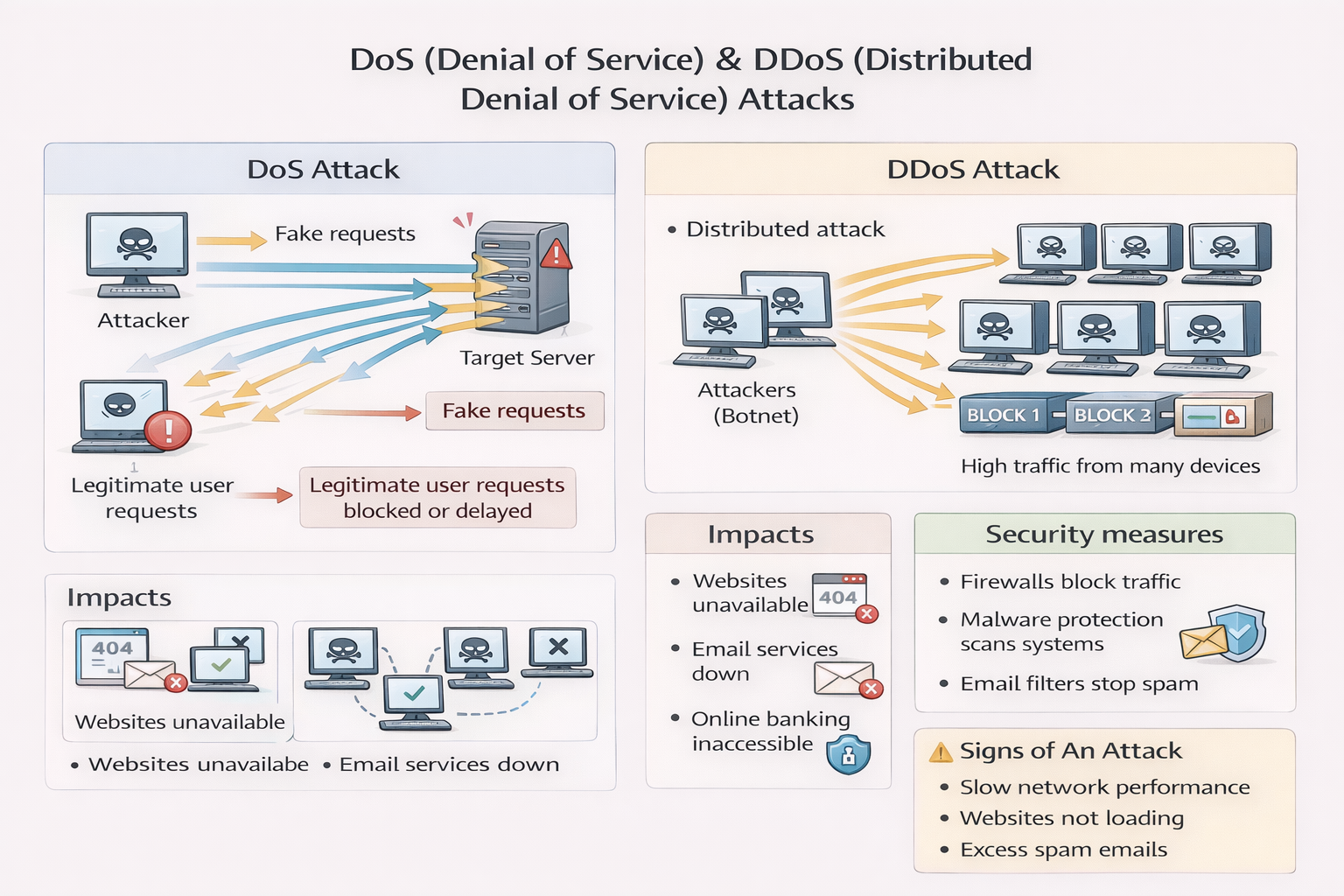
Attacker floods server with fake requests → server can't respond to real users.
DDoS (Distributed DoS)
Attack traffic comes from many computers → harder to stop.
Impacts:
Cannot access:
- • Emails
- • Websites
- • Online services (e.g. banking)
Defences:
- • Up-to-date malware checkers
- • Firewalls
- • Email filters
Signs of Attack:
- • Slow network
- • Inability to access websites
- • Excess spam emails
Hacking
Illegal access to systems without permission.
Risks:
- • Identity theft
- • Deletion, corruption, theft of data
- • Encryption doesn't prevent hacking but makes stolen data meaningless
Defences:
- • Firewalls
- • Usernames + strong passwords (frequently changed)
- • Intrusion-detection & anti-hacking software
Ethical Hacking:
Companies hire authorised hackers to test system security.
Malware
Malware is malicious software designed to damage, steal or disrupt.
| Type | Description | Example / Notes |
|---|---|---|
| Viruses | Replicate using host program; triggered to delete/corrupt files or crash system | Spread via email attachments, infected downloads |
| Worms | Stand-alone, self-replicating; spread across networks without user action | "I Love You" worm – disrupted global email systems |
| Trojan horse | Disguised as legitimate software; executes malicious code | Fake antivirus installs spyware/ransomware |
| Spyware | Monitors user activity & sends info (e.g. passwords, bank details) back to attacker | Often includes keyloggers |
| Adware | Bombards with adverts (pop-ups, redirects, toolbars) | Can highlight weak security |
| Ransomware | Encrypts data, demands ransom for decryption key | Preventable by backups, but nearly impossible to undo once active |
Practice Question
Past Paper10 Clive has a laptop computer that he uses for his business. He enters a username and password to log in to his laptop.
Clive is worried about spyware being used to find out his username and password.
(a) Describe how spyware could be used to find out Clive's username and password. [4]
Answer:
Any four from:
- •Example of spyware e.g. Keylogger is used
- •Spyware is downloaded without knowledge (e.g. via infected attachment)
- •Spyware records key presses / screen clicks / screen activity
- •Data is relayed back to third party
- •Data is analysed; patterns in data could reveal log-in details
- •... details can then be used to log into the laptop (remotely)
Phishing
Legit-looking emails trick users into giving personal info. May link to fake websites or request sensitive details.
Prevention:
- • Security awareness training
- • Don't click unknown links
- • Anti-phishing toolbars
- • Look for HTTPS padlock
- • Regularly check online accounts
Spear phishing: targeted at specific people/companies
Pharming
Malicious code redirects user to fake websites (no user action required). Often uses DNS cache poisoning.
Aim:
Steal personal data (e.g. bank details)
Prevention:
- • Anti-virus detection of website changes
- • Modern browsers → alerts
- • Check spellings in web addresses
- • HTTPS padlock
Practice Question
Past Paper10 Uma is concerned about risks that she may encounter when using the Internet.
Two of the risks she is concerned about are phishing and pharming.
(a) Give one similarity and two differences between phishing and pharming.
Similarity
Difference 1
Difference 2 [3]
Answer:
Similarity (Any one from):
- •Both are designed to steal personal data/sensitive data/login details
- •Both fake/imitate legitimate websites
Differences (Any two from):
- •Phishing relies on the user clicking a link / attachment
- •Pharming executes malicious code on the user's hard drive / server
- •Pharming redirects the user to a fake website automatically / without their knowledge
- •Phishing involves receiving an email
Social Engineering
Manipulation of humans, not systems. Exploits emotions: fear, curiosity, trust/empathy.
Common Types:
- • Instant messaging → malicious link (software upgrade trap)
- • Fake emails (phishing scams)
- • Baiting: infected USB drives left to be "found"
- • Fake IT support phone calls (fear tactic)
- • Scareware: fake antivirus pop-ups
Stages of Attack:
- 1. Victim identified
- 2. Victim targeted (email/phone/malware)
- 3. Attack executed → info stolen / disruption caused
- 4. Traces removed
5.3.2 Keeping Data Safe from Security Threats
Access Levels
Different users = different rights (read/write/delete). Used in databases & social networks.
Example (Facebook):
Anti-Malware
Anti-virus
Removes viruses
Anti-spyware
- • Detects/removes spyware
- • Encrypts keystrokes
- • Blocks webcam/mic takeover
- • Prevents spyware downloads
Usually bundled with firewalls
Authentication
Proves user identity.
Something you know
Password/PIN
Something you have
Phone, token
Something you are
Biometrics
Password Best Practices:
- • Hard to guess (long, with uppercase, numbers, symbols)
- • Changed regularly
- • Never saved on devices
- • Limited login attempts
Biometrics
Fingerprint Scans
- ✓ Unique, portable, secure
- ✗ Costly & error-prone if skin damaged
Retina Scans
- ✓ Highly accurate
- ✗ Intrusive & expensive
Face Recognition
- ✓ Non-intrusive
- ✗ Lighting/age/glasses affect accuracy
Voice Recognition
- ✓ Quick, cheap
- ✗ Low accuracy & can be faked
Two-Step Verification
Combines 2 methods (password + one-time code on phone). Adds extra protection for online banking/shopping.
Automatic Software Updates
Keeps systems patched against malware.
Risks: May cause temporary disruption after updates
Email & URL Checks
Warning Signs:
- • Poor spelling/grammar
- • Suspicious tone (urgency, threats)
- • Mismatched or misspelled domains (e.g. gougle.com)
- • Links not matching company name
- • Unusual sender addresses (e.g. PayPal@gmail.com)
Firewalls
Hardware/software between computer & internet. Filters incoming/outgoing traffic.
Functions:
- • Monitors incoming and outgoing traffic
- • Allows the setting of criteria/blacklist/whitelist (by example, IP address, domain, etc.)
- • Blocks access to signals that do not meet requirements/criteria/blacklist/whitelist
- • Sends signal to warn the user when suspicious activity is detected
- • Restricts access to specific applications
- • Blocks entry/exit by specific ports
- • Blocks suspicious IPs
- • Warns if unknown software tries to connect
- • Can log activity
Limits: Can't stop insider misuse or disabled firewalls
Proxy Servers
Middle layer between user & web server.
Functions:
- • Hides user's IP address
- • Filters/block traffic
- • Redirects invalid traffic (helps against hacking/DoS)
- • Uses cache to speed up page loading
- • Often works as a firewall too
Practice Question
Past Paper(d) The company uses a proxy server to help protect the web server and the network from cyber security threats.
(i) Give three cyber security threats that the proxy server can help protect against. [3]
Answer:
Any three from:
- •DDoS // DoS
- •Hacking
- •Malware (e.g. viruses, spyware)
- •Brute-force attack
NOTE: Three different examples of malware can be awarded marks.
(ii) Identify two functions of the proxy server that can be used to help protect the web server and the network.
1
2 [2]
Answer:
Any two from:
- •Can limit the number of requests sent to the web server at a time
- •Can process common requests that will not need to enter the network (caching)
- •Act as a firewall
- •Examine incoming data to the webserver/network
- •Can have set rules/criteria for data to meet
- •Can have a blacklist/whitelist/list of IP addresses to block
- •Blocks traffic that doesn't meet criteria
- •Closing certain ports
Privacy Settings
Control who can see personal data on social media/websites.
Features:
SSL (Secure Sockets Layer) & TLS
SSL (Secure Sockets Layer)
- • Encrypts data between browser ↔ server
- • Uses SSL certificates to authenticate websites
- • Shows HTTPS + padlock
TLS (Transport Layer Security)
Modern, more secure replacement for SSL.
- • Two layers: Record protocol & Handshake protocol
- • Supports session caching → faster reconnections
Used in:
Chapter Recap
This chapter covered the Internet and WWW, digital currency, blockchain technology, and cyber security threats and defenses.
Key Topics:
- • Internet ≠ WWW
- • URLs, HTTP/HTTPS, browsers, DNS retrieval
- • Cookies (session, persistent)
- • Digital currency & blockchain
Security:
- • Cyber threats: brute force, interception, DDoS, hacking, malware, phishing, pharming, social engineering
- • Defence: access levels, authentication, anti-malware, biometrics, firewalls, proxies, privacy settings, SSL/TLS