Back to Curriculum

3. Hardware

SECTION 1: THEORY FUNDAMENTALS

Hardware is the physical components of a computer system. This chapter covers computer architecture, CPU components, memory systems, input/output devices, data storage, and network hardware.

3.1 Computer Architecture

Summary of CPU Components

The Central Processing Unit (CPU) consists of the following main components:

Control Unit (CU)

Directs the operations of the CPU by managing and coordinating all activities, including fetching, decoding, and executing instructions.

Arithmetic & Logic Unit (ALU)

  • • Performs arithmetic operations (e.g., addition, subtraction)
  • • Performs logic operations (e.g., AND, OR)
  • • Handles operations such as shifting bits left or right
  • Multiplication and division are performed using sequences of addition, subtraction, and shifting operations
  • • Some computers may have multiple ALUs to handle specific functions

System Clock

Generates timing signals to synchronise the operations within the CPU.

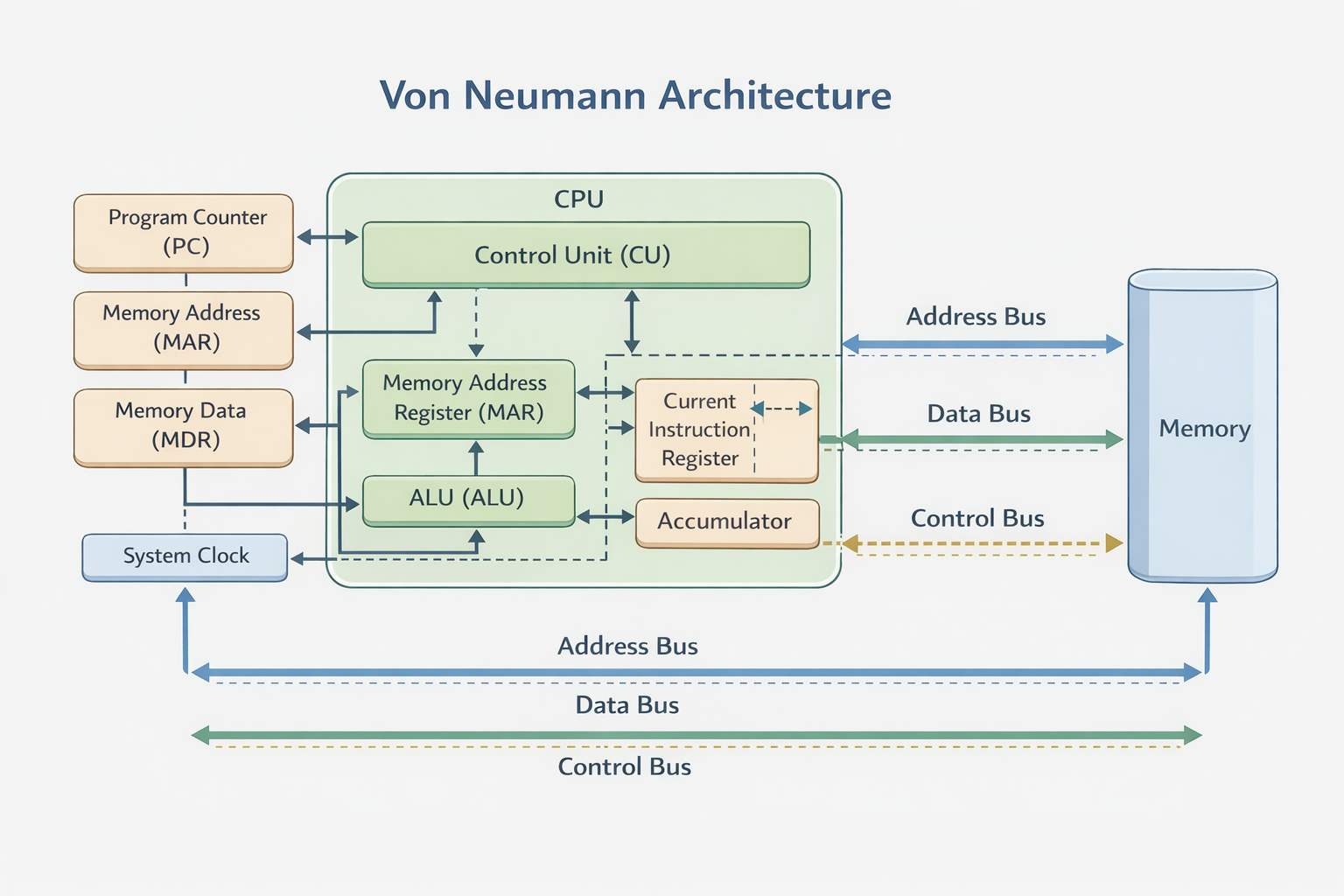
Von Neumann Architecture

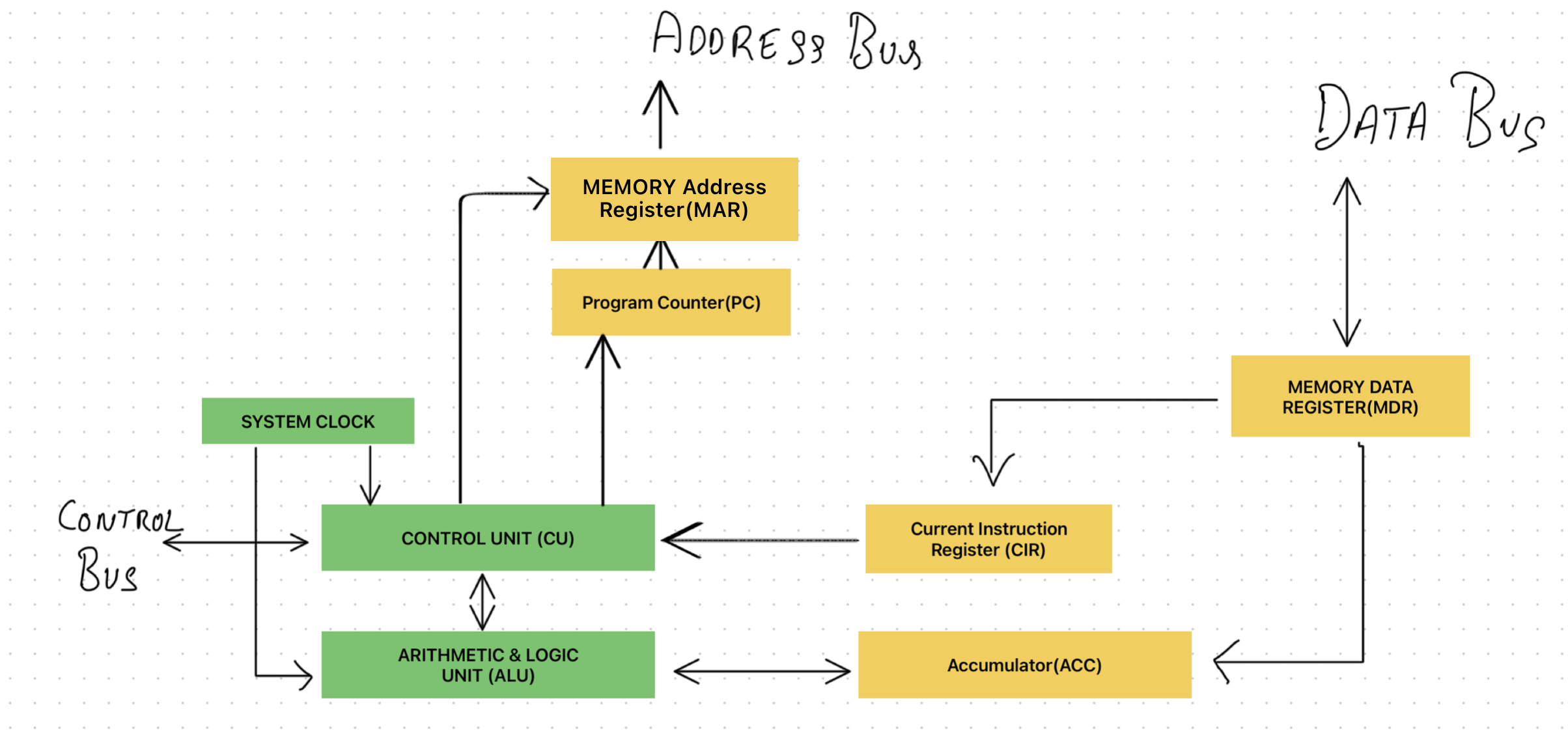
Diagram showing Von Neumann architecture with CPU, Memory, Input/Output devices, and data flow

Note: Use this diagram in case the exam asks you to draw components of the Von Neumann architecture.

Detailed diagram of Von Neumann architecture components for exam drawing reference

The Von Neumann architecture (also known as the stored-program concept) is a fundamental computer architecture design proposed by mathematician John von Neumann in 1945. This architecture is the basis for most modern computers and describes how a computer system is organized.

Key characteristics of Von Neumann architecture:

  • Stored Program Concept: Both instructions and data are stored in the same memory (RAM). This allows programs to be stored, modified, and executed from memory.
  • Sequential Execution: Instructions are executed one at a time in sequence, following the Fetch-Decode-Execute cycle.
  • Single Memory Bus: The same bus is used to transfer both instructions and data between the CPU and memory, which can create a bottleneck (known as the Von Neumann bottleneck).
  • Central Processing Unit (CPU): Contains the Control Unit (CU), Arithmetic Logic Unit (ALU), and registers that work together to process instructions.
  • Memory Unit: Stores both program instructions and data that the CPU needs to access.
  • Input/Output Devices: Allow the computer to communicate with the outside world, receiving input and producing output.

This architecture revolutionized computing by allowing computers to be reprogrammed for different tasks without rewiring hardware, making them flexible and versatile machines.

Practice Question
Past Paper 2021

Describe what is meant by the stored program concept.

Answer:

  • Stored programs were made up of instructions which could be executed in sequential order
  • Two from:
    • - Instructions and data stored in the same/main memory
    • - Instructions fetched and executed in order / one after another / in sequence

Control Unit

Control Unit (CU)

  • Function: Reads instructions from memory using the Program Counter (PC) and processes them through the Fetch–Decode–Execute cycle.
  • Role: Generates control signals via the control bus to direct other computer components, ensuring synchronization of data flow and program instructions.
  • System Clock: Produces timing signals to maintain synchronization; without it, the computer would fail.

System Buses and Memory

Memory

Consists of partitions, each with a unique address and binary contents. The Memory Address Register (MAR) stores the memory location address, and the Memory Data Register (MDR) stores the data to be read or written.

RAM (Random Access Memory)
  • Function: Temporarily holds data and programs needed by the CPU, often referred to as the Immediate Access Store (IAS)
  • Role: Stores key data temporarily for faster read/write operations compared to backing storage, like a hard disk drive, thereby speeding up the overall operation of applications

System Buses

(System) buses are used in computers as parallel transmission components; OR Bus refers to communication system that transfers data between different components of a computer.

Bus TypeDirectionFunctionWidth Importance
Address BusUnidirectionalCarries memory addresses between CPU and memoryWider bus allows more memory locations to be addressed
Data BusBidirectionalTransfers data between CPU, memory, and I/O devicesWider bus enables larger word lengths, improving performance
Control BusBidirectionalCarries control signals from the control unit to other componentsUsually 8-bits wide, sufficient for carrying control signals
Practice Question
Past Paper

(ii) Describe the role of the Control Bus.

Answer:

  • Carries / transfers control signals/instructions // carries/transfers commands
  • From CPU/CU to components // from devices to CPU/CU
  • To synchronise the FE cycle (Fetch-Execute cycle)

Memory Operations

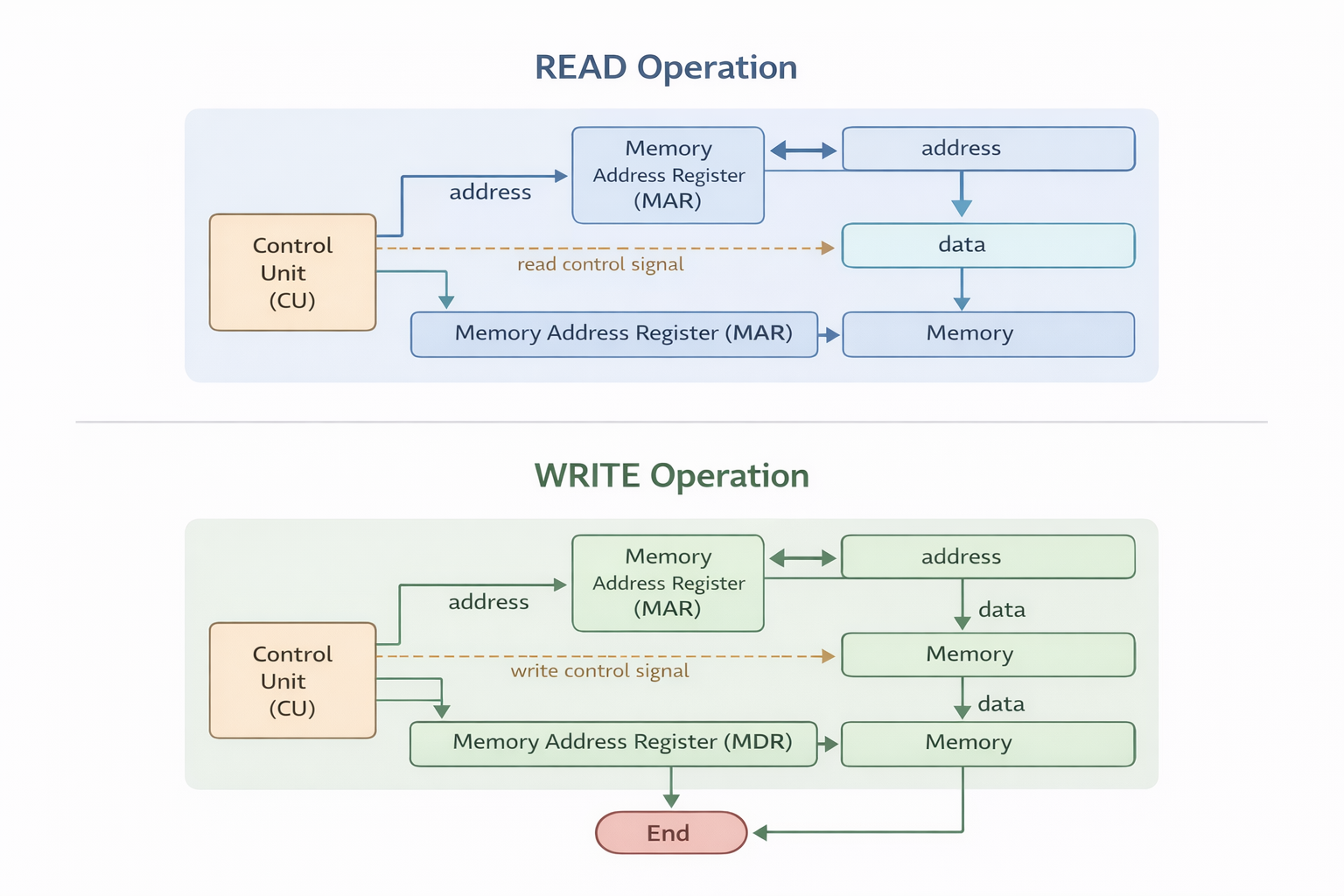
Diagram showing memory read and write operations with MAR and MDR

READ Operation

  1. The desired memory address is written into the MAR
  2. A read signal is sent to memory
  3. The data at the specified address is transferred to the MDR

WRITE Operation

  1. Data is first written into the MDR
  2. The target memory address is written into the MAR
  3. A write signal is sent to store the data in the specified memory location

Memory Address Register (MAR) vs Memory Data Register (MDR)

AspectMemory Address Register (MAR)Memory Data Register (MDR)
FunctionHolds the address of the memory locationHolds the data being transferred to/from memory
PurposeSpecifies the memory address to be accessedActs as a buffer for data being read or written
Role in READ OperationContains the address of the memory location to be read fromHolds the data read from the memory
Role in WRITE OperationContains the address of the memory location to write toHolds the data to be written into memory
Type of Data StoredMemory addressesData (instruction, value, or address)

Registers

A register is a small, fast storage location within the CPU (Central Processing Unit) used to hold data that is being processed or used by the CPU. Registers are much faster to access than other forms of memory, such as RAM, because they are located directly within the processor.

Special-Purpose Registers:

Current Instruction Register (CIR): Stores the instruction currently being decoded and executed.

Accumulator (ACC): Temporarily holds data during calculations performed by the Arithmetic Logic Unit (ALU).

Memory Address Register (MAR): Holds the address of the memory location currently being read from or written to.

Memory Data Register (MDR): Stores data that has just been read from memory or is about to be written to memory.

Program Counter (PC): Contains the address of the next instruction to be fetched.

Fetch-Decode-Execute Cycle

The Fetch–Decode–Execute cycle is the process by which the CPU carries out instructions:

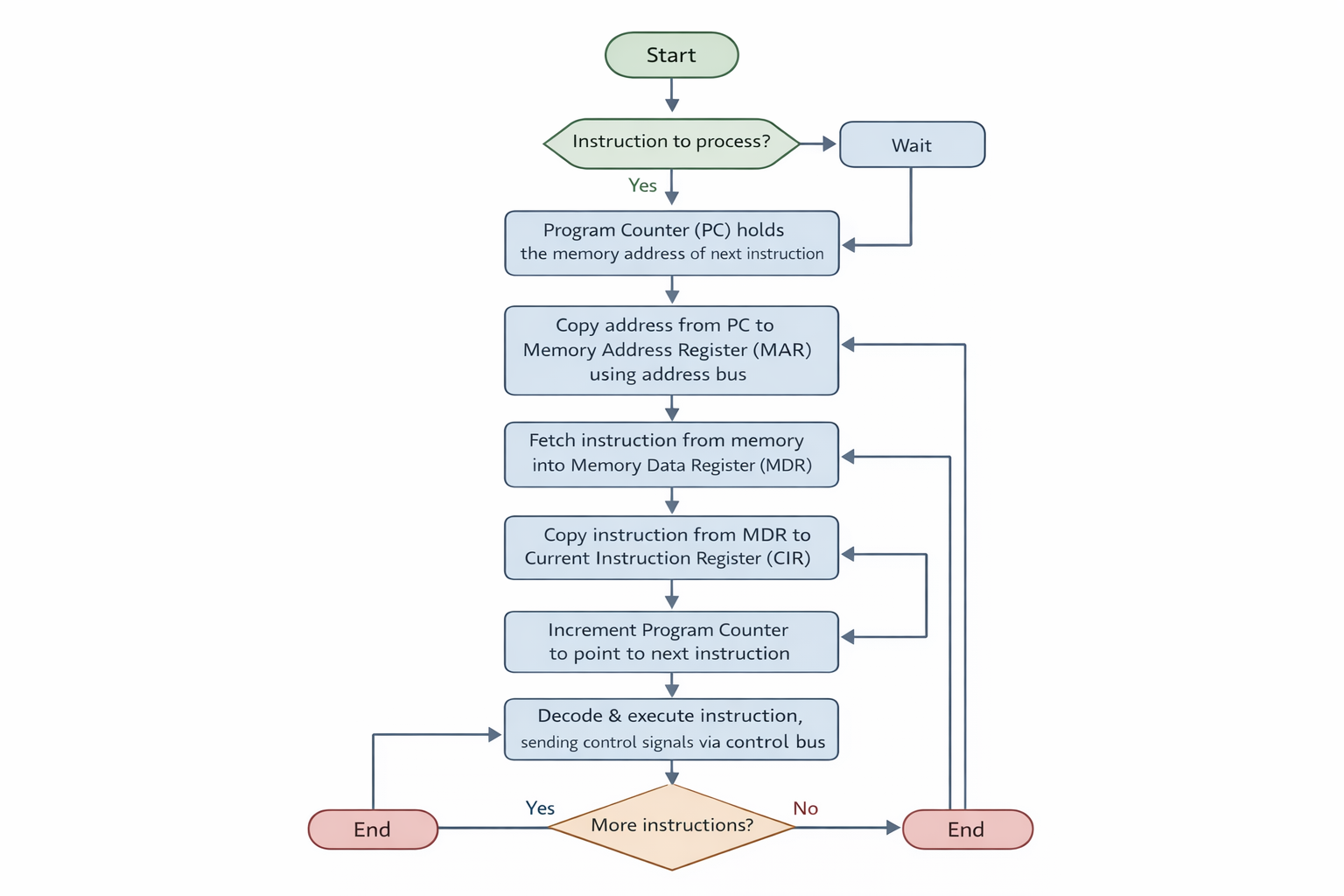
Diagram showing the Fetch-Decode-Execute cycle process

1. Fetch

  • • The CPU retrieves the next instruction from memory using the address stored in the Memory Address Register (MAR)
  • • The instruction is stored in the Memory Data Register (MDR) and then copied to the Current Instruction Register (CIR)
  • • The Program Counter (PC) is incremented to point to the next instruction

2. Decode

The fetched instruction is decoded to determine what actions are needed.

3. Execute

The CPU sends control signals to the appropriate components to execute the instruction in a logical sequence.

Cycle Steps in Detail:

  • PC → MAR: The Program Counter (PC) contains the address of the next instruction, which is copied to the Memory Address Register (MAR)
  • MAR → MDR: The contents (instruction) at the memory location in MAR are copied temporarily into the Memory Data Register (MDR)
  • MDR → CIR: The contents of the MDR are then copied and placed into the Current Instruction Register (CIR)
  • PC → PC + 1: The value in the PC is incremented by 1 to point to the next instruction
  • CIR → Execution: The instruction is decoded and executed by sending control signals to the appropriate components via the control bus
  • Continue Process: If there are more instructions, the cycle continues; otherwise, it ends

Cores, Cache, and Internal Clock

Several factors determine the performance of a CPU:

1. System Clock & Overclocking

System Clock
  • Role: Synchronizes all computer operations, defined by the clock cycle
  • Clock Speed: Higher clock speeds (e.g., 3.5 GHz) can increase processing speed but may not always improve overall performance
Overclocking
  • Definition: Increasing the clock speed beyond the design limits via BIOS settings
  • Risks: Can cause unsynchronized operations, crashes, instability, and overheating, leading to unreliable performance

2. Bus Width

The width of the address and data buses affects performance; wider buses can improve speed and efficiency.

3. Cache Memory

  • Location: Situated within the CPU for faster data access compared to RAM
  • Function: Stores frequently accessed data and instructions, enhancing CPU performance
  • Impact: Larger cache sizes improve CPU performance by reducing the need to access slower RAM

4. Cores

  • Definition: A core consists of an ALU, control unit, and registers. CPUs can have multiple cores (e.g., dual-core, quad-core)
  • Performance: More cores can improve performance but don't double it due to the communication overhead between cores
  • Channels: The number of communication channels between cores influences performance; more channels can reduce the potential performance gains

Key Takeaways:

  • Bus Width: Wider buses increase performance
  • Clock Speed: Higher speeds can boost performance but with limitations
  • Cache Memory: Larger caches improve CPU efficiency
  • Multi-core CPUs: More cores can improve performance, but with diminishing returns due to communication overhead
Practice Question
Past Paper

(b) The computer has a single core 3.5 GHz processor and an 8kB cache.

(i) State what is meant by a 3.5 GHz processor.

Answer:

  • It can run 3.5 billion FE cycles each second // it can execute 3.5 billion instructions each second

Instruction Set

  • Instructions: In a computer system, instructions consist of operations that direct the CPU's Arithmetic & Logic Unit (ALU) and Control Unit (CU). Each instruction includes an opcode (the operation to perform) and an operand (the data or address involved)
  • Instruction Set: A limited set of opcodes that the CPU can execute. It defines the basic operations that the CPU can perform
  • Fetch–Decode–Execute Cycle: The CPU processes each instruction in sequence using this cycle, involving fetching the instruction, decoding it, and then executing it
  • Example: The X86 instruction set is a common standard used in many modern CPUs, like Intel Pentium and AMD Athlon, even though the internal designs may differ
  • Important Note: Instruction sets are low-level, binary instructions understood by the CPU, distinct from higher-level programming code, which must be compiled or interpreted into these instructions. Common instructions include operations like ADD, JMP, and LDA

Embedded Systems

Definition

A combination of hardware and software designed to perform a specific set of functions.

Types

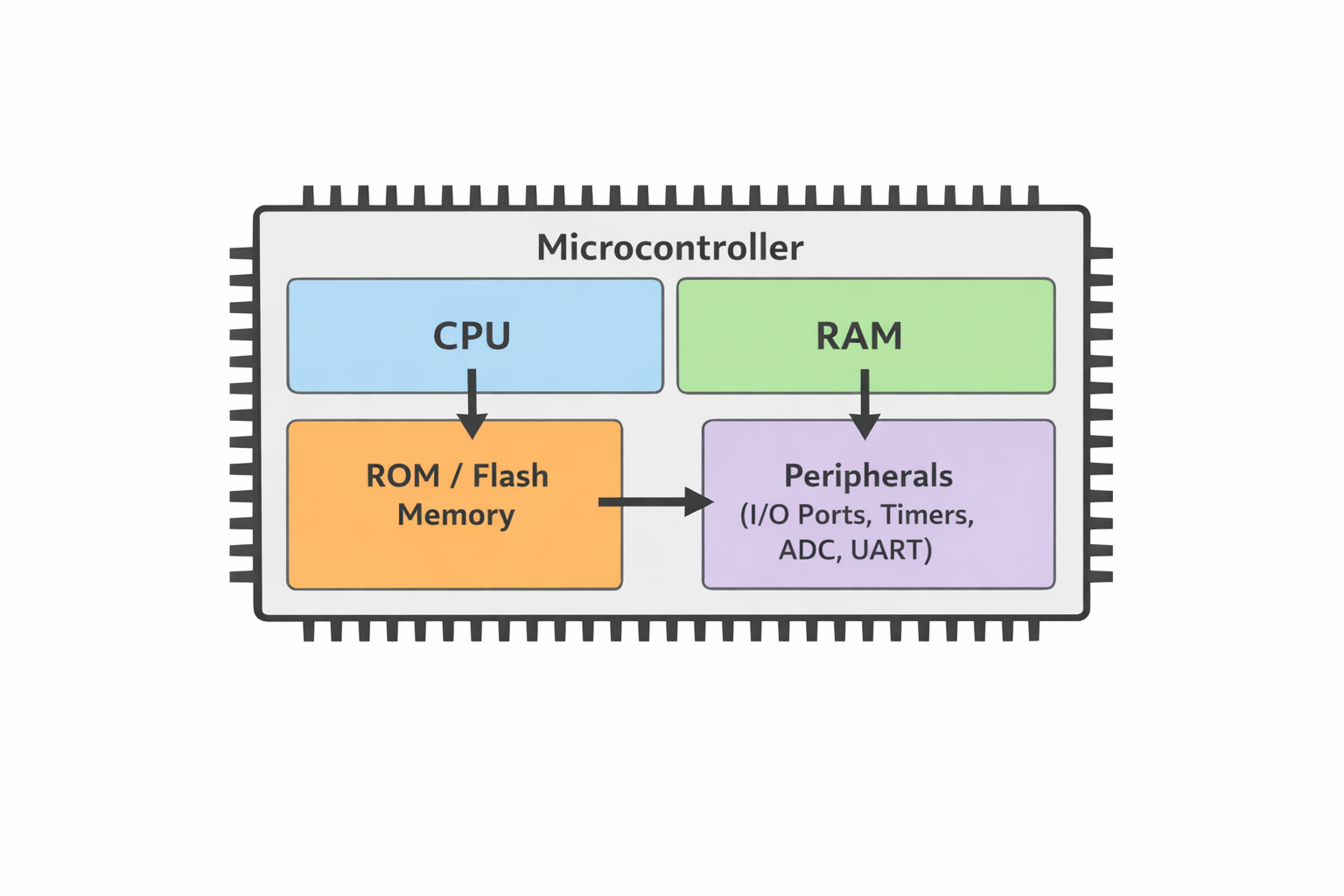
Microcontrollers: Contain a CPU, RAM, ROM, and peripherals on a single chip.

Circuit controller diagram

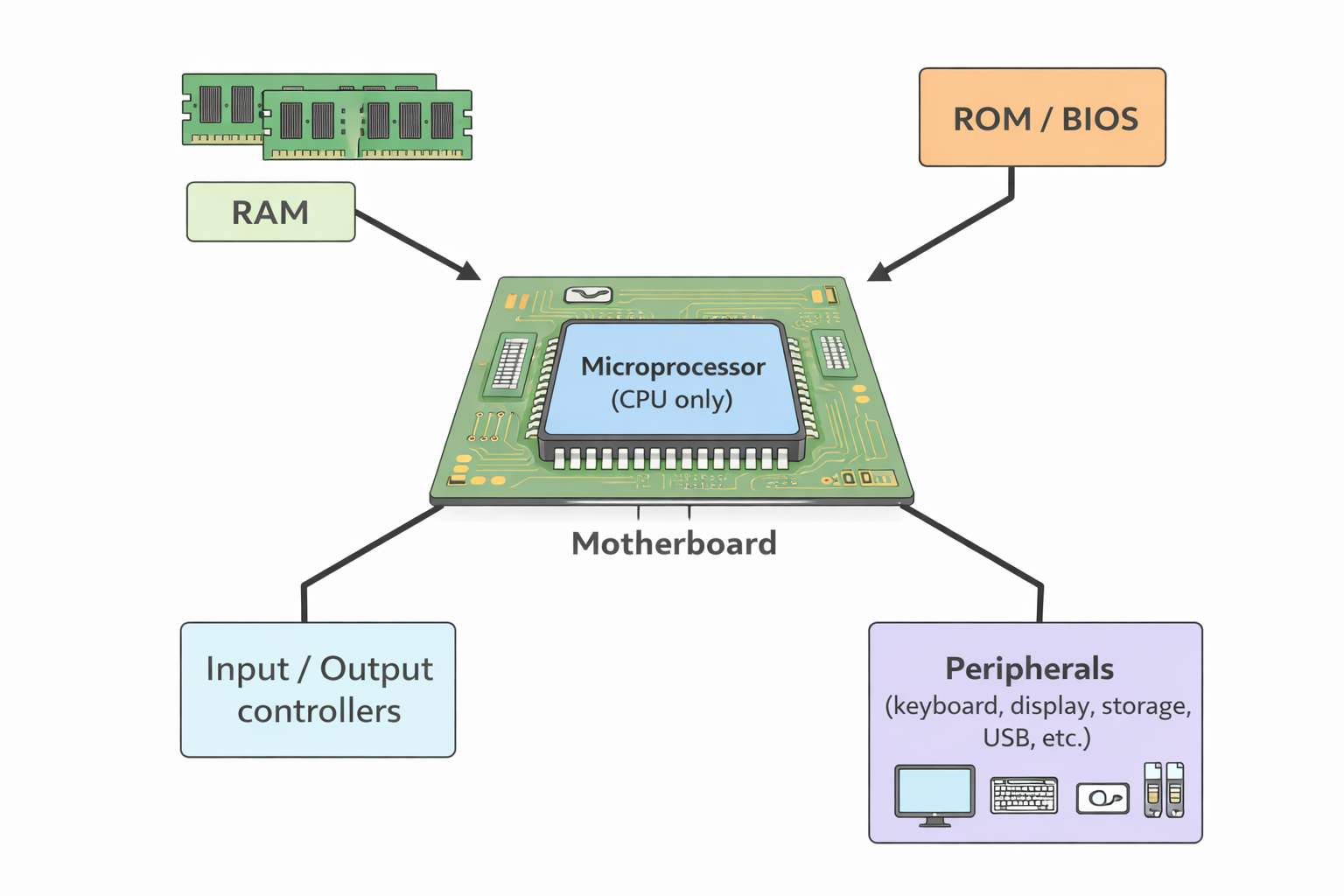
Microprocessors: Only include a CPU, requiring external components like RAM and peripherals.

Microprocessor diagram

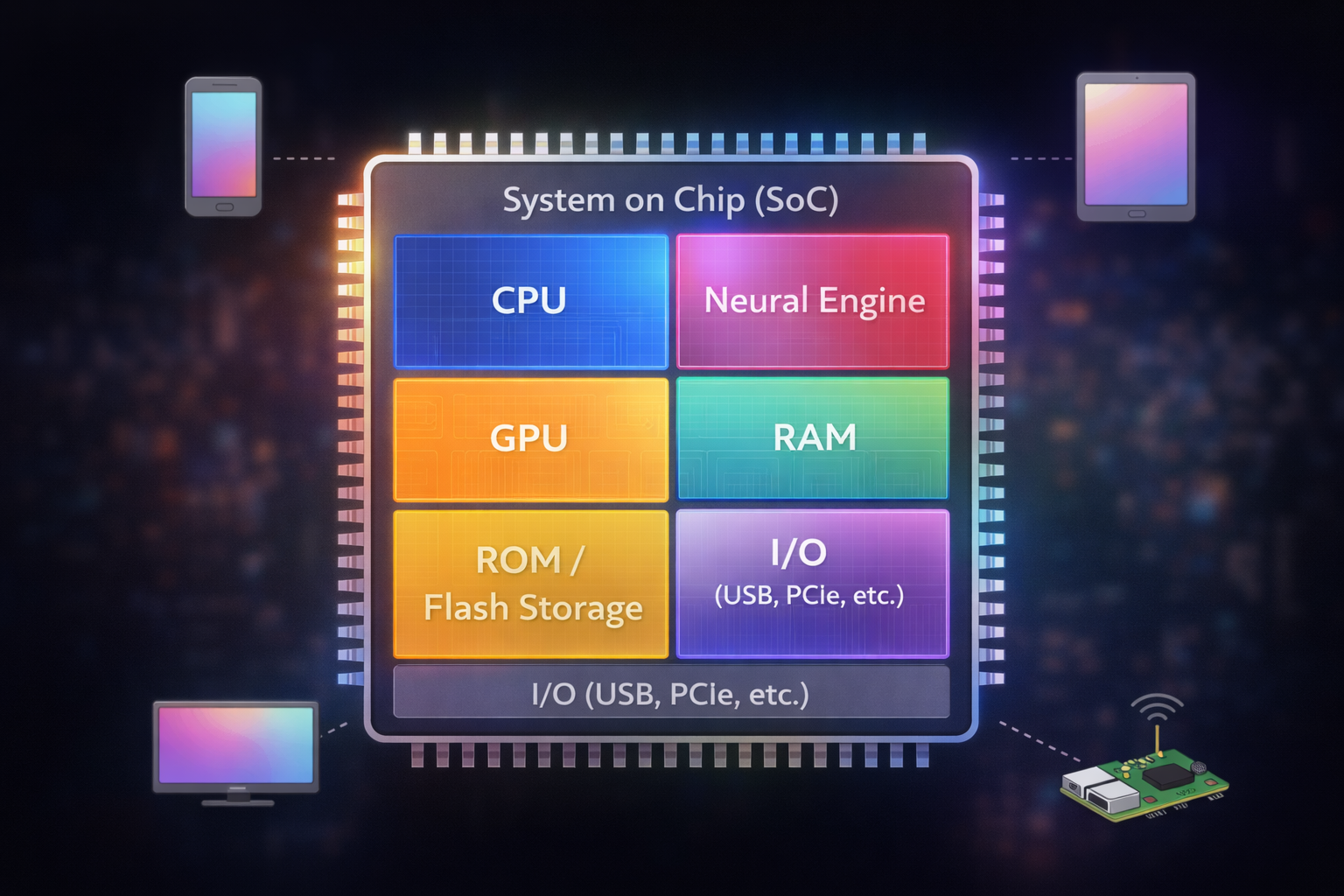
System on Chips (SoC): May include a microcontroller along with CPU, memory, I/O ports, and storage on a single chip.

System on Chip (SoC) diagram

Operation

Embedded systems receive inputs (analog or digital) and process them to produce outputs, controlling specific tasks like heating in an oven or managing fuel in a car's engine. They can be either programmable or non-programmable, with updates possible via direct connection or over-the-air methods (e.g., Wi-Fi, satellite).

Benefits
  • • Small size
  • • Low cost
  • • Dedicated functionality
  • • Low power consumption
  • • Remote control capabilities
Drawbacks
  • • Difficult to upgrade
  • • Difficult to troubleshoot
  • • Can contribute to a throwaway culture due to difficulty in repairs
  • • Any device that can be accessed over the internet is also open to hackers, viruses, etc.

Examples of Embedded Systems

Motor Vehicles: Airbags, fuel injection, GPS navigation

Set-Top Boxes: Manage inputs and outputs for recording and playback

Security Systems: Sensor inputs to manage alarms and notifications

Lighting Systems: Control based on time, occupancy, and natural light

Vending Machines: Item dispensing, cooling, and transaction processing

Washing Machines: Control wash cycles, temperatures, and functions

3.2 Input and Output Devices

Input Devices

Input Devices: Convert external data into a format that the computer can process (e.g., keyboards, touch screens, microphones).

Output Devices: Display processed data in a human-understandable form (e.g., monitors, printers, speakers).

Barcodes and Barcode Scanners

What is a Barcode?

  • A barcode is a series of parallel light and dark lines of varying thickness
  • Each digit (0 to 9) is represented by a unique pattern of lines
  • Left and right sides of the barcode use different coding to allow detection of scan direction
Structure:
  • • Each digit uses 2 dark + 2 light lines
  • Same width per digit, but thickness of lines varies
  • Left-side digits start with light bar and have odd number of dark elements
  • Right-side digits start with dark bar and have even number of dark elements

Barcode Scanning Process

  1. Barcode is scanned using a red laser or red LED
  2. Light reflects off the barcode; dark areas reflect less light
  3. Reflected light detected by photoelectric sensors
  4. Pattern is converted to digital data
  5. E.g., left-side digit "3" → LDDDDL → 0111101 in binary

Point of Sale (POS) Process:

  1. Barcode number is looked up in a database
  2. Retrieves price and item details
  3. Stock quantity is decreased by 1
  4. If stock ≤ reorder level, an automatic order is placed
  5. A flag prevents repeated reordering
Practice Question
Past Paper

5 (a) A clothing shop uses a barcode reader at the checkout.
The checkout is linked to a stock control system. The system monitors stock levels and automatically keeps them above a minimum level.
Explain how the stock control system automatically keeps the stock levels above a minimum level. [5]

Answer:

  • Stock control system has a database of stock
  • Each product has a (unique) barcode
  • Barcode is scanned, and product looked up in database
  • Stock levels for product are reduced (by 1)
  • Stock is checked against minimum level
  • If stock is at/below minimum level an order is placed automatically
  • When stock is re-ordered flag is reset

Advantages of Barcodes

For Management:
  • • Easy & fast to change prices
  • • Up-to-date sales data
  • • Reduces time/cost for pricing shelves
  • Automatic stock control
  • • Customer habit tracking
For Customers:
  • • Faster checkout
  • • Reduced pricing errors
  • • Itemised bill
  • • Potential cost savings
  • • Fresher food from better stock tracking

QR (Quick Response) Codes

Structure & Storage

  • Matrix of black squares on white background
  • Holds up to 4296 characters / 7089 digits
  • Has 3 large corner squares for alignment
  • Fourth small square assists with size & angle detection

Uses

  • • Ads linking to websites
  • • Store boarding passes
  • • Auto-link to phone numbers
  • • Promotions and loyalty programs

Scanning Process

  1. Point phone/tablet camera at QR code
  2. QR app decodes the image
  3. Web address/command is extracted
  4. Opens URL, contact, or displays data

QR Code Pros & Cons

Advantages:
  • • Higher data capacity
  • • Built-in error checking
  • • Easier scanning (no laser needed)
  • • Can be encrypted for safety
  • • Can be shared via text/image
Disadvantages:
  • • Different QR formats exist
  • • Can transmit malware (attagging)
  • • Free QR generators can be misused

Digital Cameras

How a Photograph is Taken

  1. Light enters through the lens
  2. Hits a light-sensitive cell (CCD/photodiodes)
  3. Converts to electric charge per pixel
  4. Charges passed through ADC (Analog to Digital Converter)
  5. Image becomes a digital file

Pixel Info

  • • Each pixel has:
    • - Brightness (8-bit: 0-255)
    • - Colour (24-bit RGB: 8-bit each for R, G, B)
  • • E.g. Orange pixel: R = 215, G = 165, B = 40
    Binary: 11010111 10100101 00101000 = D7 A5 28

Features of Embedded Systems in Cameras

Auto focus
Auto flash
Shutter speed
Aperture control
Red-eye removal
Image size adjustment

File size depends on:

  • • Number of pixels
  • • Brightness/color depth
  • • Image format (JPEG, RAW, etc.)

Keyboards

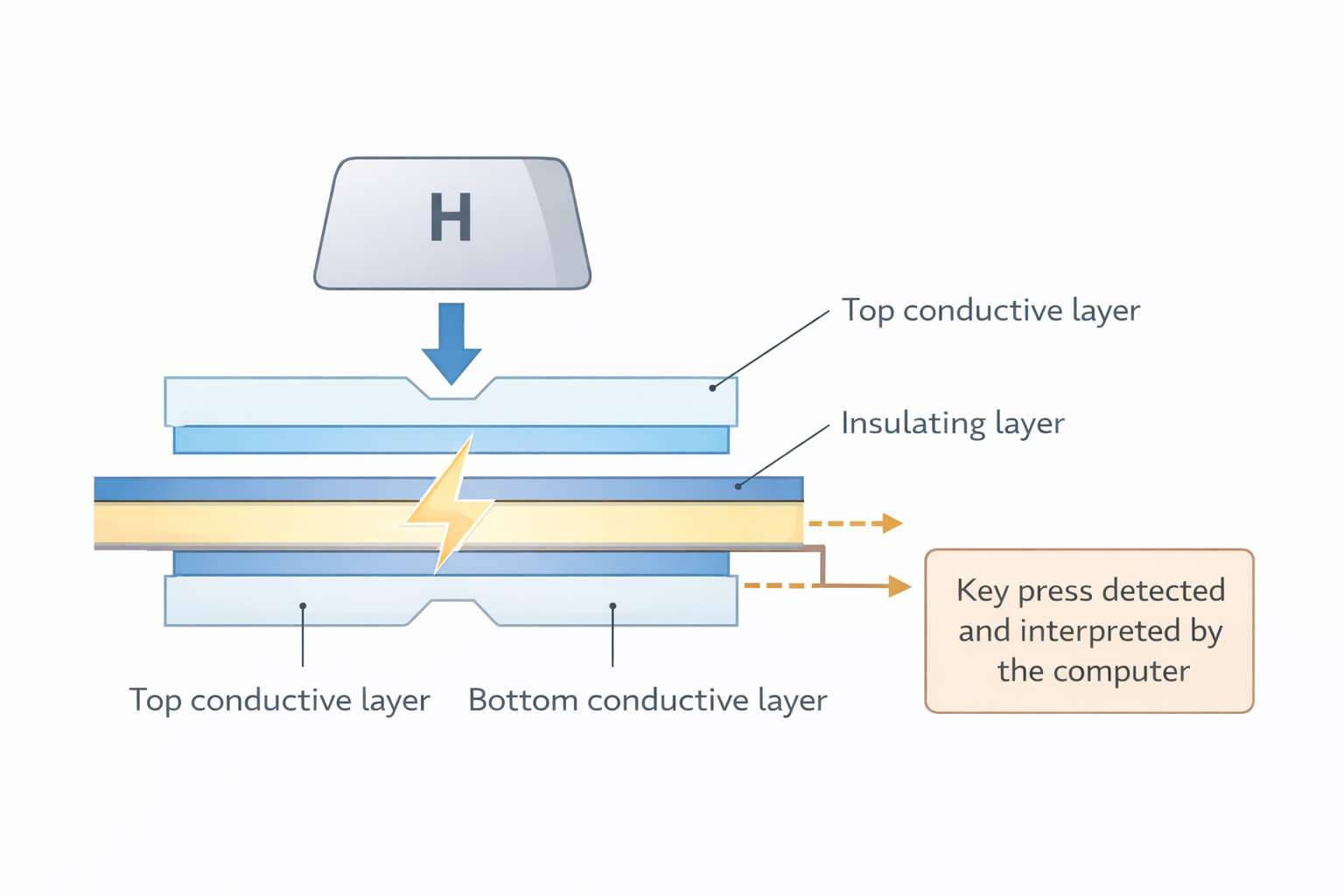
Diagram showing how a keyboard works and recognizes key presses

Key Features

  • ASCII Value Conversion: Each character pressed on the keyboard has a corresponding ASCII value, which the computer interprets by converting the keypress into a digital signal
  • Data Entry: While relatively slow and prone to errors, keyboards are still the easiest way to input text into a computer

Types of Keyboards

TypeDescription
QWERTY KeyboardMost common layout; named after the first 6 keys on top row
Concept KeyboardUsed in restaurants and tills, with pictures instead of letters
Gaming KeyboardComes with RGB lights, extra macro keys, better response time
Virtual KeyboardOn-screen keyboard (e.g. on smartphones, tablets)
Ergonomic KeyboardDesigned to reduce strain on hands and wrists

How the Computer Recognizes a Key Press

  1. Key Press: When a key is pressed, it makes contact with a membrane or circuit board beneath the keys
  2. Circuit Completion: Pressing a key completes the circuit, which the computer's CPU detects
  3. Character Identification: The CPU refers to an index file to identify which character corresponds to the key press
  4. ASCII Conversion: Each character has a corresponding ASCII value, which the computer uses for further processing

Example: Pressing the 'H' Key

  • • The key completes the circuit with the bottom conductive layer
  • • The CPU determines that the 'H' key was pressed and retrieves its ASCII value from the index file

Health Considerations

  • Injuries: Prolonged keyboard use can lead to repetitive strain injury (RSI) in the hands and wrists
  • Ergonomic Keyboards: Designed with alternative key arrangements, these keyboards provide additional support to reduce the risk of RSI and provide comfort during long typing sessions

Microphones

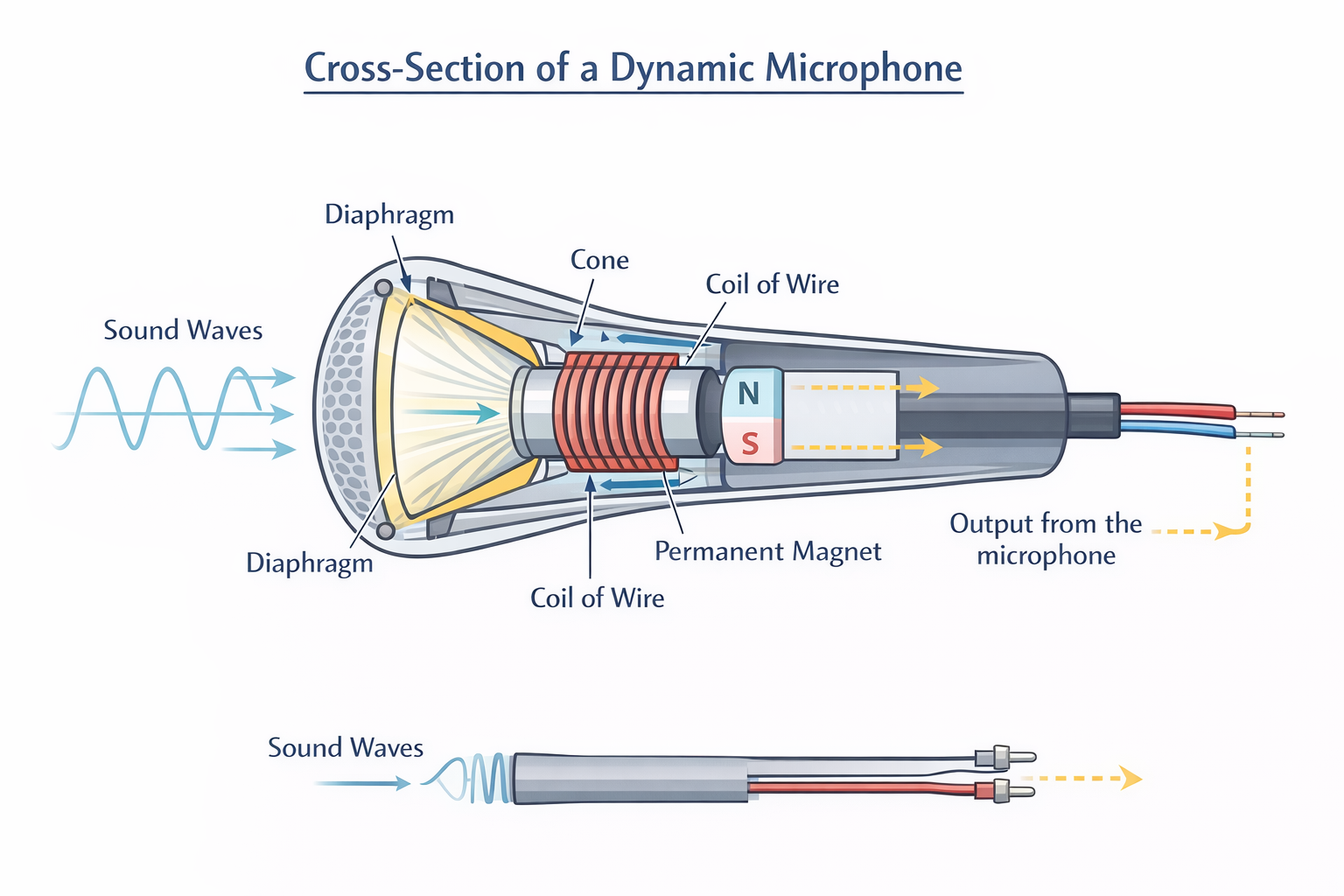
Microphones can be built-in or external devices connected via USB or Bluetooth. They convert sound waves into an electric current, which is then digitized for computer processing or storage.

Working Mechanism:

  1. Sound waves cause the diaphragm in the microphone to vibrate
  2. A cone connected to the diaphragm moves, causing the copper coil around it to move
  3. The moving coil cuts through the magnetic field of a permanent magnet, inducing an electric current
  4. This electric current, which is analogue, can be amplified or sent to a recording device
  5. A computer's sound card converts the analogue current into a digital signal for storage or manipulation
Diagram showing how a microphone converts sound waves to electrical signals
Practice Question
Past Paper

7 Nina is recording some music tracks that she has written. She is researching whether she should record them in MIDI or MP3 format.
Explain what is meant by MIDI and MP3 format. [4]

Answer:

MIDI (Any from):

  • Musical Instrument Digital Interface (file)
  • Stores a set of commands/instructions (for how the sound should be played)
  • Does not store the actual sounds
  • Data in the file has been recorded using digital instruments // produced by synthesizer
  • Specifies pitch of the note // specifies the note to be played
  • Specifies when each note plays and stops playing // Specifies key on/off
  • Specifies duration of the note
  • Specifies volume of the note
  • Specifies the tempo
  • Specifies the type of instrument
  • Individual notes can be edited

MP3 (Any from):

  • MP3 is a format for digital audio
  • MP3 is an actual recording of the sound
  • MP3 is a (lossy) compression format
  • Recorded using a microphone

Mouse

An optical mouse is a pointing device that uses tiny cameras to capture 1500 images per second and can work on virtually any surface.

How It Works:

  • Red LED light in the base reflects off the surface
  • • Reflection is picked up by a CMOS sensor (Complementary Metal Oxide Semiconductor)
  • • The CMOS generates electric pulses from the reflected light
  • • Pulses are sent to a digital signal processor (DSP)
  • • The DSP calculates the coordinates based on the changing image patterns
  • • Computer moves the on-screen cursor accordingly

Advantages over Mechanical Mouse:

  • No moving parts → More reliable
  • Dirt-free operation
  • Works on most surfaces (no mat needed)

Wired Optical Mouse:

  • • No signal loss due to a constant connection
  • Cheaper (no need for batteries or charging)
  • Environmentally friendly (no disposal of batteries)

2D and 3D Scanners

2D Scanners:

  • Common Usage: Mainly used to scan hard copy (paper) documents and convert them into an electronic format
Scanning Process:
  1. A scan head moves across the document, capturing an image
  2. Mirrors direct the image to a lens, which focuses the image
  3. The image is projected onto a charge-coupled device (CCD) that converts light into an electric current
  4. Pixels in the CCD create an electric charge when exposed to light, turning the image into an electronic form
  5. Software produces a digital image, often in formats like JPEG
  6. Optical Character Recognition (OCR) software can convert scanned text into editable formats, allowing it to be manipulated in a word processor
Applications:
  • • At airports, 2D scanners read passports and use OCR to convert scanned text into a digital format for databases
  • Facial recognition software compares passport photos with live photos taken at the airport
  • • Features used include:
    • - Eye distance
    • - Nose width
    • - Jaw length
    • - Cheekbone shape
    • - Eyebrow shape

3D Scanners:

  • Usage: Scan solid objects to create a three-dimensional image by capturing x, y, and z coordinates
  • Applications: Commonly used in Computer-Aided Design (CAD) or 3D printing
  • Technologies: Include lasers, magnetic resonance, and white light
Application - CT Scanners:
  • • Builds up images from thin 2D 'slices' of an object
  • • Each slice stored as a digital image
  • • Common types:
    • - CT (X-rays)
    • - MRI (radio waves)
    • - SPECT (gamma rays)
Medical Scanner Technologies Comparison
NameStands ForUses
CT ScannerComputerised TomographyX-rays
MRIMagnetic Resonance ImagesRadio frequencies
SPECTSingle Photon Emission Computer TomographyGamma rays

Touch Screens

1. Capacitive Touch Screens

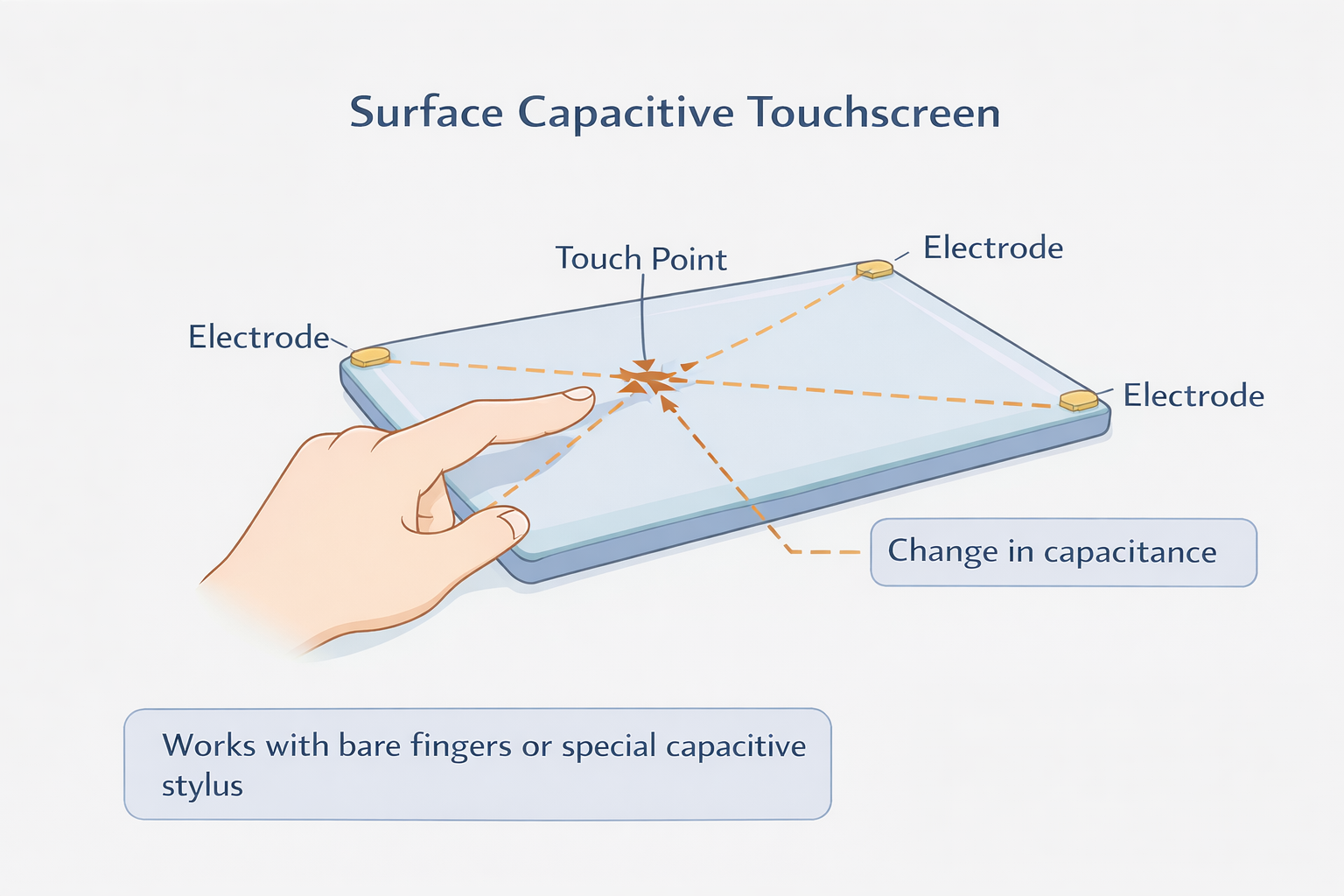
Composed of a glass protective layer, transparent conductive layer, and a glass substrate. When a bare finger or stylus touches the screen, it alters the electrostatic field of the conductive layer. A microcontroller calculates the touch point coordinates based on changes in capacitance.

Diagram showing the structure and working of a capacitive touchscreen
Surface Capacitive:
  • • Uses sensors in the corners to detect changes in capacitance when touched
  • • Works only with bare fingers or a special stylus
Projective Capacitive:
  • • Forms an X-Y matrix of the conductive layer
  • • Creates a 3D electrostatic field
  • • Works with fingers, stylus, or thin/cotton gloves
  • • Supports multi-touch
Advantages:
  • • Better image clarity in strong sunlight
  • • Multi-touch capability (projective capacitive)
  • • Durable, scratch-resistant screens
Disadvantages:
  • • Surface capacitive screens only work with bare fingers or special stylus
  • • Sensitive to electromagnetic radiation

2. Infrared Touch Screens

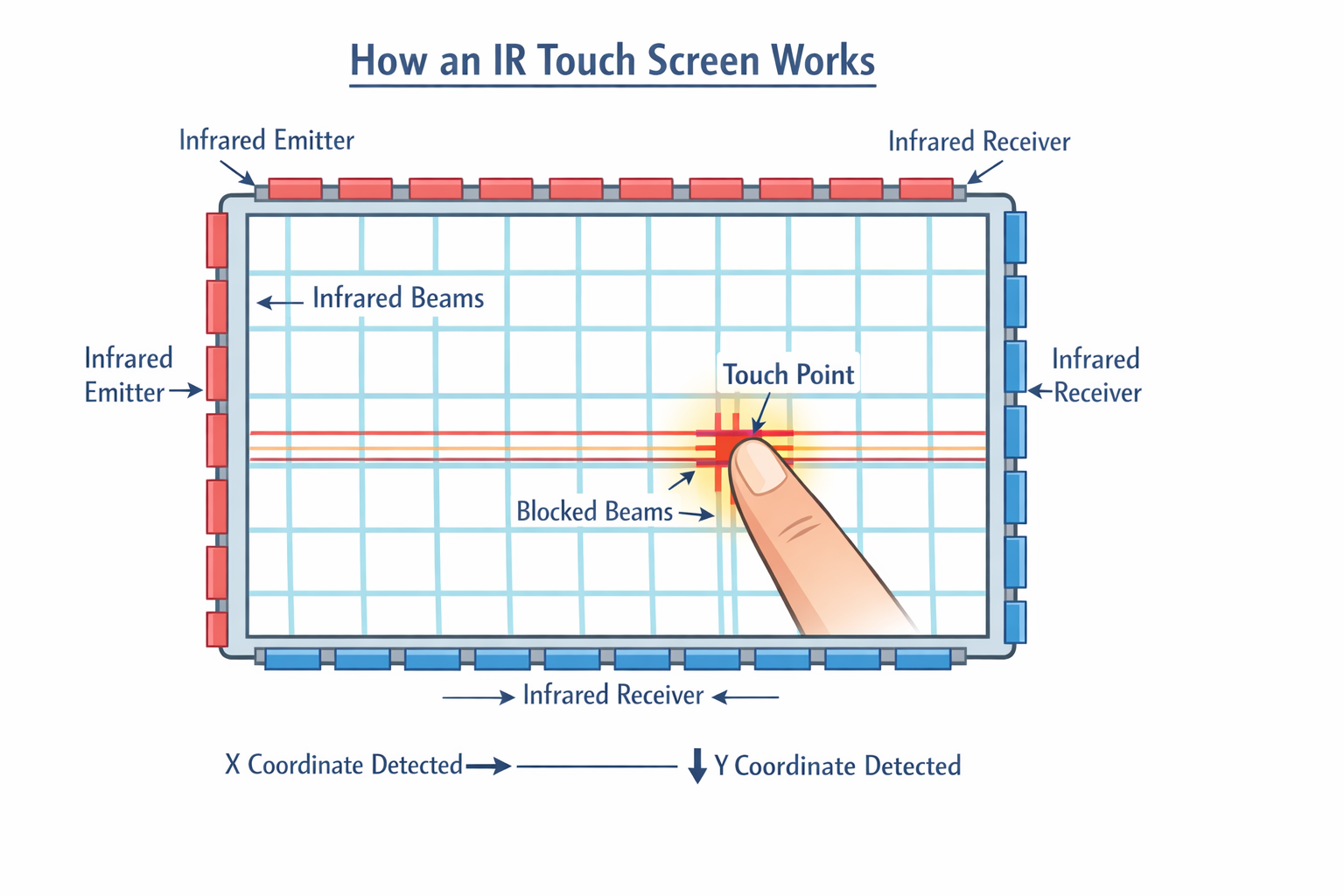
Infrared touch screens use a glass screen with infrared transmitters and sensors surrounding the screen. When the infrared beams are interrupted (e.g., by a finger), sensors detect a reduction in infrared radiation, allowing the system to determine the touch point.

Diagram showing infrared laser beams and sensors in a touch screen
Advantages:
  • • Supports multi-touch
  • • Durable, even with a scratched or cracked screen
Disadvantages:
  • • Sensitive to water and moisture
  • • May experience accidental activation if the infrared beams are disturbed
  • • Sometimes sensitive to light interference

3. Resistive Touch Screens

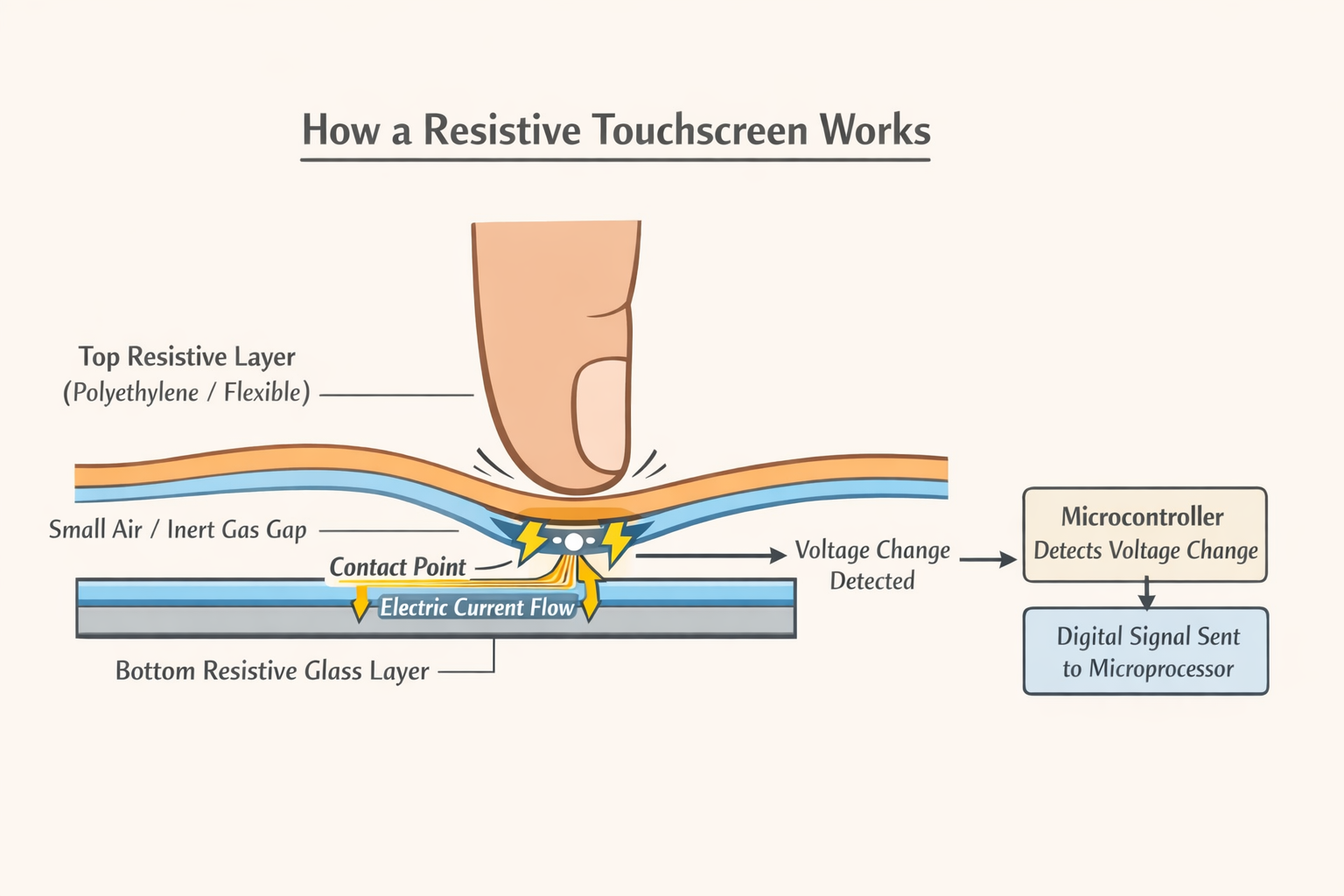
Composed of two electrically resistive layers separated by air or inert gas. When the top polyethylene layer is touched, it contacts the glass bottom layer, completing a circuit and resulting in a flow of electricity. A microcontroller detects the voltage change at the point of contact and sends digital data to the microprocessor.

Diagram showing how resistive touchscreen works with two resistive layers
Advantages:
  • • Resistant to dust and water
  • • Can be used with bare fingers, stylus, or gloved hands
  • Cheaper to manufacture
Disadvantages:
  • • Low touch sensitivity; requires harder pressing
  • • Does not support multi-touch
  • • Poor visibility in strong sunlight
  • • Vulnerable to scratches due to the polymer screen

Comparison of Touch Screen Technologies

FeatureCapacitive Touch ScreenInfrared Touch ScreenResistive Touch Screen
How it worksDetects change in electrostatic field when a finger touches the screenUses a grid of infrared light beams; touch breaks the beamsTwo resistive layers touch each other when pressure is applied
Main componentsGlass layer, transparent conductive layer, microcontrollerInfrared transmitters and sensors around screen edgesFlexible plastic layer, glass layer, resistive coatings
Touch methodElectrical conduction from fingerPhysical interruption of infrared beamsPhysical pressure causes layers to touch
Input toolsBare finger or special stylus (gloves usually don't work for surface type)Finger, stylus, gloves, any objectFinger, stylus, gloved hand
Multi-touch supportYes (projective type)YesNo
Touch sensitivityVery sensitiveVery sensitiveLess sensitive (needs firm press)
Image clarityExcellent, good in bright sunlightGoodPoor, especially in bright sunlight
DurabilityVery durable, scratch resistantDurable, works even if screen is crackedLess durable, easily scratched
Resistance to water/dustPoor (affected by EM interference)Poor (affected by water/moisture)Good resistance to dust and water
Accidental activationLowPossible if beams are disturbedLow
CostExpensiveExpensiveCheap
Common usesSmartphones, tabletsLarge displays, public kiosksATMs, ticket machines, older devices

3.2 Output Devices

Actuators

What is an Actuator?

An actuator is a mechanical or electromechanical device used to control movement. It converts electrical signals into physical motion (e.g., to open a valve or move a belt). Examples: Relay, solenoid, motor.

How a Solenoid Works:
  1. A solenoid is a coil of wire with current passing through it
  2. This creates an electromagnetic field
  3. A plunger (metal bar) inside the coil moves due to magnetic force
  4. This linear motion can be used to operate mechanical devices like switches or valves
Rotary Solenoids:
  • • Use cylindrical coils to produce rotational movement instead of linear
  • • Can be used in rotary switches or devices requiring turning force

Light Projectors

1. Digital Light Projector (DLP)

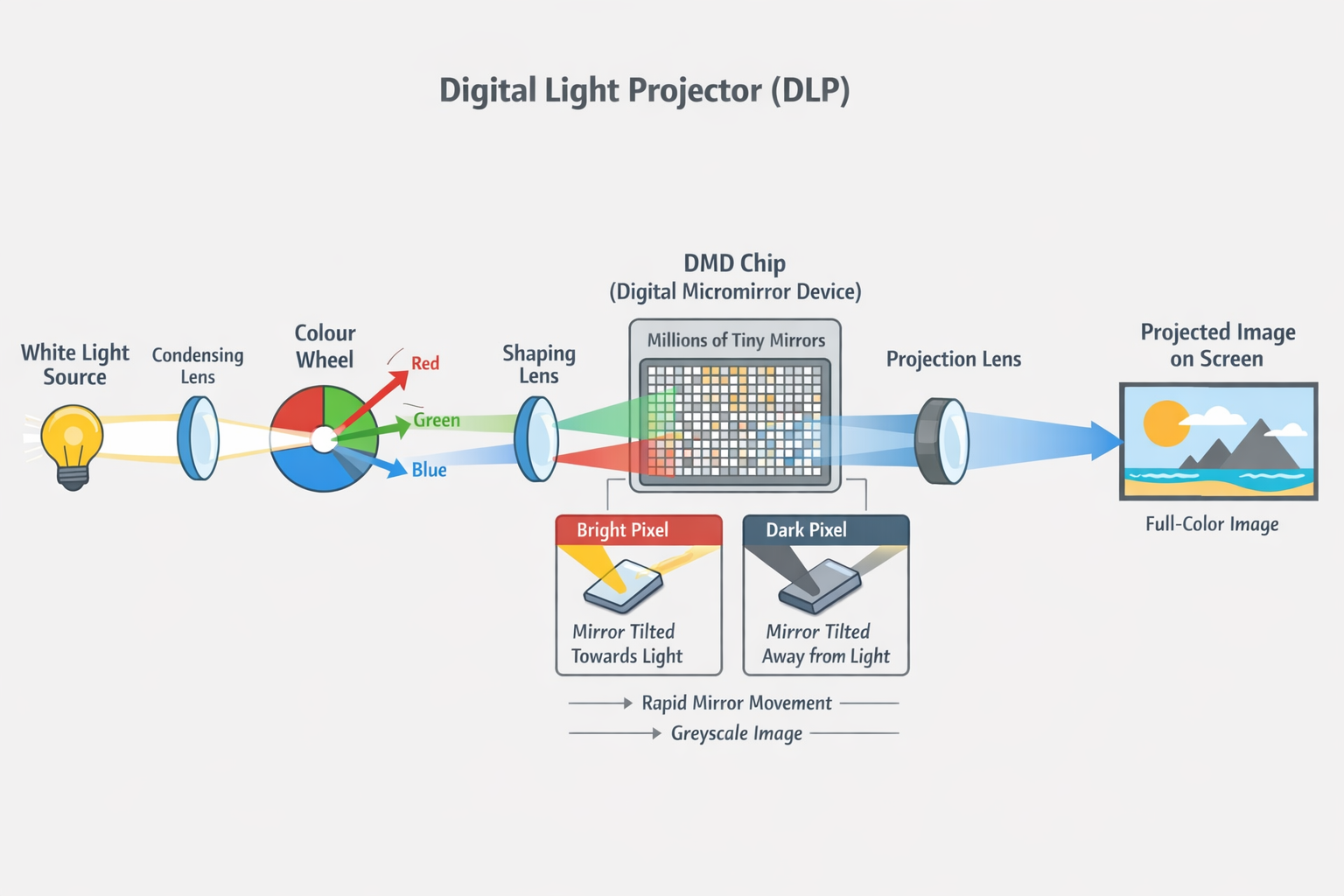
  • Uses millions of micro mirrors on a DMD chip to create images
  • Micro mirrors tilt towards or away from the light to create light/dark pixels, generating a greyscale image
  • A bright white light passes through a colour filter to produce over 16 million colours
  • Each Mirror = 1 Pixel
Diagram showing how DLP projector works with micro mirrors and DMD chip
Advantages:
  • • High contrast ratios
  • • Reliability
  • • Quiet operation
  • • Smaller size
Disadvantages:
  • • Shadows on moving images
  • • Lower colour saturation

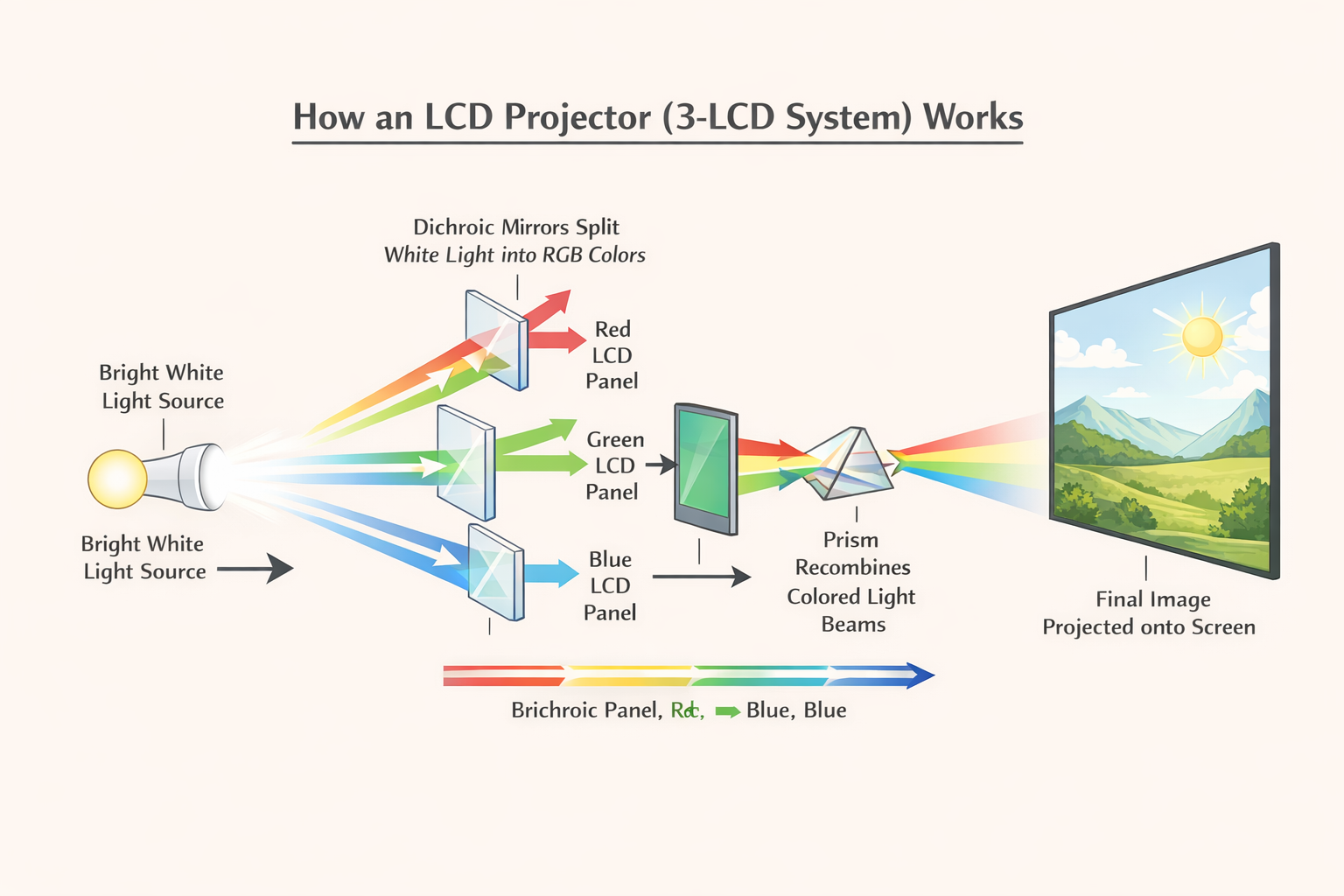
2. Liquid Crystal Display (LCD) Projector

  • A beam of white light is split into red, green, and blue components
  • These pass through three LCD screens to create monochromatic images
  • The images are combined using a prism to produce a full-colour image
  • Image is projected through the lens
Diagram showing how LCD projector works with light splitting and LCD screens
Advantages:
  • • Sharper images
  • • Better colour saturation
  • • Energy-efficient
Disadvantages:
  • • Lower contrast ratios
  • • Shorter lifespan
  • • Screens degrade over time

DLP vs LCD Projector Comparison

FeatureDLP ProjectorLCD Projector
Contrast RatioHigherLower (but improving)
SharpnessModerateSharper image
Colour SaturationWeakerStronger
DurabilityHigher (longer life)Lower (degrades over time)
WeightLighter, more compactHeavier
ReliabilityBetter in dusty/smoky environmentsLess reliable in such environments

Key Differences: DLP is known for smoother video (less "motion blur") compared to LCD. DLP projectors often handle bright environments better, while LCD projectors may need darker rooms. LCD projectors can offer more vibrant colors, while DLP projectors may offer deeper contrast. DLP projectors may show a "rainbow effect" (flashes of color) to some viewers, especially in fast-moving scenes. LCD projectors do not have this issue.

Printers

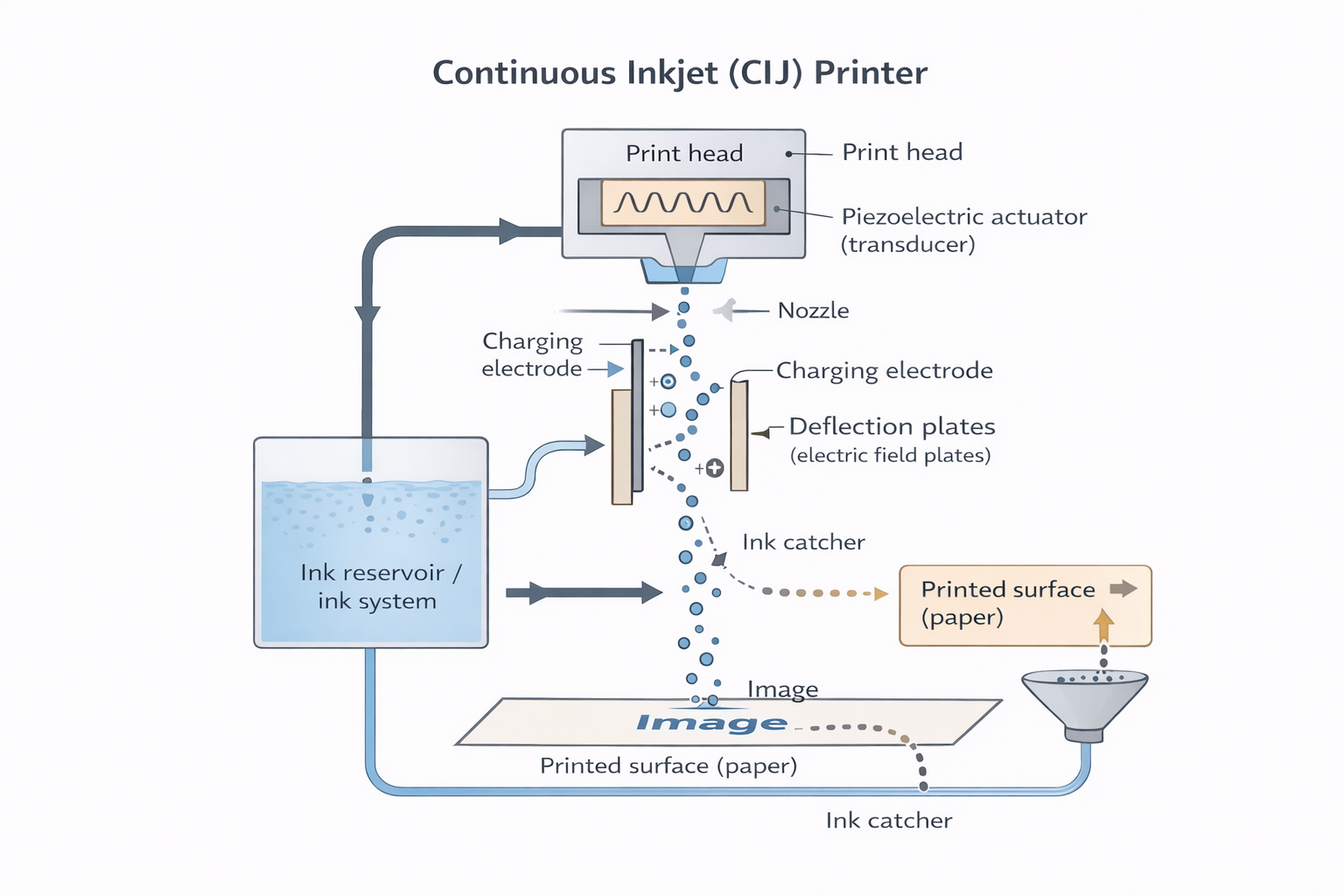
Inkjet Printers

Diagram showing how an inkjet printer works with print head, nozzles, and ink cartridges
  • Components: Print head with nozzles sprays ink onto the paper. Ink cartridges supply ink in primary colours and black. Stepper motor moves the print head, and a paper feed supplies paper
  • Technologies: Thermal Bubble (heat creates ink bubbles, ejecting ink) or Piezoelectric (vibrating crystals eject ink)
  • Process: Document data is sent to the printer. Ink is sprayed onto the paper line by line until printing is complete

Laser Printers

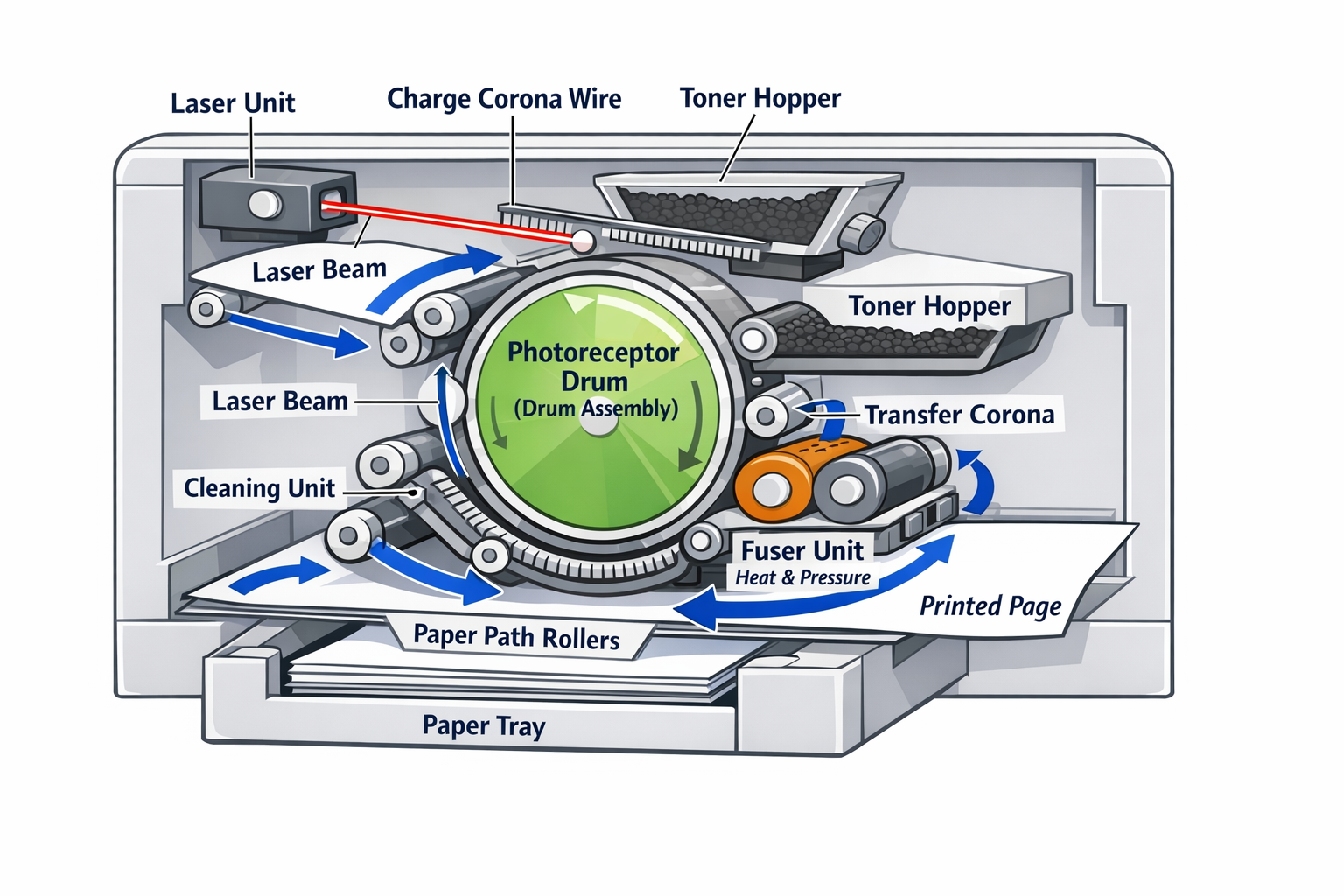
Use dry powder ink (toner) and static electricity to print.

How a Laser Printer Works:
  1. Charging the Drum: The drum (a cylindrical component inside the printer) is electrically charged
  2. Laser Scanning: A laser beam is used to "draw" the image of the document on the drum by discharging specific areas where the text or images should appear. This creates a pattern of electric charges on the drum
  3. Toner Application: The drum passes through a container of toner, which is a fine, powdered ink. The toner sticks to the parts of the drum where the laser has drawn the image or text (since the laser alters the electrical charge on those areas)
  4. Transferring Image to Paper: As the paper passes over the drum, the toner gets transferred from the drum onto the paper, creating the printed image
  5. Fusing: The paper then passes through a fuser, which uses heat and pressure to melt and bond the toner permanently onto the paper
  6. Drum Cleaning: Finally, the drum is cleaned, and the process can start again for the next page

Comparison: Inkjet vs Laser Printers

The choice of whether to use an inkjet printer or a laser printer depends on which features make it the most appropriate output device for the given application.

FeatureInkjet PrinterLaser Printer
Best Use CaseOne-off photos, few pages of good quality colour printingHigh volume printing (colour or monochrome), multiple copies
Print QualityGood quality for photosHigh quality printouts (text & graphics)
SpeedSlowerVery fast
ConsumablesSmall ink cartridgesLarge toner cartridges
Paper CapacitySmall paper traysLarge paper trays (often > 500 sheets)
Example ApplicationPrinting a few high-quality photos at homeProducing a large number of flyers or posters for advertising

3D Printers

3D Printing is an additive manufacturing process that builds objects layer by layer using materials like powdered metal or resin.

Diagram showing how 3D printing builds objects layer by layer
Process:
  1. Design is made using CAD software
  2. The object is printed in layers as thin as 0.1 mm
  3. Post-processing includes cleaning and curing the object
Applications:
🦿 Prosthetics: Custom-fit limb coverings
🧑‍⚕️ Medical Surgery: Precise models for facial reconstructions
✈️ Aerospace: Lightweight and precision-engineered parts
👗 Fashion & Art: Enables creative designs
🚗 Vintage Manufacturing: Replaces discontinued parts
1. Direct 3D Printing (Inkjet-based)

How it works: Similar to how a regular inkjet printer works, direct 3D printing uses a print head that moves left to right to print. But instead of just printing ink on paper, the print head also moves up and down to build layers. The material (like a liquid or resin) is deposited layer by layer. After one layer is printed, the print head moves up and prints the next layer on top.

Key point: The object is built layer by layer as the print head moves not only side to side but also up and down, allowing for 3D object creation.

2. Binder 3D Printing

How it works: In binder 3D printing, two passes are made for each layer.

  • First pass: Dry powder is spread across the print area
  • Second pass: A binder (which is like glue) is sprayed onto the powder to harden it and form a solid layer

Key point: It's similar to direct 3D printing, but instead of directly printing a material, it uses powder and binder to build solid layers. The powder becomes a part of the structure, and the binder helps stick it together.

Screens (LED, LCD, OLED)

LED Screens

  • Made up of red, green, and blue LEDs, which create colours by varying the electric current
  • Often used for large outdoor displays
  • OLED (Organic LED) screens are more flexible and don't require backlighting, allowing ultra-thin screens

LCD Screens

  • Composed of liquid crystals that manipulate light using an electric field
  • Require LED backlighting for display clarity, brightness, and colour
  • Previously used CCFL tubes; now mostly use LED backlighting
  • Advantages of LED backlighting: Instant brightness, sharper images, thinner design, less power consumption (Compared to CRT Monitor)

OLED (Organic Light Emitting Diode)

  • Use organic carbon-based materials for flexible displays
  • Sandwich of electrodes emits light without backlighting
  • Self-illuminating (no backlight needed)
Advantages over LEDs and LCDs:
  • • Thinner, lighter, and more flexible
  • • No backlighting needed
  • • Uses less power and generates its own light
  • • Allows for innovative applications, such as foldable screens and wearable technology

Comparison: LED vs LCD vs OLED Screens

FeatureLED ScreenLCD Screen (Backlit)OLED Screen
How it worksTiny light emitting diodes (Red, Green, Blue) form pixelsLiquid crystals manipulate light from a backlightOrganic carbon compounds emit their own light
BacklightingUsage varies (Pure LED screens are self-emitting)Requires backlight (CCFL or LED matrix)None required (Self-illuminating)
Screen ThicknessThinner than older LCDs (if backlit LED)Thicker due to backlight layersVery thin, flexible, can be curved
Power ConsumptionLowHigher (due to constant backlight)Very low (no backlight needed)
Brightness & ViewVery bright, vivid coloursGood, but black levels can be greyishBrighter than LEDs, large viewing angle (~170°)
Primary UseLarge outdoor displays, billboardsMonitors, TVs (often marketed as "LED TV")Smartphones, curved TVs, wearables

Important: Many screens advertised as "LED" are actually LCD screens that use LEDs for backlighting! A true LED screen uses individual LEDs for pixels, mostly seen in giant outdoor displays.

Speakers

Converts digital sound into audible output.

How Speakers Work:

  1. Passing the digital data through a Digital to Analogue Converter (DAC)
  2. DAC converts Binary data into current
  3. The converted electric current is amplified
    • Amplifier increases signal strength
  4. The current moves through a coil, generating a magnetic field that causes the cone to vibrate, producing sound waves

3.3 Data Storage

Primary Memory

What is Primary Memory?

Internal Memory Directly Accessible by CPU (Eg. RAM, ROM, Cache)

RAM (Random Access Memory)

What does RAM do?

RAM is the computer's temporary workspace where data and programs are stored while the computer is running. Think of it as the computer's "desk" where it keeps everything it's currently working on.

  • Stores active programs: When you open an application (like a web browser or word processor), it loads into RAM so the CPU can access it quickly.
  • Holds data being processed: The CPU reads and writes data to RAM during calculations and operations.
  • Enables multitasking: Multiple programs can run simultaneously because each has space in RAM.
  • Volatile storage: Data in RAM is lost when the computer is turned off (unlike hard drives which keep data permanently).
  • Fast access: RAM is much faster than secondary storage (like hard drives), allowing the CPU to quickly retrieve needed data.

Volatile memory that stores data temporarily while a computer is running. It allows quick access to data, improving system performance. RAM can be increased to boost speed.

DRAM (Dynamic RAM)
  • • Needs constant refreshing
  • • Built using Capacitors/Transistors
  • • Less expensive
  • • Higher capacity
SRAM (Static RAM)
  • • Faster
  • • Doesn't require refreshing
  • • Built using Flip Flops
  • • Used in CPU caches
  • • More expensive
  • • Lower capacity
DRAM vs SRAM - Detailed Comparison
AspectDRAM (Dynamic RAM)SRAM (Static RAM)
How it worksUses capacitors to store charge (1 or 0). Capacitors leak charge over time, so data must be refreshed thousands of times per second.Uses flip-flops (transistor circuits) that maintain their state as long as power is supplied. No refreshing needed.
SpeedSlower (access time: ~50-100 nanoseconds)Faster (access time: ~1-10 nanoseconds)
CostLess expensive per bitMore expensive per bit
CapacityHigher capacity (can store more data in same space)Lower capacity (takes more space for same amount of data)
Power consumptionLower power consumptionHigher power consumption
Where it's usedMain system memory (RAM modules in computers, smartphones)CPU cache memory, registers, and other high-speed applications
DensityHigher density (more bits per chip)Lower density (fewer bits per chip)

Why use DRAM for main memory? Even though SRAM is faster, DRAM is used for main system RAM because it's much cheaper and can store more data in the same physical space. The speed difference is acceptable for main memory, while SRAM's speed is critical for CPU cache.

ROM (Read-Only Memory)

What does ROM do?

ROM stores permanent, essential instructions that the computer needs to start up and operate. Unlike RAM, ROM retains its data even when the computer is turned off (non-volatile).

  • Stores BIOS (Basic Input/Output System): Contains the fundamental instructions needed to initialize hardware components when the computer starts.
  • Boot process: When you turn on your computer, ROM provides the first instructions that tell the CPU how to load the operating system from the hard drive.
  • Hardware configuration: Stores settings and firmware that control how hardware components communicate with each other.
  • Permanent storage: Data in ROM is "burned in" during manufacturing and typically cannot be changed by users (though modern systems use EEPROM/Flash which can be updated).
  • Critical system functions: Contains low-level routines that are essential for the computer to function, even before the operating system loads.
  • Non-volatile memory that stores permanent data needed by the computer
  • Stores permanent data such as the BIOS, Boot Routines
  • It cannot be modified or written to by the user
Types of ROM
PROM (Programmable ROM)

Can be programmed once by the user using special equipment, but cannot be erased or reprogrammed.

EPROM (Erasable Programmable ROM)

Can be erased using ultraviolet light and then reprogrammed. Requires removal from the computer for erasing.

EEPROM (Electrically Erasable Programmable ROM)

Can be erased and reprogrammed electrically while still in the computer. Used in modern BIOS/UEFI systems.

Flash Memory

A type of EEPROM that can be erased in blocks. Used in USB drives, SSDs, and modern BIOS chips.

RAM vs ROM - Complete Comparison

AspectRAM (Random Access Memory)ROM (Read-Only Memory)
Full FormRandom Access MemoryRead-Only Memory
VolatilityVolatile - Data is lost when power is turned offNon-volatile - Data is retained even when power is turned off
Read/WriteRead and Write - Data can be both read from and written toRead-Only - Data can only be read (cannot be modified by user)
SpeedFast access speed (nanoseconds)Slower than RAM
CapacityLarge capacity (GBs - typically 4GB to 32GB+ in modern computers)Smaller capacity (MBs - typically a few MBs)
CostMore expensive per unit of storageLess expensive per unit of storage
What it stores• Currently running programs
• Active data being processed
• Operating system (while running)
• Application data
• BIOS (Basic Input/Output System)
• Boot routines
• Firmware
• System startup instructions
When it's usedDuring normal computer operation - constantly accessed by CPUDuring startup/boot process and for system configuration

Key Takeaway: RAM is like your computer's "workspace" - it holds everything you're currently working on, but it's cleared when you turn off the computer. ROM is like the computer's "instruction manual" - it contains the essential instructions needed to start up and operate, and these instructions remain even when the power is off.

Secondary and Off-line Storage

  • NON Volatile!
  • High capacity
  • Slower Memory
  • CPU does not have direct access

Registers vs Cache vs RAM Comparison

AspectRegistersCache MemoryRAM
LocationInside the CPUClose to the CPU, either on-chip or nearbyOn the motherboard, separate from the CPU
SpeedFastest (measured in nanoseconds)Very fast, but slower than registersSlower than cache, but faster than secondary storage
SizeSmallest (a few bytes, e.g., 32-bit, 64-bit)Larger than registers, but smaller than RAM (KB to MB)Largest among the three (GBs)
FunctionTemporarily holds data for immediate processing by the CPUStores frequently accessed data and instructions to speed up processingTemporarily stores data and programs needed by the CPU
Access TimeAlmost instantaneous (nanoseconds)Extremely fast (nanoseconds)Fast (tens of nanoseconds)
VolatilityVolatile (loses data when power is off)VolatileVolatile

Magnetic Storage

Hard Disk Drives (HDD)
  • Data stored on spinning platters using magnetic fields
  • Accessed via read/write heads
  • Data stored in sectors/tracks
  • Performance affected by latency and fragmentation
  • Can be external (USB-connected)
  • Have Large Storage Capacities
  • Slower access times due to mechanical movements
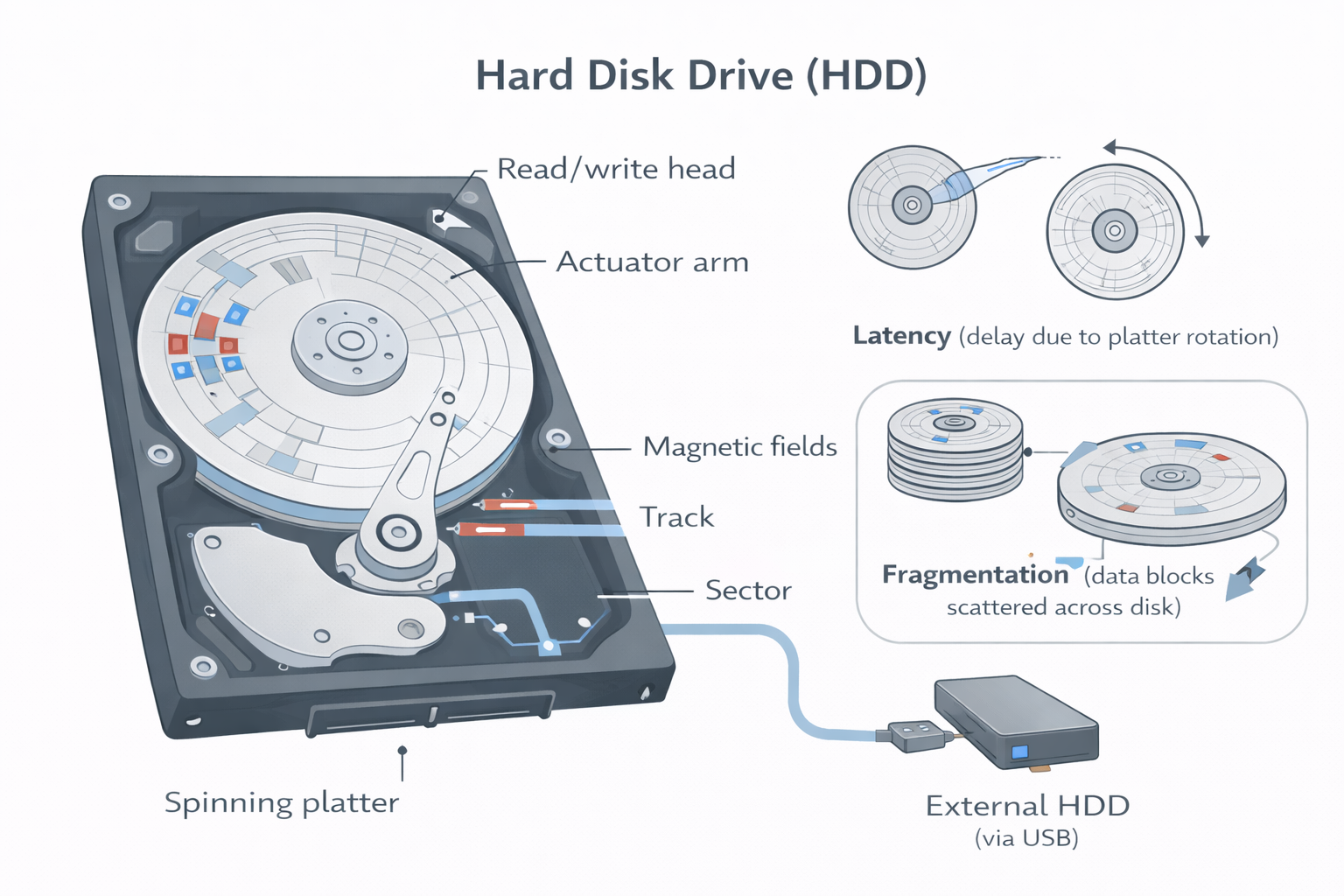
Diagram showing the internal structure of a Hard Disk Drive (HDD)

Solid State Storage

Solid State Drives (SSD)
  • No moving parts = faster, reliable, and quieter
  • Uses NAND Flash to store bits as electrical charges
  • Lower power consumption, suitable for laptops
  • Must be used yearly to retain data
  • Higher Reliability
  • Expensive

A dielectric coating separates the two transistors, which allows the floating gate transistor to retain its charge (which is why the memory is non-volatile).

The main drawback of SSD is still the longevity of the technology (although this is becoming less of an issue). Most solid state storage devices are conservatively rated at only 20GB of write operations per day over a three year period – this is known as SSD endurance.

Flash Memory / USB Sticks

  • Portable, lightweight
  • Often used with dongles for secure software use
  • Small, portable storage devices that use solid-state technology, often connected via USB ports. Commonly used for transferring files and as backup storage
How Flash Storage Works:
Past Paper
  • Uses transistors/controls gates/floating gates
  • Can be NAND/NOR technology // Can use flip-flops
  • Stores data by flashing it onto the chips/device
  • Controlling/using the flow of electrons through/using transistors/chips/gates
  • The electric current reaches the control gate and flows through to the floating gate to be stored
  • When data is stored, the transistor is converted from 1 to 0 / 0 to 1

Optical Storage
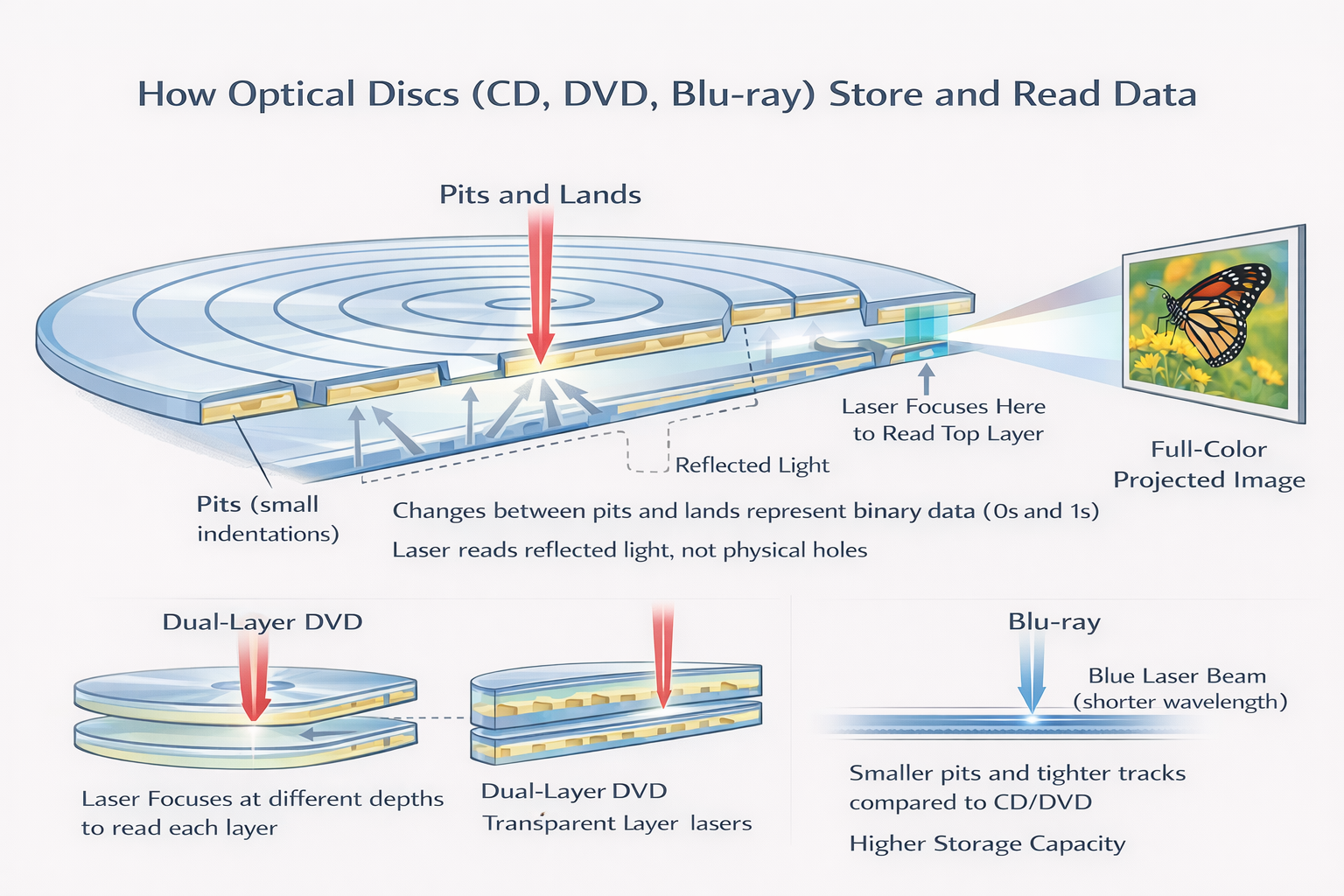
Diagram showing different types of optical storage disks: CD, DVD, and Blu-ray
CD/DVD
  • • Use lasers to read/write data
  • • Data stored as pits and lands on a spiral track
  • CD/DVD-R = write once; RW = rewrite many times
DVD Dual Layer
  • • Two layers read by focusing the laser differently
  • • DVDs use red lasers; smaller pits = more data than CDs
Blu-ray Discs
  • • Use blue lasers (405nm) → smaller pits = more capacity
  • • Up to 50GB (dual-layer)
  • • Allows interactivity: skipping, editing, downloading extras
Optical Storage Comparison
TypeLaserCapacity
CDRed (780nm)~700MB
DVDRed (650nm)4.7GB–8.5GB
Blu-rayBlue (405nm)25GB–50GB

Virtual Memory

A technique that extends RAM capacity by using part of the hard disk or SSD as additional memory. When RAM is full, data is swapped between RAM and virtual memory, allowing the system to run larger applications. This process is managed through paging, where data is divided into pages that are moved between RAM and disk storage. However, excessive use of virtual memory can lead to disk thrashing, where the system spends more time swapping data than processing it, significantly slowing down performance.

✅ Paging
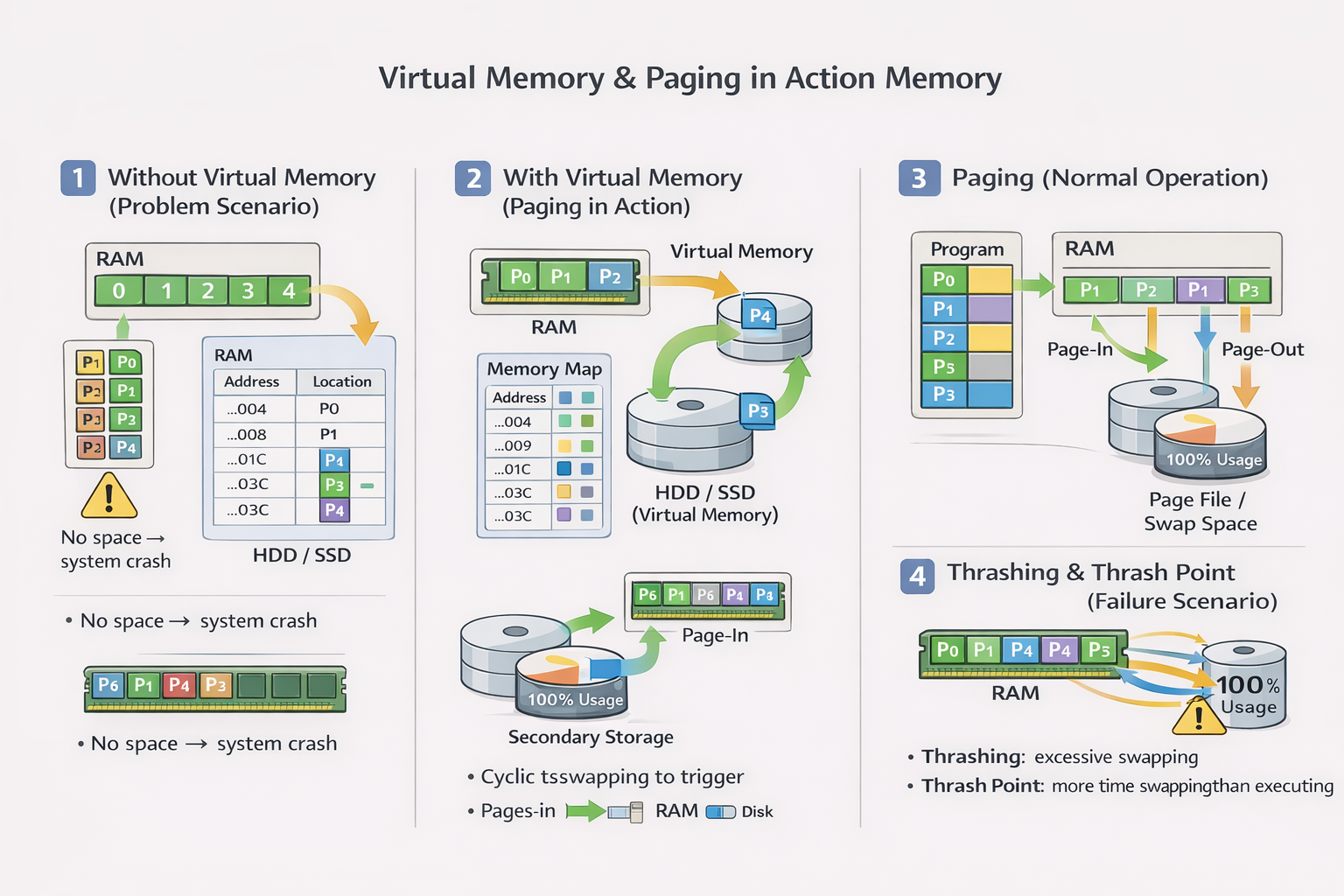
Diagram showing virtual memory and paging process with pages and frames

Paging is a memory management technique used in virtual memory systems.

  • • The operating system divides RAM and programs into fixed-size blocks called pages
  • • Each page in virtual memory corresponds to a frame in physical memory (RAM)
  • • When a program runs, only the needed pages are loaded into RAM
  • • If more memory is needed than what RAM can hold, some pages are moved to and from the hard disk (called the page file or swap space)

Advantage: It allows large programs to run even if there's not enough RAM, by loading only parts (pages) as needed.

❌ Page Thrashing

Page thrashing happens when the computer is spending more time swapping pages in and out of RAM than actually executing the program.

  • • It usually occurs when too many programs are running or not enough RAM is available
  • • The system constantly loads pages from the hard disk to RAM and removes old ones
  • • This leads to a major slowdown, and performance becomes worse

Think of it like this: If you only have a small desk and you're trying to work with 10 open books, you'll keep swapping books in and out of your backpack just to find the one you need. You'll spend more time swapping books than reading — that's thrashing!

Without Virtual Memory:

Imagine 5 programs (0–4) needing access to 4 RAM blocks (0–3). Program 4 has no space → ❌ System Crash

With Virtual Memory:

  • • A 32-bit memory map keeps track of where each program's data is
  • • Oldest RAM block (e.g. program 0) is moved to HDD
  • • New program (e.g. program 4) now uses that RAM block
  • • This continues in a cycle to free up space in RAM

Benefits:

  • • Run programs larger than RAM
  • • Avoid system crashes
  • • Cost-effective (no need to buy more RAM immediately)

Drawbacks:

  • • Slower than RAM
  • • Can lead to disk thrashing: excessive data swapping → slower performance → HDD wear
  • • Solutions: Use SSD, increase RAM, reduce open programs

Cloud Storage

Cloud storage is a method of saving data on remote servers that are accessed over the Internet. Instead of storing files locally on your computer or USB, the data is stored in large data centres managed by companies like Google, Amazon, Microsoft, etc.

Types

  • Public: Different provider (e.g., Google Drive)
  • Private: Internal, secured by organization
  • Hybrid: Mix of both

✅ Advantages:

  • • Data is available anytime, anywhere
  • • Easy to share and collaborate
  • • Reduces need for physical storage devices
  • • Often includes automatic backup options

❌ Disadvantages:

  • Requires internet to access or update files
  • Security concerns (e.g., hacking or data breaches)
  • • May involve ongoing subscription costs for large storage

🔒 Security Concerns

  • • Data access by third-party
  • • Disaster resilience
  • • Insider misuse
  • • Risk of data breaches
  • • Backup failure
  • • Data Leaks

3.4 Network Hardware

Network Interface Card (NIC)

  • Purpose: Allows devices to connect to networks, such as the internet
  • Physical Component: Part of device hardware containing the Media Access Control (MAC) address, a unique identifier generated during manufacturing
  • Wireless Network Interface Cards (WNICs): Function similarly to NICs but use wireless connections. Utilize an antenna for communication via microwaves. Can plug into USB ports or be part of the internal circuitry

MAC Address

  • MAC Address stands for Media Access Control
  • Made up of 48 bits
  • General Format: NN-NN-NN (Manufacturer Code) - DD-DD-DD (Device Serial Number)
  • Used for communication within a network. MAC addresses are permanent identifiers for devices, set by the manufacturer

Types of MAC addresses:

  • UAA - Universally Administered MAC: The most common type, set by the manufacturer in the factory
  • LAA - Locally Administered MAC: Occasionally used when a user or organization wishes to change the MAC address

Why Change MAC Addresses?

  • • Certain software requires MAC addresses in a strict format
  • • To bypass a MAC address filter on a router or firewall, allowing other devices to connect
  • • To circumvent network restrictions

IP Address

  • IP Address stands for Internet Protocol Address
  • When a device connects to a private network, the router assigns it a private IP address
  • The IP is unique within that network but might be the same as an IP on another network
  • When connected to the internet, the device is given a unique public IP address by the ISP (Internet Service Provider)
  • No other device on the internet has the same public IP address
  • All devices connected to the same router share the same public IP but have different private IP addresses

Two versions of IP:

IPv4IPv6
32 bits128 bits
Denary formatHexadecimal format
Example: 192.168.1.1Example: 2001:0ddf:38a3:0000:0000:833e:0390:7445

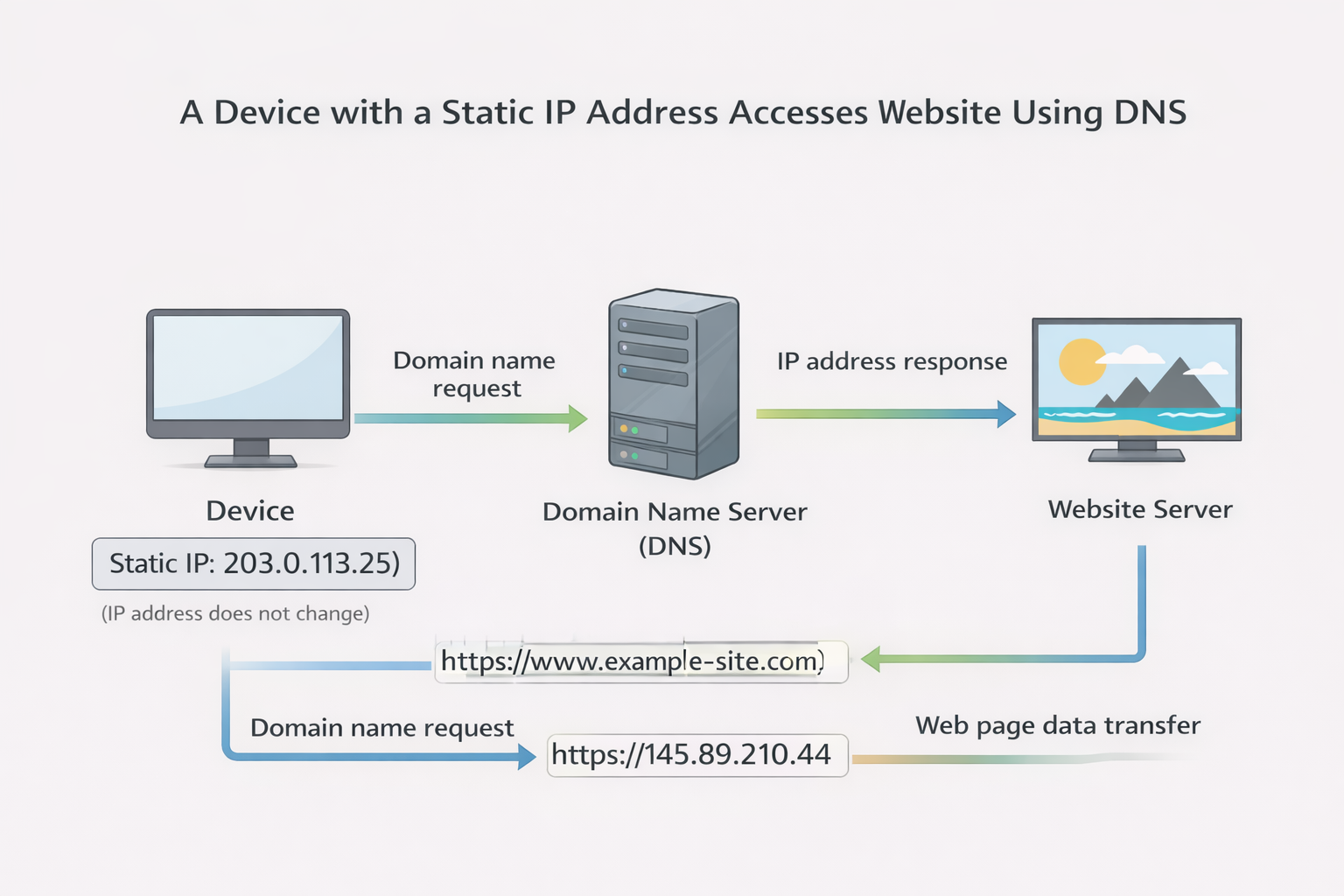
Static IP:

  • • Does not change; it is permanently assigned by the ISP
  • • Typically assigned to:
    • - Remote servers
    • - Online databases
    • - FTP servers
Diagram showing how Static IP addresses work

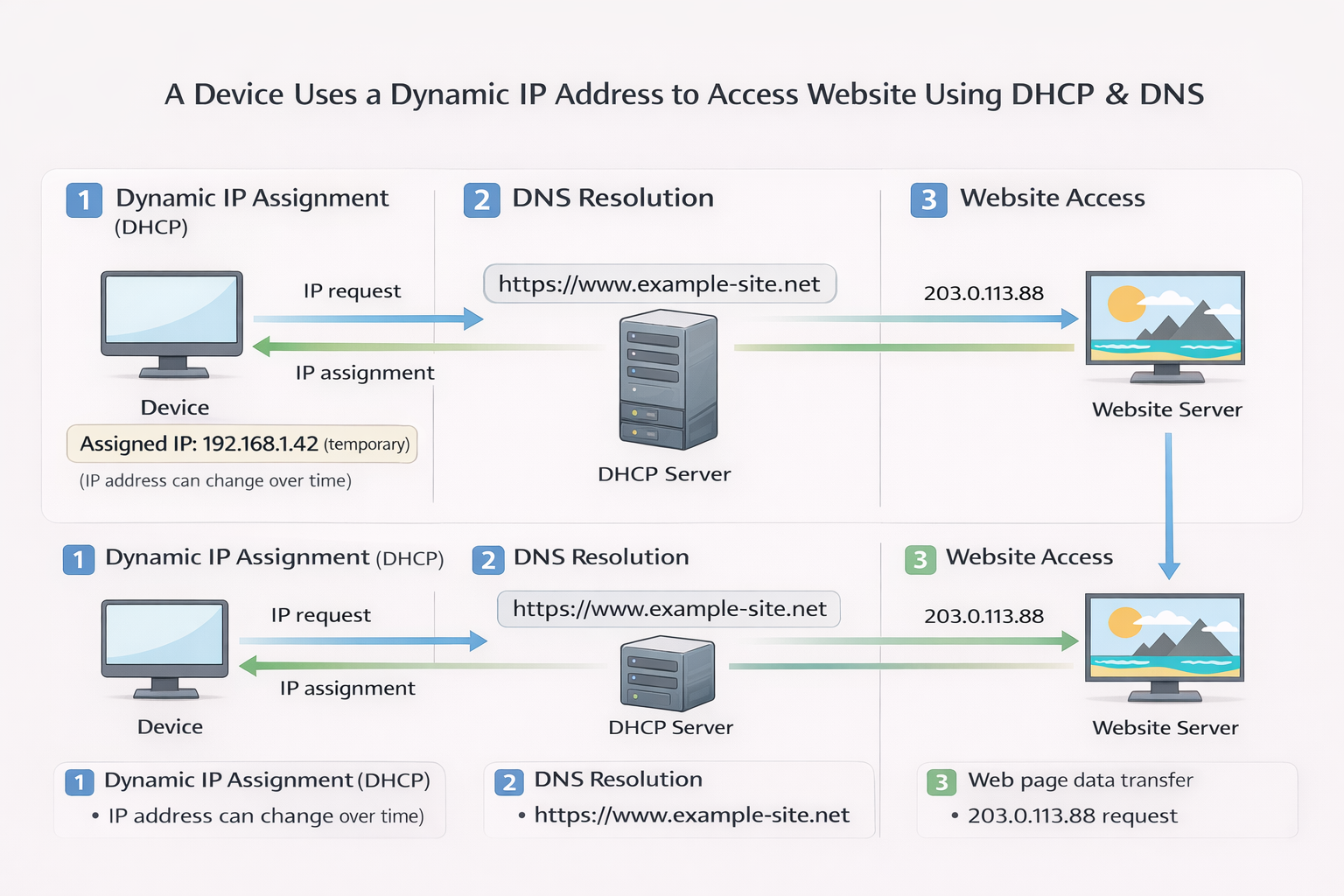
Dynamic IP:

  • • Assigned by the ISP each time you connect to the internet
  • • Managed using DHCP (Dynamic Host Configuration Protocol)
Diagram showing how Dynamic IP and DHCP work

Dynamic IP vs Static IP Comparison

AspectDynamic IPStatic IP
PrivacyGreater privacyTraceable
VOIP IssuesCan cause issues in VOIP, potentially leading to connection failuresMore expensive to maintain but offers better consistency

Routers

  • Function: Enable data packet transfer between different networks (e.g., connecting LAN to WAN)
  • Conversion: Adjusts data formats between protocols, allowing diverse networks to communicate
  • Firewall Role: Positioned behind a firewall to secure the connected devices

Additional Network Topics

Computer Ports

  • Connects input/output devices to the computer
  • USB: Standard for data transfer; automatically detects connected devices
  • HDMI: Outputs high-definition audio and video to compatible devices
Practice Question
Past Paper

One benefit of using a USB connection is that it is a universal connection. State other advantages of using a USB connection.

Answer:

  • Supports different transmission speeds
  • High speed transmission
  • Automatically detected (not connected) // automatically downloads drivers
  • Powers the device (for data transfer)
  • Backward compatible

Wireless Networks

  • Bluetooth: Low-range, lower speed, ideal for close-device connections
  • Wi-Fi: Suited for broader range and faster speeds, used in large networks

Wired Networks

  • Twisted Pair, Coaxial, and Fiber Optic: Each has specific use cases based on data requirements and environmental conditions

Sensors

Diagram showing different types of sensors and their applications

Overview

  • Sensors are input devices that measure physical properties (e.g., temperature, pressure, pH, etc.)
  • Real-world data is analogue, meaning it constantly changes and must be converted into digital form for computers to process it. This is done using an Analogue to Digital Converter (ADC)
  • Digital to Analogue Converters (DAC) are used when a computer needs to send signals to control devices such as motors or valves, which require analogue input

Key Concepts:

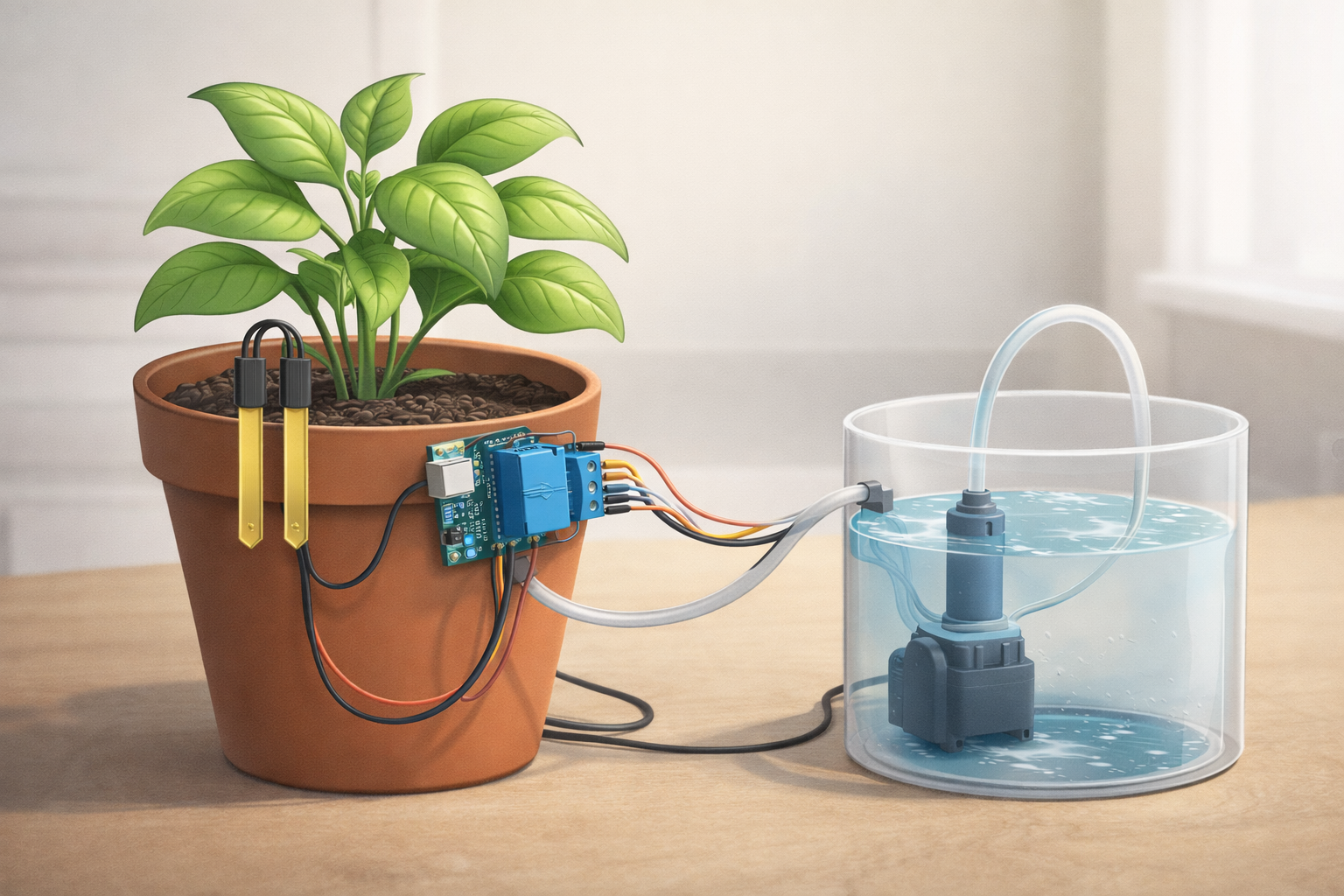
  • Feedback Systems: Sensor readings may cause the system to adjust the environment, leading to changes in subsequent sensor readings (e.g., adjusting a valve or motor)
  • Monitoring vs. Control Systems:
    • - Monitoring Systems: Sensors monitor data, and if values fall outside acceptable ranges, alarms or warnings are triggered
    • - Control Systems: Sensors provide data, and if values are outside set parameters, the system actively adjusts outputs like motors or valves to bring the system back within the desired range

Common Sensors and Applications

SensorDescriptionExample Applications
TemperatureMeasures surrounding temperatureCentral heating, chemical processes, greenhouse temperature control
MoistureMeasures water levels based on electrical resistanceSoil moisture control in greenhouses, food processing
HumidityMeasures water vapor in the airHumidity control in factories, greenhouses
LightUses photoelectric cells to measure light levelsAutomatic streetlights, car headlights
Infrared (Active)Measures broken infrared beamsAutomatic wipers, security systems
Infrared (Passive)Detects heat radiation from objectsSecurity systems, industrial freezers
PressureMeasures pressure appliedWeighing stations, nuclear reactors
AcousticConverts sound into electrical signalsSecurity systems, noise detection in pipes
GasDetects gases like oxygen and carbon dioxidePollution monitoring, greenhouse monitoring, car exhausts
pHMeasures acidity levelsSoil and chemical process control
Magnetic FieldDetects changes in magnetic fieldsAnti-lock braking systems (ABS), mobile phones
AccelerometerMeasures acceleration and motionAirbag deployment, mobile phone orientation
ProximityDetects nearby objectsMobile phone screen auto-off, proximity sensors in cars
FlowMeasures flow rate of gases or liquidsRespiratory devices, gas flow in pipes
LevelUses ultrasonics, capacitance, or conductivity to measure liquid levelsPetrol tank monitoring, pharmaceutical processes

Monitoring Applications:

1. Security Systems

  • • Sensors (infrared, acoustic, pressure) detect intruders
  • • Microprocessors analyze sensor data and activate alarms if parameters are exceeded

2. Patient Monitoring

  • • Sensors track vital signs (temperature, heart rate)
  • • Alarms sound if data falls outside acceptable ranges

3. Environmental Monitoring

Monitoring pollution, temperature, or moisture levels

Control Applications:

1. Street Lighting

  • • Light sensors detect ambient light levels and send signals to the microprocessor
  • • The streetlight is turned on or off based on the data

2. Anti-Lock Braking Systems (ABS)

  • • Magnetic field sensors detect wheel speed
  • • The microprocessor adjusts braking pressure to prevent wheel lock-up

3. Central Heating

  • • Temperature sensors track room temperature
  • • Microprocessors control gas valves and water pumps to regulate heating

4. Chemical Process Control

Temperature and pH sensors ensure optimal conditions for chemical reactions

5. Greenhouse Control

  • • Sensors monitor humidity, temperature, pH, light, and moisture levels
  • • Microprocessors adjust windows, water, heating, and light to maintain optimal conditions

Chapter Summary

This chapter covered computer architecture, CPU components, memory systems, input/output devices, data storage, and network hardware. Understanding these fundamental hardware concepts is essential for IGCSE O Level Computer Science.

Get in Touch
CodeHaven - Master Computer Science